
Tasks
The firm's work in one place — what is due, who has it, what is stuck waiting on a client, and what is ready to bill.
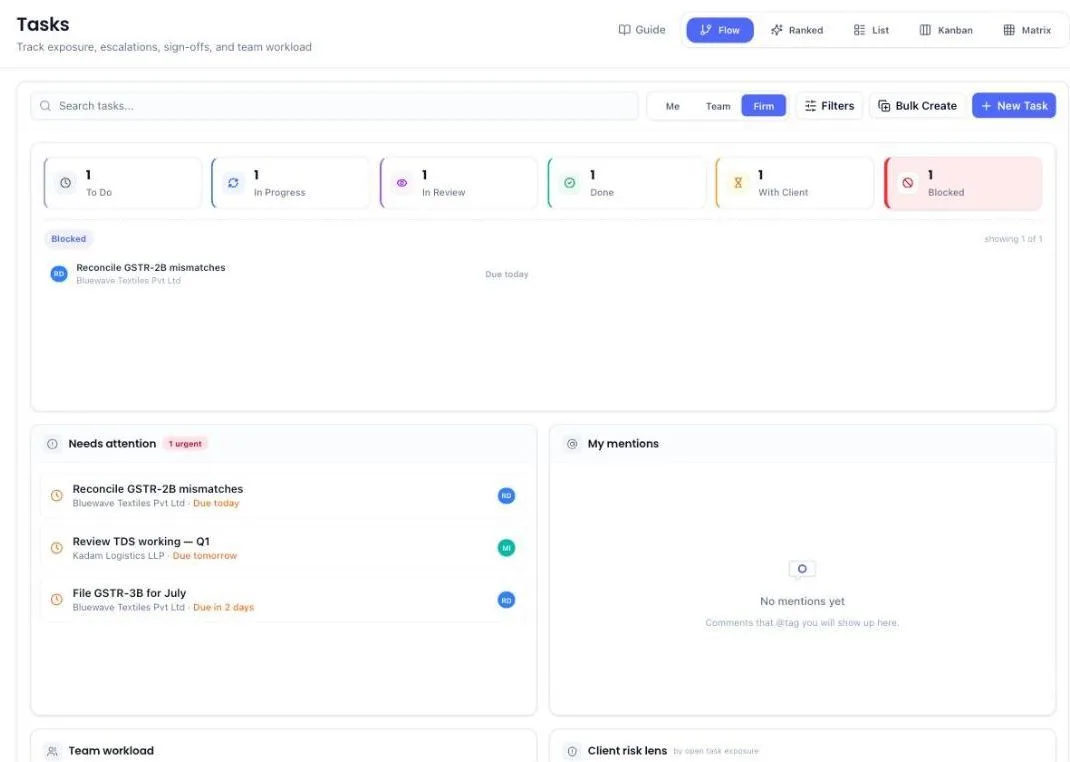
Tasks are the work itself. Some you create by hand; most appear on their own from filings that are coming due. The screen exists to answer three questions: what is due, who is carrying it, and what is stuck.
Before you start
- Somebody to assign to. Every task needs an assignee, so add your team first.
- Tasks are usually attached to a client, so a client business is useful but not required.
Create a task
- Open Tasks from the left menu.
- Click New Task, top right.
- Write a title that says what has to happen.
- Pick the assignee — required. A task with nobody on it is a note, not work.
- Attach the client if it relates to one.
- Set the due date — required. Work with no date on it is never counted as due or overdue, so nobody is reminded about it and it is only ever found by whoever scrolls the whole list. A date in the past is allowed, for work that was already due when you wrote it down.
- Set the priority.
- Save.
Use Bulk Create when the same job has to go out for many clients — one form instead of thirty. It asks for a due date too, and applies the same one to every task it creates.
Add work from before you used PracticeStacks
If your firm kept its work in a diary, a register or an Excel sheet before joining, you do not have to type it in one task at a time. Hand it to the AI Assistant and check what it reads.
- Open AI Assistant from the left menu. On an empty Tasks list, the link Had work before PracticeStacks? takes you to the same place.
- Attach what you have: photos of the diary pages (up to six at a time), one Excel or CSV sheet, or just type it, for example GSTR-3B for Sharma Traders, July to September 2025, all filed by Rahul. You can also drag files onto the chat or paste a screenshot.
- The assistant answers with a list: client, task, date, status and who did it, one line per job. Nothing is saved yet.
- Check the list. Change any line directly, untick the ones you do not want, or type a correction such as all of these were filed by Rahul and the list is redone.
- Tap Create. The tasks go onto your list, marked Imported.
What it fills in for you:
- Status. On a diary photo, only work the page marks as done — a tick, a strike-through, or done / filed beside it — comes in as Done; everything else is To do, because a diary is often a planner. From a sheet or typed notes, work dated before today comes in as Done. A status the source states always wins.
- Who did it. The person your notes name. If they name nobody, it is the client's relationship manager, and failing that, you.
- Client. Matched to your client list by name. A name that is not a client yet shows in amber: pick the right client, or tap Add "…" as a new client in the client box to create it from the name (partners, managers and administrators). A row left with no client keeps the written name in its task title.
Good to know:
- Nobody is messaged when you import. This is history being written down, not work being handed out, so no WhatsApp or email goes out about it. A line you leave as To do with a date already gone is open, overdue work, though, and from the next morning it is in that person's usual reminder like any other late task.
- Old finished work is not billable. It was billed before PracticeStacks, so it stays off your unbilled list.
- Importing the same page twice does not double it. A task with the same client, name and date as one already on your list is skipped, and the card tells you how many were skipped.
- Changed your mind? Undo on the card removes the tasks it created and gives you the list back to fix. A task somebody has since commented on, attached a file to, edited or billed is kept, and the message tells you how many were kept.
- View tasks on the card opens the list at the right year, showing only imported work.
- Your photos and files are only read. They are not kept. The chat is kept, so you can come back to a half-checked list tomorrow.
- A sheet is read up to its first 300 rows. Send the rest in a second message.
- If you can only raise tasks for yourself, everything you import is yours too.
The AI Assistant is in beta — it can misread handwriting, which is why every list is shown to you before anything is saved. It does more than import — see the AI Assistant guide.
Work through the stages
A task moves through: Pending, In Progress, In Review, Done. Pending means nobody has started it yet. The Flow view has no tile for it — its first tile counts what is Overdue instead (see below) — so to see everything not yet started, switch to List and group by Status, or open Kanban. Two more stages exist for when it is not moving:
- With Client — you are waiting on them for something.
- Blocked — something else has to happen first.
Use those two honestly. They are what separates "nobody has looked at this" from "we cannot proceed", and the difference decides who gets chased.
In List view each row starts with a single tick box, and that box does one job: picking the row out when you want to change several tasks together. The stage the task is at is written in words at the other end of the row — Pending, In Progress, In Review, With Client, Blocked or Done. Click it there to move the task on.
In List view, a task you mark Done leaves the group it was sitting in and drops into Completed at the bottom. That section is folded when you arrive so finished work does not crowd the screen, and it opens by itself the first time you finish something — whether you did it from the row or from the task's own panel — so you can see the task land. The task you finished most recently sits at the top of that section, so what you just closed is the first row you see.
Grouping the list. Above the rows, beside the task count, is a Group by box. It opens on Due date — overdue, today, this week, upcoming — and you can switch it to Status, Priority, Assignee, Type, Client or GST state. Grouping by status is the quickest way to see everything sitting With Client or Blocked in one block.
Working one state at a time. Group by GST state and each registration gets its own heading with a count beside it — Gujarat, Karnataka, Maharashtra — so "what is still open in Gujarat" is one glance instead of reading every row. Everything that is not filed per registration, which is all your non-GST work and every single-state client, sits in one block at the bottom headed Not filed per state; nothing is hidden. To narrow to a single registration instead of grouping, open Filters and pick the state under Any GST state. That box only appears once at least one of your filings is tracked per state — until then there would be nothing for it to choose between.
Which state a filing is for. A client registered for GST in three states files the same return three times — same name, same client, same day. Each row now carries the state it is for: Maharashtra, Gujarat, Karnataka. Hover the state to see the GSTIN it files under, where you have saved that login. Rows that still read alike for some other reason are numbered instead — 1 of 2, 2 of 2 — so none is missed. Open any row and Details on the right names the filing, the state, the GSTIN and the month.
Finish a task from WhatsApp
When a task lands on you, the WhatsApp message about it carries two buttons: Working on it and Mark Complete. Tapping one changes the task — you do not have to open the dashboard — and a message comes straight back saying what happened.
- Working on it moves the task to In Progress.
- Mark Complete closes the task — unless it has a reviewer. Where a reviewer is set, the task moves to In Review instead, the reviewer is sent a message of their own with Approve and Send back on it, and your reply names the person it is now sitting with. It is not finished until they approve it.
- Approve closes the task, asks the client for feedback and creates the next round of a repeating job, exactly as closing it on screen would. Send back returns it to you as In Progress and tells you.
The buttons work from either number saved on your account — your WhatsApp number, or the phone number you sign in with. Tap one from some other handset and the reply tells you the task could not be updated from that number; correct it under Settings → My account → Personal details, or open the dashboard and set the status there.
Pick the view that fits
- Flow — the default working view.
- Ranked — ordered by what matters most, with the reason for the ranking shown.
- List — a plain table to scan or filter.
- Kanban — columns by stage, drag to move.
- Matrix — clients down the side and compliance categories across the top, to spot a client with too much open.
Matrix opens at category level. Each column is one of your compliance categories — Direct Tax, GST, TDS, or whatever categories you have set up under Compliance — rather than one column per filing. A client's cell reads like 2/4: two of that client's four filings in that category are filed. Beside the count sits at most one mark, for the most urgent thing in the category: a red dot if any of those filings is overdue, an amber dot if one is due in the next seven days and nobody has started it yet, and a green tick once all of them are filed. No mark means nothing in it is late or about to be. Hover a cell to see the whole breakdown in words — how many are filed, overdue, due soon, in progress, in review, waiting on the client, blocked or due later. The key above the grid counts Overdue, Within 7 days and Filed; More beside it holds the rest. Search, Filters and Me, Team and Firm change these counts the same way they change the rest of the grid.
Click a category's heading, or any client's cell under it, to open that category into one column per filing — each showing that client's due date, how many days late it is, or a tick if it is filed. Click the heading again to fold it back. Each category opens and closes on its own, so Direct Tax can stay open while GST stays folded. When there is more than one category, Expand all above the grid opens every one at once and then reads Collapse all. The Matrix always opens folded when you come back to it.
Matrix on a phone. The grid does not fit a phone screen, so on a phone the same information stacks instead. You get one card per client, showing how many of that client's compliances are filed, and inside the card a line for each category the client is tracked for, with its count spelled out — 1/4 filed · 1 late · 1 due soon. Tap a category to open it: a line appears for each of its compliances, named in full, with that client's own due date beside it, or how many days late it is, or a tick if it is filed. Tap that line to open the task. Opening a category on one card leaves the other cards folded.
Alongside those, switch between Me, Team and Firm to change whose work you are looking at.
Work you review is in your list too. Your list is not only what you were given. Anything you are set as reviewer on is in it as well, and from the day the task is created — not only once somebody sends it for review. That is deliberate: a filing you have to sign off is your problem before it is late, not after. On Flow, List and Kanban those rows carry a small Your review mark, and the reviewer's face sits beside the assignee's, so you can tell at a glance which rows are yours to sign off rather than yours to do. Hover either face to see whose it is. All three of Me, Team and Firm keep your review work — none of them takes it away.
See what is overdue
The first tile on the Flow view is Overdue: every open task whose due date has passed, whatever stage it is at. A filing parked With Client or sitting In Review is still late, so it is counted here too. Anything marked Done is not.
The tile shows one number — how many tasks are overdue, such as 31 — the same single figure every other tile in the row shows. Hover the number to see it against the month in front of you: 31 of 58 open tasks due by the end of this month are overdue. The 58 there is everything overdue plus whatever is still due before the 1st of next month; work due next month or later is left out.
When anything is late, Flow opens with this tile already picked; otherwise click it. The list under the tiles then shows one line per late task:
- The task and its client.
- Assignee — who is doing it.
- Manager — the person that assignee reports to, as recorded on the Team screen. A dash means nobody is recorded.
- Due — the date it was due.
- Late by — how many days overdue: amber up to a week, orange up to a month, red beyond that.
The most overdue task is at the top. Click Most overdue first to flip the order.
Above the list, All, 1–7 days, 8–30 days and 30+ days narrow it to one range, each with its count beside it. On a phone they read 1–7d, 8–30d and 30+d, the sort button is an arrow on its own, and the assignee, manager and due date sit under the task name.
Click a row to open that task. The Open all … overdue in List link under the list takes you to List view showing only overdue work — all of it, not just the range you picked — where you can tick tasks and change them together (see Change many tasks at once below).
The count keeps itself current. It refreshes about once a minute while you are on the page, and again whenever you come back to the tab, so a colleague closing a task — or midnight tipping a task due today into overdue — shows up without reloading. Me, Team, Firm and Filters apply to it like everything else on the screen.
See who is carrying the work
Down the Flow view is a Team workload panel. It lists your people by reporting line, so you can see who manages whom and how the work is spread across each team rather than reading one long list of names.
Each manager heads their own block:
- The manager's own line shows what they are carrying — their open tasks, and how many of those are overdue. A manager who has nothing open themselves reads Nothing open, and still heads their team.
- The line under it is the team as a whole — Team of 6 · 207 tasks · 7 overdue — counting the manager and everyone shown beneath them.
- Their people follow, indented, busiest first, each with their own task count and overdue count.
The busiest team comes first, so whoever needs a decision is at the top. The bar beside each name compares that person against the busiest person on the panel — it is a rough shape, not a percentage.
Only open work is counted. Anything marked Done drops off, so the numbers fall as the day goes on.
Where the reporting lines come from. The grouping follows the manager recorded against each person on the Team screen — not their job title. So somebody titled Manager with nobody recorded under them is listed as an ordinary person, and somebody at any level who does have people under them heads a block. Anyone whose manager is not on the panel collects at the bottom under No manager assigned; set their manager on the Team screen and they move up into that team.
The panel is for firm owners, administrators, managers and partners. A manager sees their own team; a partner sees their practice.
What a task shows when you open it
The top of the panel carries the stage, the priority, the client and the due date. Under that, Status & Schedule holds the three things every task has: its stage, its priority and its due date. That is the whole of it for most work.
A task the system made on its own says so. Under Details, its Source line reads Created automatically from client compliance, from a repeating task or from a signed proposal, with a short line under it saying when that kind of task appears. Work added from your old records reads Added from the firm's old records with the AI Assistant.
Below those, firm owners, administrators, managers and partners see one folded line reading Add scheduling & risk details. Open it only when you want to tell the Ranked view more about the job — all four are optional:
- Promised to client — a date you gave the client yourself, separate from the statutory deadline. The due date above is still the one that counts.
- Time needed — rough hours. Under an hour counts as a quick win and is lifted so you can clear it.
- Fee at stake — your fee for the job. Bigger fees move the task up.
- Waiting on task — the task that has to finish first. Until it does, this one sits lower down.
Once something is filled in, the folded line shows it in short — Promised 28-08-2026 · 2h · ₹25,000 — so nothing you saved is ever hidden from you. Executors do not see this section at all; it is for whoever decides the order of the work.
Change many tasks at once
Pushing a deadline out across thirty filings should not mean opening thirty tasks. In List view you can tick several and change them together.
- Switch to List view.
- Narrow the list first — search, or use Filters — so what is on screen is what you mean to change.
- Tick the box at the left of each task you want. To take a whole section at once — everything overdue, everything due today — tick the box in that section's grey heading row.
- A small bar floats up at the bottom of the screen. It says how many tasks you have, then offers Executor, Reviewer, Due date, Status and Priority.
- Click one and choose. That is the whole action — there is no Save button, because the change is written the moment you pick.
A message then tells you how many tasks changed. Your ticks are cleared afterwards, so tick the tasks again if you want to change a second thing about them.
The same bar works on a client's page. Open the client, go to Work and pick Tasks. Tick that client's tasks and the same bar appears, with the same five buttons — so you can give all of one client's work a new reviewer, push its dates or raise its priority without leaving the client.
Executor and Reviewer open a searchable list of your team — type a name rather than scrolling. Reviewer also offers No reviewer, to take one off. Anybody who has left the firm, or whose last working day is already recorded, is left out of both lists: they cannot take on new work.
Due date opens with Today, Tomorrow, In a week and In a month for the common jumps, and a calendar underneath for a specific day. You can move a deadline as far out as you like, but you cannot take it off — every task keeps a date.
Priority offers Urgent, High, Medium and Low.
A few things worth knowing:
- Up to 200 tasks in one go.
- Changing a status, a due date or a priority is open to whoever can edit the task — your own work and anything you are reviewing. Only firm owners, administrators, managers and partners see the Executor and Reviewer buttons.
- Anything in your selection that is not yours to edit is left alone, and the message says how many were skipped.
- Changing a filter drops anything that left the screen from your selection, so you never change a task you can no longer see.
- Moving work to somebody tells them — but only for five tasks or fewer. Hand over more than that and they see it in their next daily digest instead of a stack of separate alerts.
- Moving a filing's task moves the filing. Where the task came from a client's compliance, the new person also becomes that filing's executor on the client's Compliance tab — so every following month goes to them as well, and the tab never names somebody who no longer has the work.
- Every move is written on the task itself — who had it, who took it, who moved it and when — so a reshuffle can be read back months later.
- Marking client work Done still asks those clients for feedback, and still creates the next round of any repeating job that has reached its due date, exactly as finishing the tasks one at a time would.
Split a job between people with subtasks
Some work is one job but several people. A statutory audit might have GST reconciliation with one person, payroll reconciliation with another and fixed assets with a third. Put each piece on the job as a subtask, so everyone knows exactly which part is theirs. The client is still billed once, for the job.
- Open the task and stay on Details.
- Under Subtasks, click Add subtask.
- Type what the piece is, for example GST reconciliation.
- Under Who does it, pick the person. It starts on whoever has the main task.
- Check the Due date. It starts on the main task's due date.
- Click Save subtask. The form stays open for the next piece. Click Done adding when you have finished.
You can also add them while creating the task: New Task has a Subtasks box near the bottom. Click Add subtask for each piece and pick who does it. Leave the person empty and the piece goes to whoever you assign the main task to.
If you have saved a list of usual subtasks for a service, you do not have to type them. In New Task, pick the service under Start from a service or compliance and its subtasks fill in, each with its usual person. On a task that already exists, click From a service in the Subtasks section and pick the service. The list is set up on the Services screen; see the Services guide.
What happens next:
- Each person gets their piece. It appears in their own task list and they get the usual WhatsApp and email. The message names the job as well as the piece, for example Statutory Audit › GST reconciliation, so they know which audit it belongs to. Their Mark Complete button in WhatsApp works on their piece.
- You see progress on the job. The Subtasks section shows 2 of 4 done, with each piece, its person and its due date. In the task list the job reads 2/4 subtasks, and each piece reads Part of Statutory Audit. Tick the circle beside a piece to mark it done from the job itself.
- When the last piece is done, the job moves to In Review. If the job has a reviewer, they are told and can approve it from WhatsApp. If it has none, the person who has the job is told. Closing the job is still a person's decision, because a closed job goes to billing.
- Only the job is billed. Subtasks are never billable. They do not appear in the billing queue or on the client's invoice, and none of them can be switched to billable.
If you mark the job Done while pieces are still open, it tells you which pieces and whose they are before anything changes. Close all closes the job and every open piece. Close main task only leaves the pieces open for their owners. Cancel changes nothing.
Discuss a task
Open a task and comment on it. Keep the discussion on the task rather than in chat, so the next person to open it can see why it went the way it did.
Every comment is emailed to the firm owner and to that task's reviewer, so a conversation on a task does not go unnoticed by the people answerable for it. Nobody is emailed about their own comment.
To reach a specific colleague, type @ and their first name. Matching names open just above the box with one of them already picked out. Press Enter to drop that name into the comment, or move up and down the list with the arrow keys first if the one you want is not the one picked out. Clicking a name still works exactly as before. A tagged person gets a WhatsApp message as well as the email, and the comment appears in their My mentions panel. Tag the assignee if you need them specifically — they are not emailed on every comment, because they are usually the one writing them.
See where a task has been
A task shows the person carrying it now, which is all you need most days and not enough when work has moved. Open a task and look for Handover History in the details on the right. Each time it changed hands you get one line: who held it, who took it, the date, who moved it, and the reason given. A task that has never moved has no such section.
This is what answers "who was on this before they left" — the name of the previous holder is kept even after they are marked as having left the firm.
Recurring work
A task set to repeat — daily, weekly, monthly, quarterly, yearly — creates the next one automatically as the current one is finished. Set it up once for standing work.
The new one carries the next due date in the series, not the one you just closed. So finishing today's copy leaves you with a fresh task for next month, still to do — that is the schedule working, not the old task reopening.
Only the round that has actually come due hands the schedule on. Tick off a copy dated months ahead — because the work went out early, or you are tidying up — and it simply closes; nothing new appears. The following round is created once its own date arrives. That is what stops a few clicks from walking a monthly job a year into the future.
If the person who finished the last round has since left the firm, the next round goes to whoever took their work over when their exit was recorded — the finished copy still shows the name of whoever actually did it. Where nobody was recorded as taking over, the next round is not created at all: a filing sitting on an account that can no longer sign in is work nobody sees.
When tasks appear on their own
Most tasks on the board were never typed in by anyone. This is every way one arrives by itself, and when.
Compliance filings
- The first one, straight away. Attach a filing to a client with an executor set and its task for the next due date is created there and then. Assigning it from the Compliance page also sends the executor a WhatsApp and an email. Switching it on from the client's own Compliance tab, or finishing an onboarding, puts the task on their board without a message.
- Every one after that, on the 1st of the month it is due. Each morning at about 4 AM the system creates the task for every filing whose month has begun. PF due on 15 September appears on 1 September.
- Never less than a week ahead. A filing due in the first few days of a month appears seven days before instead. A TDS payment due on 7 October appears on 30 September.
- Two dates in the same month. The later date's task appears the morning after the earlier date has passed.
- Weekly work. Next week's task appears the morning after this week's date.
- One-time filings. The same rule, once. A one-time filing whose date has already gone still gets its task, so an overdue job reaches the board.
| Filing | Due | Task appears |
|---|---|---|
| PF return (monthly) | 15 Sep | 1 Sep |
| GSTR-1 (monthly) | 11 Oct | 1 Oct |
| TDS payment (monthly) | 7 Oct | 30 Sep |
| TDS return (quarterly) | 31 Oct | 1 Oct |
| Income tax return (yearly) | 31 Jul | 1 Jul |
Where to see the date for a client. On a client's Compliance tab, every filing with an executor shows when its next task arrives — Next task on 1 Oct · due 15 Oct, or Next task tomorrow morning when the next morning run will bring it. Hover it to see the rule. A filing split by GST state shows the date on each state's line, because each state has its own task.
Who is told. Nobody gets a separate message when the morning run creates a task. The filing shows up in the executor's and the reviewer's morning plan (see below): under Filings this week from seven days before its due date, then under Due today or Already overdue. Ten clients on the same filing are one line listing all ten, not ten messages.
What never makes a task. A filing with no executor, and a filing with no due date. Opening the app does not create anything either: tasks come from the morning run and from the moment a filing is attached, never from somebody visiting a page. The morning run never makes a second task for the same filing and date, however often it runs, and finishing a task early does not bring the next one forward.
Everything else that creates a task
- A signed proposal. When the client signs, each one-off service in it becomes a task for the client's relationship manager, due a week later, and they are messaged. Recurring filings in the proposal are attached with the relationship manager as executor, and their tasks come from the morning run described above.
- Repeating tasks. The next round is created when the current one is finished. A round left open past its due date still gets its next round the following morning, until three rounds of the same job are open at once.
- A client's concern. A client who answers a feedback request with a concern raises a task for it, on the person who did the work, due two days later.
- An automation rule. A rule that creates a follow-up task makes one each time it fires, on whoever holds the lead or the proposal, or on the firm owner if nobody does.
What the system does on its own
- A filing tracked in more than one state becomes one task per state. Each state has its own executor, its own due date and its own reminders, and the state is part of the task's name — so the WhatsApp reminder, the client's email and the invoice line all say which registration they are about.
- Compliance tasks appear at the start of the month they are due in, assigned to the executor — PF due on 15 September is on the board from 1 September. A filing due in the first week of a month appears a week ahead instead. They are not announced one by one: the filing appears in the executor's and reviewer's morning plan for the week before it is due. One task per filing — finishing it ahead of the deadline does not make another appear the next night.
- Handing over a compliance task hands over the filing. Change the executor or the reviewer on a task that came from a client's compliance — one task at a time or a whole batch — and that client's Compliance tab is updated to match. Every following month is then created for the new person, without anyone having to assign it a second time.
- Recurring tasks respawn on their schedule, and follow a handover — if the person who did the last round has left, the next one is created for whoever took over their work.
- One morning plan at 9 AM goes to each person — one message, whatever the volume. It lists their tasks that are overdue, due today and due on the next working day; filings due this week for clients they file or review, every client named; lead calls due today or overdue; clients who asked for help, said a filing does not apply, said they already gave the documents, or are past their document deadline; and work waiting for their review. It comes on WhatsApp with an Open my plan button. If WhatsApp cannot reach the person, for example because no number is saved, it comes by email instead. On a Friday it covers Monday's work when your weekend is off. On a closed day, or with Morning plan switched off under Settings → Notifications → Reminders, the task lists drop out but filings, lead calls and documents still arrive.
- A weekly plan reaches each person on the first working day of the week: their own tasks due that week, by email and WhatsApp.
- A monthly plan reaches each person on the first working day of the month: their own tasks due that month. When the week and the month start on the same day, it is one message, not two. Either can be switched off in Settings → Notifications → Reminders.
- An end-of-day summary covers what moved and what did not.
- A weekly roll-up goes to managers and partners on their team's backlog. Weekly rather than daily, on purpose — the assignees are already being reminded every morning.
- Comments are announced to the firm owner and the task's reviewer by email, and to anyone tagged by name on WhatsApp as well.
- Waiting on a client clears itself. Where document collection is running, a task parked on the client returns to the board the moment the documents land, and the executor is told.
- Finishing a client task triggers a feedback request to that client. Finishing a subtask does not; the client is asked once, when the job is done.
- A job's last open subtask moves the job to In Review, and its reviewer (or, with no reviewer, its own person) is told.
- A recurring job brings its subtasks with it. Next cycle's job arrives with the same pieces, for the same people, open again. If one of them has left, their piece goes to whoever took over their work.
- A client who answers a feedback request with a concern raises a task for it, on the person who did the work, due two days later.
What you cannot do (and what to do instead)
- Not everyone can create, delete or reassign tasks. That is limited to managers and partners. If you need one raised, ask your manager — or have your role changed on the Team screen.
- You cannot save a task with nobody assigned. Assign it to yourself if you do not know who yet.
- You cannot save a task with no due date, and you cannot take the date off one later. Put in the day you next want to look at it and move it out as often as you need to.
- You cannot hand work to somebody who has left, or to somebody whose last working day is already on record. They are not offered in the Executor or Reviewer lists. Tasks they already hold keep showing their name until those are moved.
- A task cannot depend on itself, and the same dependency cannot be added twice.
- You cannot see Tasks if the module is off for your firm. Your firm administrator switches it on.
- A subtask cannot have subtasks of its own. Add the extra piece to the main job instead.
- A subtask cannot be billed. Only the job goes on the invoice. If a piece really is separate chargeable work, create it as its own task, not as a subtask.
- If you are not a manager or partner, the subtasks you add are yours. Ask your manager to give a piece to somebody else.
- The open-pieces warning only appears when you close the job from the task itself. Ticking the job in the list, dragging it on the board, changing many tasks at once or tapping Mark Complete in WhatsApp closes it without asking. Open the job first if you want to see what is still open.
- You cannot bill the same work twice. Work already on an invoice is refused by the billing queue — raise a credit note if the invoice was wrong.
Common questions
Will the subtasks show on the client's invoice?
No. Only the main task is billed. Subtasks exist so each person knows their part; they never reach the billing queue.
Why did tasks appear that nobody created?
They came from compliance, a signed proposal, a repeating task, a client's concern or an automation rule. Compliance is the usual one: each filing's task appears on the 1st of the month it is due in — or a week ahead, if it falls in the first week — assigned to whoever is set as executor. When tasks appear on their own above lists every source and when each one fires.
I tapped Mark Complete in WhatsApp and the task still is not Done.
The task has a reviewer on it. Work that somebody reviews goes to In Review when you finish it, not straight to Done — that is the review step doing its job, not a failed tap. The reply you get names who it is with, and they have Approve and Send back buttons on their own message. Once they approve, it is Done and you are told. Needed it closed there and then? Open the task and set it to Done yourself, or take the reviewer off it.
I tapped a button in WhatsApp and nothing happened at all.
You always get a reply now. If it says the task could not be updated from that number, the phone you tapped from is not one of the numbers saved against your account — correct it under Settings → My account → Personal details, or set the status in the dashboard. If the reply says the task is already complete, or already with your reviewer, somebody got there first: open the task to see who.
Somebody is showing under "No manager assigned" in Team workload.
Nobody is recorded as their manager, or the person who is has no open work of their own and nobody else reporting to them on this panel. Open the Team screen, edit that person, and set their manager. They move into that manager's block the next time the Tasks screen loads.
Somebody with the job title of Manager is listed as an ordinary person in Team workload.
The panel follows who actually reports to whom, not job titles — it heads a block only where somebody is recorded as reporting to that person. Set their team members' manager on the Team screen and they will head a block. Until then they are shown as an ordinary person so you never see a manager's heading with nobody underneath it.
A manager's own number looks too small next to their team's.
They are two different figures on purpose. The number on the manager's own line is the work they are carrying. The line just below it — Team of 6 · 207 tasks — is the whole team, the manager included. A manager who reviews rather than executes will always have the smaller of the two.
How do I change who checks a task — its manager or supervisor?
That person is the task's Reviewer. On one task, open it and change Reviewer in the details on the right. On many at once — from the Tasks screen or from a client's Work → Tasks — tick the tasks and use Reviewer in the bar at the bottom. The Manager shown on the Overdue list and in Team workload is something else: the person the assignee reports to, which you change on the Team screen.
A task is in my list for a client I do not handle, given to somebody who does not report to me.
You are the reviewer on it. The row says so whichever view you work in — a Your review mark on it, and a second face beside the assignee's. In List view the right-hand column spells it out as well, printing Reviewer: your name under the person actually doing the work. Reviewers see the work from the day it is created, not only once it reaches In Review, so a filing another team is doing sits in your list with their name on it and their client beside it. Nothing has gone wrong, and nobody else's work has leaked into your screen.
If it should not be yours, open the task and change the Reviewer in the details on the right — firm owners, administrators, managers and partners can. Where the task came from a client's compliance, that also updates the filing on the client's Compliance tab, so the following months stop coming to you. To clear a batch in one go, switch to List view, tick the rows and use Reviewer in the bar at the bottom, which also offers No reviewer.
What is the difference between Blocked and With Client?
With Client means you are waiting on the client. Blocked means something internal is in the way. They are chased differently.
Where did the To Do count on the Flow view go?
It was replaced by Overdue. A count of work nobody has started says nothing about which of it is late; the Overdue count does. Every task not started yet is still there — switch to List and group by Status to see them under Pending, or open Kanban. If your filters leave only work nobody has started, and none of it late, Flow says so and links straight to it in List.
I do not know when this task is due. What do I put in?
The day you next want to look at it. The date is not a promise — you can push it out whenever you like, as often as you like, on the task itself or on a whole batch at once. What you cannot do is leave it empty, because a task with no date is not counted as due or overdue anywhere: it is in nobody's morning reminder and in nobody's overdue list, and it is only found by whoever happens to scroll past it.
The work was due last week. Will it let me put in a date that has gone?
Yes. Write down the real deadline even if it has passed — the task shows up as overdue straight away, which is the point.
How do I add tasks we did before we started using PracticeStacks?
Use the AI Assistant in the left menu. Send it photos of your diary, your Excel sheet, or just type the work. It lists every task it found for you to check, and nothing is saved until you tap Create. Finished old work is not billable, and nobody is sent a message. See Add work from before you used PracticeStacks above.
Somebody says they were told about a task before I assigned it to them.
They were most likely given it already, from the Tasks screen rather than from the client's Compliance tab — whoever moves a task is told the moment it moves. Open the task and read Handover History on the right: it names who moved it, to whom, and when. The two screens are kept in step with each other now, so the Compliance tab shows whoever actually holds the work and you will not assign the same person twice.
I moved a compliance task to somebody, and the next month went back to the old person.
That does not happen any more. Moving the task moves the filing with it — the client's Compliance tab is set to the new executor, and every following month is created for them. Either end works: change it on the task, or change it on the Compliance tab, and the other side follows.
Where do I see what stage a task is at in List view?
At the far end of the row, written in words — Pending, In Progress, In Review, With Client, Blocked or Done. Click it there to move the task on. Nothing sits beside the tick box on the left any more: that box is only for selecting rows.
I marked a task Done, and one that looks the same is still showing as Pending.
Look at the due date on the two rows. Your finished one is in the Completed section at the bottom of the List view. If a task with the same title is still open above it, it is the next round of the same standing job and carries a later due date — repeating work creates the following cycle the moment you close the current one. Where both rows carry the same due date, look at the mark on them — 1 of 2, 2 of 2 — and open each one: a client filing in more than one state has one task per registration, and both are real work. If the two turn out to be the same filing twice over, that was a fault that has since been fixed and the copies already made have been cleared out — see the question below.
If the copy you finished was dated well ahead of today, no replacement is created at all — closing next year's round early does not bring the year forward.
Three tasks for one client have the same name and the same due date. Which is which?
Look at the state on each row. A client registered for GST in three states files three separate returns that all fall on the same day, and each task now names its own state. If the rows carry no state, the filing has not been split per registration yet — open the client, go to their Compliance tab, find the filing and use File this per state underneath it to add each registration. Where you have already saved that client's GST logins, the filing does not wait to be asked: it names the states the client is registered in and offers to split them all in one click. Otherwise pick them yourself — the states you hold a login for are offered first with their GSTIN beside them, and any other state can be chosen from the full list. Each state you add gets its own task from that point on. Rows that still look identical after that are numbered 1 of 2, 2 of 2 so you can work through them.
The same filing appeared once a day until it was due. Are those real?
No — those were the same task written again each night, and they are gone. For a spell, a filing due on the 11th could pick up a fresh copy of itself every evening from the 5th onwards: six rows with one name, one client and one date. Whichever you ticked, five stayed. That has been fixed, and the copies that were already made have been removed — the one carrying your comments, files or the client's feedback is the one kept. Nothing that was worked on was thrown away. If a client was asked more than once how a filing went, the extra requests have been withdrawn; a reply they had already given is untouched.
On my phone the Matrix view does not show which compliance a task is for.
It does — as cards rather than a grid. Each client is a card with a line for each category; tap a category and every line under it is one compliance, named in full with its due date. If you are still seeing a side-scrolling grid on a phone, refresh the page.
The Matrix used to show every compliance as its own column. Where did they go?
They are inside their categories. The Matrix now opens with one column per category, so a firm tracking fifty filings is not handed fifty columns. Click a category's heading to see its filings, or click Expand all to see every filing as its own column again.
Someone left the firm and holds open tasks.
Record their exit on the Team screen and name who takes over — everything still open moves in one step, and repeating work follows the same person from then on. To move a smaller batch by hand instead: in List view, filter by that person, tick the section heading to take everything, then choose the new Executor in the bar at the bottom.
Who had this task before me?
Open it and read Handover History in the details on the right. It lists every move the task has been through, with the date, the person who moved it, and the reason. Nothing appears there if the task has always been yours.
I ticked some tasks but the bar has no Executor or Reviewer button.
Those two are for firm owners, administrators, managers and partners. You can still set the status, the due date and the priority on your own work and on anything you review.
A task used to show SLA deadline, Estimated hours, Fee at risk and Blocked by. Where have they gone?
Nowhere — they are folded away and renamed. Open a task and, under the due date, click Add scheduling & risk details. Inside you get Promised to client, Time needed, Fee at stake and Waiting on task. Anything already filled in is shown in short on the folded line, so you can see at a glance whether there is something inside. Only firm owners, administrators, managers and partners see it.
What is the difference between the due date and Promised to client?
The due date is the one that counts — it drives whether the task is overdue, who is reminded and when. Promised to client is only for when you told a client you would have it to them earlier than the deadline, and it exists so the Ranked view can lift that job before it embarrasses you. If you never make promises like that, leave it empty.
What does the ranking in Ranked view use?
How close the deadline is, how overdue it already is, whether it is a statutory filing, the priority you set, and anything you put under Add scheduling & risk details — the date you promised the client, the fee at stake, and how long the job takes. Work parked on a client, or waiting on another task, is pushed down because nobody can move it today. Open a task and it tells you why it ranks where it does.
I own the firm. Will I get a WhatsApp every time one of my team is given a compliance task?
No. When a filing's task appears, only the person doing it and the manager they report to are messaged. The firm owner and administrators are left out, even where they are set as somebody's manager — you see all of it on the Tasks screen under Firm instead. A task given to you yourself still reaches you, because that one is your work.
A task appeared on my board and nobody told me.
Two things put a task there without a message. A filing switched on from the client's Compliance tab, or through an onboarding, gets its first task with no message. And the morning run adds a task quietly when it arrives more than two days after the day it should have appeared while its due date is still over a week away. Firm administrators can open the task's Notifications tab to see what, if anything, was sent.
Somebody should have been notified and was not.
Open the task and go to the Notifications tab, which firm administrators can see. It lists every message the system tried to send for that task, who it was for, which channel it went by, and whether it arrived. Where one failed, the reason is printed next to it — a missing email address, a phone number that is not on WhatsApp, and so on. That is the place to look before assuming nothing was sent. A combined message about several clients covers many tasks at once, so it is not listed on any single task's Notifications tab.
A teammate has no WhatsApp number, or their number is not on WhatsApp.
They still get the email. Add or correct the number on the Team screen — the Notifications tab on the task will say plainly which of the two was missing.
More guides
Every other part of the product, the same way.