
Businesses
Your client list: company details, the people you deal with, and the switches that control what each client is sent.
A business is a client company. Everything else in the product hangs off it — proposals, filings, invoices, tasks and emails all point back to a business. Contacts are the people at that company you actually deal with.
Before you start
Nothing. A business can be created directly, or produced automatically when you convert a lead.
Add a client business
- Open Businesses from the left menu.
- Click Add Business, top right.
- Optional, but it saves typing: use Find Business on Google at the top of the form. Type the company name and pick it from the list, and the name, address, phone and website are filled in for you.
- If Google does not list the company — plenty of smaller firms are not on it — pick Use “…” as business name at the bottom of that same list and carry on by hand. Nothing is lost by skipping the search.
- Fill in the company name, industry, contact number and office address. These four are required and carry a red asterisk.
- Add the official email. Google never supplies one, so this box is always yours to fill. It is optional, so a client whose address you do not have yet can still be saved.
- Add the website if you have it. It is optional, and it appears on documents later, so it saves work to fill it in now.
- If you already know who runs this client, pick the Relationship Manager and the team under Assign To. Both are optional and can be changed later from the list.
- Tick Assign to me if you will work this client yourself. Your own name is not in the Assign To list — this box is how you put yourself on.
- Save.
If you are a Manager, Assign to me is already ticked and cannot be unticked. Your Businesses list only shows the clients you manage or are assigned to, so a client you add is always kept on you — otherwise it would disappear from your own list the moment you saved it. Leave Relationship Manager empty and you become the relationship manager. Pick a colleague and they become it, while you stay on the client as one of the team. Partners, administrators and the firm owner start with the box unticked, because they already see every client in their practice. Whoever you are, picking yourself as the relationship manager shows the box ticked, because that already puts the client on your list.
A client saved with no email shows Add email in orange on the Businesses list, where the address would normally be. Click it to open the client and fill it in — until you do, that client is sent nothing by email: no filing reminder, no monthly calendar, no document request.
If the company name you type already belongs to a client or a lead, an amber panel appears at the top of the form naming that record, with Open beside it. Open it if it is the same company — a second record splits that client's proposals, filings and invoices across two pages, and neither page shows everything. If it is genuinely a different company that happens to share the name, click Add anyway — different company next to the save button and save. Sharing an email address with an existing client is only pointed out, never held against the save.
Add the people you deal with
- Switch to the Contacts tab, or open the business and work from there.
- Click Add Contact.
- Enter the person's name, their role at the company, and an email and phone.
- Mark one as the primary contact. That is who proposals and portal links go to unless you pick somebody else.
Add more than one where it matters — the director who signs and the accountant who sends the records are rarely the same person.
Which number a client is messaged on
A client's number sits in two separate places: on each contact, and on the business itself as the company's contact number.
- Messages to the client — document requests, filing reminders, onboarding invites — go to the numbers on the contacts.
- The company's own number is used only when no contact has a phone. It is a fallback, not an extra copy.
- If two contacts carry the same number, that person is messaged once, not twice — the same number written as +91 98765 43210 and 9876543210 counts as one number.
So when a client changes their phone, change it on the contact. The company number on the business is a different field and is not updated for you — if it still holds the old number, correct it there too from the business's own details. The Add/Edit Contact form shows the company number beside the phone box so you can see both at once.
Assign a relationship manager
Open the business and set the relationship manager to a member of your team. That person is who the system escalates to when a client goes quiet on documents, and who is reminded when billable work has piled up unbilled. A client with no manager escalates to the firm owner instead. The relationship manager is also what decides who can reach that client's portal logins, below.
Who is working a client
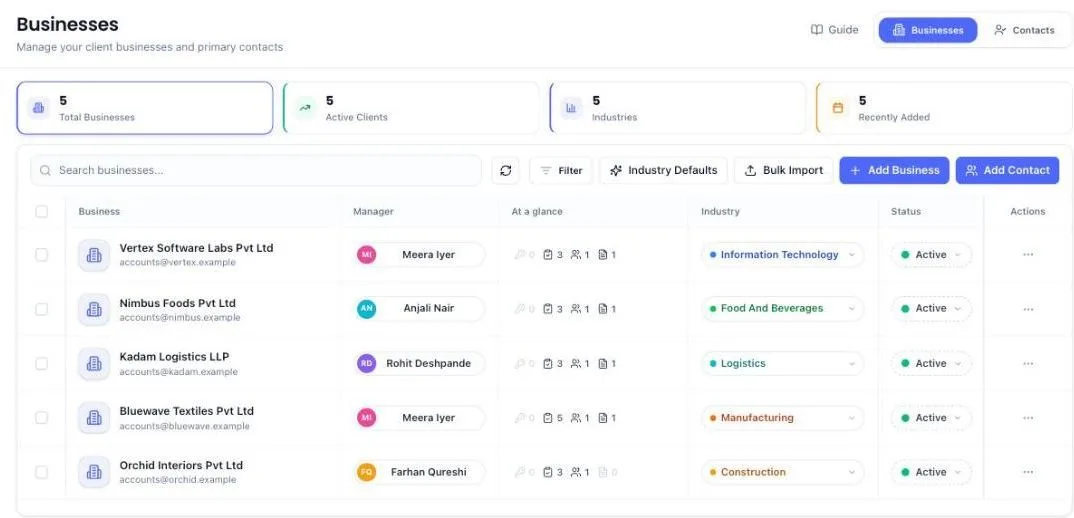
The Businesses list has two people columns, and they answer different questions.
- Manager is the relationship manager — who owns the relationship, who is escalated to when a client goes quiet, and who can reach the client's portal logins. In most firms one partner holds this on every client, so the column reads the same name down the page.
- Assigned to is the team you have put on that client. It is a list rather than one person, and you set it by hand. Where more than one name is on it, the first is shown with +2 beside it; rest your pointer on the cell to read them all.
To change it, click the cell itself, or open the row's ⋯ menu and choose Manage Assignment. Tick the names and save. A client nobody has been put on reads Assign instead of a name, and clicking that opens the same picker — so an unassigned client is one click from being fixed rather than something to go hunting for.
Assigning somebody is also what lets them open the client. They can go in straight away, before a single filing or task exists for them, and taking them off the list takes that access away again. It also opens the client's portal logins to them — the full rule is further down.
Manager level and above decide who runs a client. Setting the relationship manager, putting people on a client and taking them off are open to you, your administrators, and any team member at Manager or Partner level — they can do it on the clients that are already on their own list. Below that level, an associate sees both columns as plain names carrying a small padlock: no picker, no Manage Assignment, and no Assign Manager or Assign Employees on the bar at the bottom. Rest the pointer on a padlocked cell and it says why. On the client's own People card they read the names and there is simply no Assign button. An associate can still edit the client's own details: its address, phone, website, status and email. An associate cannot add clients at all: Add Business and Bulk Import are not shown to them, so a new client is added by a manager, partner, administrator or the firm owner.
Where you have set nobody but people are already doing the client's filings, the column falls back to showing those executors in grey inside a dashed outline — so the row still answers "who is on this client" without claiming anybody was put on it. Rest your pointer on it and it says Doing this client's filings — nobody assigned yet. Click it and the picker opens empty, because those names came from the compliance items and no assignment has been made.
Assign a client from the client's own page
You do not have to go back to the Businesses list. Open the client and look at People on the right of the Overview tab. Assign at the top of that card opens the same picker; tick the names and save, and they appear on the card straight away.
The card lists everyone connected to the client and says how each one got there — Assigned for the people you put on by hand, Relationship Manager, and Executor, Reviewer, Assignee or Supervisor for whoever is carrying the client's filings and tasks. Somebody can hold more than one of these at once, and they appear on a single row rather than twice.
A client with nobody on it shows Assign team members on that card instead of a blank panel. The relationship manager is a separate, single slot and is still set from Edit at the top of the client.
Take somebody off a client
A client handed to two people by mistake is fixed from the client's own page. Open the client, find them on the People card, and click the small person-with-a-minus button on their row.
Before anything happens you are shown what they hold on this client — for example 1 filing to prepare, 1 open task. Everything they hold on your other clients stays theirs; this only touches the client you are looking at.
- If they have open tasks here, you must pick who takes over. A task always belongs to somebody, so it cannot be left with nobody. The client's relationship manager is offered first, so the usual fix is one click.
- If they only hold filings, or supervise someone else's work, you may instead pick Nobody — leave it unassigned and put someone on it later. Use this when the person was added by mistake and the work was never really theirs.
- Click Remove from client.
What follows: their filings and open tasks on this client move to the person you picked, and that person is sent a message telling them what they have just been given. If the person you removed was the relationship manager, that slot goes to whoever took over, or is left empty if you chose nobody. If they were on the assigned team, the person taking over is put on the client in their place, so the client does not quietly end up with nobody who can open it.
The change is written into the client's Activity tab, naming who was taken off, who took the work, and how many items moved.
You, your administrators, and anyone at Manager or Partner level see this button. An associate reading the card sees the names and nothing to click, the same rule as Assign.
Removing somebody here does not delete them, and does not affect any other client. If you only want to drop a hand-picked assignment and nothing else, Assign at the top of the card still works — untick the name and save.
How many clients are on one manager
Click Filter, above the list on the right. Every name under Manager, every industry, and each of the three status buttons carries its own number — how many of your clients it matches. So you can read that Rohit holds 12 and Shekhar holds 7 without ticking anything.
Tick one and it becomes a chip above the list: Manager: Rohit Pandhare · 12, with a cross to take it off again and Clear all beside it. The chips say which filters are on in plain words — the Filter button on its own only ever showed how many were set, never what they were.
Assigned Employee is a fourth section in that same panel, and it answers a different question: not who owns the relationship, but who you have actually put on each client. It lists everybody who appears in the Assigned to column anywhere on your list, busiest first, with how many clients each one holds. Tick a name and the list drops to that person's clients, with a chip above it reading Assigned: Priya Shah · 7.
Assigned Employee is only there for the firm owner, administrators, partner-level members and managers. Everybody else does not get that section at all: it lists your colleagues by name with how many clients each holds, which is the firm's staffing rather than anything about your own clients. On the client rows they see themselves under Assigned to — never who else is on the client with them.
A team member below manager level has no Filter button at all. Status, Industry and Manager slice the whole firm's book, and their list is already only the clients they are on — often a handful — so those sections had nothing left to narrow. With Assigned Employee gone too, the button opened an empty panel, so it is no longer shown. They search the list instead, and the cards at the top still narrow it: Active Clients to the active ones, Recently Added to the past week, each leaving a chip above the list to take off again.
If you are a manager rather than the firm owner or an administrator, Assigned Employee is the only section in that panel. Status, Industry and Manager slice the whole firm's book and are left to the owner and administrators; your list is already only your own clients, so the question worth asking of it is which of your people is carrying which. The cards at the top still work as they always did — Active Clients narrows the list to the active ones, and its chip appears above the list for you to take off again.
Under the list, on the left, a line counts what all the filters together have left showing: Showing 12 of 340 businesses. With nothing filtered it simply reads Showing 340 businesses. Searching narrows that same line.
The stat cards at the top of the page always count your whole client list, filter or no filter. That is deliberate — clicking them is how filters are set and cleared, so their numbers have to stay still while you work.
Which firm bills a client
If you bill under more than one firm, each client can belong to one of them. Open the client's Edit sheet and choose it under Firm — its invoices then go out under that firm's name, GSTIN and number series. To move many clients at once, tick them in the list and choose Set firm in the bar at the bottom. A client who signs a proposal from a firm is put on that firm automatically if it had none.
Only the firm owner or an Administrator can change which firm bills a client.
Act on several clients at once
Tick the box on the left of each client — or the box in the header row to take everything currently listed — and a bar appears at the bottom of the screen saying how many you have selected. It follows you as you scroll, so a selection of forty clients does not send you to the foot of the list to find out what can be done with them.
- Assign Manager sets the relationship manager on every client you ticked.
- Assign Employees puts your chosen team members on all of them.
- Delete removes them, and asks first.
- The cross at the end of the bar clears the selection and the bar goes away.
Filter first and the header box stays inside that filter — tick one manager, tick the header box, and you have selected exactly that manager's clients, ready to hand to somebody else.
Keep one client's companies together
When one person hands you several companies, say a promoter with 25 companies for compliance, put those businesses in a client group under that person's name. Each company stays a full business of its own, with its own tasks, filings, invoices, documents and contacts. The group simply keeps them together so you can find, assign and export them as one.
- Click Add Business and choose Client group at the top of the form. Name the group (for example the client's name) and add all their businesses in one go.
- To put a business you already have into a group, open that row's ⋯ menu and choose Add to group. You can make a new group from the same box. To move several at once, tick them and use Move to group in the bar at the bottom.
- A business in a group shows the group's name as a small tag beside its name in the list.
To see one client's companies on their own, click that tag, or open Filter and pick the group under Client Group. A bar above the list then shows the group's name and how many businesses it holds, with these buttons:
- Add businesses adds more of that client's companies.
- Assign manager gives every business in the group the same relationship manager.
- The pencil renames the group, and the bin deletes it. Deleting a group only removes the grouping. Its businesses stay on your list with all their work and documents.
To take one business out of its group, open that row's ⋯ menu and choose Remove from followed by the group name.
Which clients each team member sees
The Businesses list is not the same for everybody. A team member sees the clients that are theirs — the ones their own name is on:
- You and your administrators see every client.
- A partner-level team member sees every client of the firm.
- Everyone else, managers included, sees a client if they are assigned to it, or they are its relationship manager. Nothing else puts a client on their list.
Doing a client's work is not the same as being given the client. An executive who files a client's GST every month does not see that client in Businesses unless somebody puts them on it. The filing itself still sits on their Compliance screen and the task still sits on their Tasks screen — it is the client's own file that stays closed. Put them on the client from the Assigned to column and it opens; that is one click, and it is the fix.
A manager sees their own clients, not their team's. Somebody who reports to you being on a client does not put that client on your list. Where two managers share one executive, each manager used to end up reading the other's entire client book — the shared person's work pulled the clients across. If you need a client your team carries, have yourself put on it as well: a client can hold several names at once.
The same rule sets the number on the Businesses card on their dashboard and the totals on the Businesses page, so the two always agree. A client with no relationship manager and nobody assigned is seen only by you, your administrators and partner-level members.
The same rule decides every screen, not only this list. A client that is not on somebody's list cannot be opened by them at all — a link to it, pasted or forwarded, reads not found, and so does every tab on it. Their Contacts tab holds the people at their own clients only, and the client picker on New task and on the compliance quick actions offers that same shortlist. None of this narrows anything for you, your administrators or partner-level members.
A client on somebody's list brings its whole workload with it. Set a team member as a client's relationship manager, or put them on it from the Assigned to column, and every task and every filing for that client appears on their Tasks and Compliance screens — including the ones a colleague is doing. That is the point of handing somebody a client: they can see where it stands without each task being reassigned to them one at a time. Being handed a single task is not the same thing — they do that task, and see only their own rows for the client.
A team member with nothing on them yet opens an empty Businesses page, and the page now says why. It reads No clients assigned to you yet, and explains that the firm has clients on file but none are on them — a client appears once they are put on it or set as its relationship manager, and a task or a filing on its own is not enough. It no longer tells them to add their first business, which was never theirs to add and was never the reason the page was empty. The firm's client count is not shown to them; how many clients the firm has is not something a scoped team member is told.
Whoever can see a client can also see its portal logins — the full rule is below.
Who can see a client's portal logins
A client's portal logins — GST, Income Tax, TRACES and the rest — sit on the Credentials tab when you open that client. They are not open to the whole firm. A client's logins open for the people put on that client, and for one more group besides — anyone currently working a task on it:
- You and your administrators see the logins of every client.
- A partner-level team member sees every client of the firm.
- Everyone else — managers included — sees the logins of a client they are relationship manager for, and of a client they are on the Assigned to list of.
- An open task opens the logins too, even on a client nobody has otherwise put them on. Somebody handed a one-off job can sign into the portal and do it. When that task is marked done, that access ends with it — and the client still does not appear on their Businesses page.
- A manager does not inherit the logins of clients only their team members are on. Put them on the client, or make them its relationship manager.
Somebody without access sees a note saying so on the Credentials tab, and no Add Credential button — so nobody types out a client's portal password only to be turned away on save.
Which portals you can store a login for
On the Credentials tab, Add Credential offers eight portals: GST, Income Tax, TRACES, TDS e-Filing, Maharashtra Professional Tax (PT), EPFO, ESIC and Maharashtra Labour Welfare Fund (MLWF). Pick the portal, enter the user ID and password the client gave you, and save. Launch beside a saved row opens that portal and signs in with it.
Maharashtra Professional Tax (PT) is the PTRC / PTEC login on mahagst.gov.in — the state Professional Tax section, not a second GST login. Your client's GST credentials belong under GST.
TRACES and TDS e-Filing are two different portals, and a client normally has both. TRACES is traces.tdscpc.gov.in — Form 16, Form 16A, 26AS and justification reports. TDS e-Filing is the Income Tax portal signed into with the client's TAN, where the quarterly TDS statements are filed. Store each one separately; they do not share a password, and saving one does not overwrite the other.
A client registered in more than one state gets one login per state — save them all. Add Credential no longer refuses a portal that already has a login, so a client with GST registrations in Maharashtra, Karnataka and Bihar holds three GST rows, one per GSTIN. Pick the State on each one and the rows read GST Portal · Maharashtra, GST Portal · Karnataka and so on, on the Credentials tab, in the Automation list, and in the extension when you are sitting on the portal. Paste a GSTIN into the username box and the state fills itself in — its first two digits are the state code — so you only pick a state by hand for portals that are not GST.
Most of these portals show a picture code at sign-in that has to be read before the login can go through, so a Launch sometimes stops with the form filled and leaves the last box to you. MLWF is the exception — its security code can always be read exactly, so Launch takes you straight to the establishment dashboard without you typing anything.
When a portal login fails
A login the system could not complete is marked Login failed on the Credentials tab, with a red line under the row saying what actually went wrong. Read that line before changing anything — the fix depends on the reason:
- The portal's picture code could not be read. Nothing is wrong with the password. This normally clears by itself on the next automatic check; if it is urgent, click Launch and finish the login yourself.
- The portal rejected the login, or no password is stored. Edit the credential and re-enter the user ID and password.
- The session expired. Update the password if it changed, or sign in on the portal once yourself.
Check a client's filings from the GST portal
Open a client and look at the top right, beside Actions and Edit. Check filings signs in to the GST portal, reads that client's returns calendar, and closes the filing tasks the portal shows as already filed. Any notices found on the way are saved against the client too.
- The check runs in your own browser, through the free PracticeStacks Chrome extension — not on our servers. That is deliberate: the portal sees your firm's own sign-in, not ours.
- Without the extension, that same spot reads Install extension to check filings and links to it. Install it once, reload the client, and the button takes its place.
- It is not limited by role. Anyone who can open the client can run it — the only thing that decides whether the button is there is whether the extension is installed in the browser you are sitting at.
- A run takes a few minutes. It shows which of its four steps it is on and how long it has been going, and there is a Stop beside it. Stopping keeps whatever was already read. If nothing comes back within four minutes it gives up and says so.
- When it finishes it says how many periods it read and how many tasks it closed, and that line stays on screen until the next run.
- To see which tasks it touched, open the client's Compliance tab. Every filing you have switched on for that client now carries its task underneath — whether it is pending, in progress or done, who it is with, when it is due, and, where the portal confirmed the return, the period it was filed for. Click that strip and the task itself opens.
Put a client's filings on someone — several at once
Open a client and go to the Compliance tab. Every filing you switch on there needs an Executor — the person who actually does it. Until one is set, no task exists for that filing and nobody is working on it. The amber line at the top of the tab tells you how many are sitting in that state.
- Switch on the filings this client needs. The round tick on the right of each one is its on/off switch.
- Click Bulk Assign in the toolbar, beside the search box. It is there before you tick anything, so you can start from it.
- A panel slides in from the right listing every filing you have switched on for this client. Each row has a tick box on the left and a button on the right naming who is on it — it reads Keep and then their name, or Choose person in orange where nobody is on it yet. Select all, top right of that list, takes the lot, and turns into Clear all once everything is ticked. Past eight filings the list gets its own search box.
- To put every ticked filing on the same person, use Assign everyone to (executor) below the list. Pick a name and every row follows it.
- To give one filing a different person, click that row's own button and pick somebody there instead. That row stops following the shared choice and keeps what you gave it. Choosing a person also ticks the row, so you do not have to do both.
- Set an optional reviewer and the hours you expect each filing to take. Fill in only what you want to change — anything you leave blank is left as it is. Click Assign and all of them are set in one go.
- You can tick the filings first if you prefer. The square box on the left of each row, or All beside the search box, ticks them on the tab itself, and Bulk Assign opens with those already ticked and the rest of the client's filings underneath.
- There is a faster route for the executor alone. Ticking a filing on the tab raises a bar at the bottom of the screen saying how many you have selected; click Executor on that bar and pick the person, and it is done — no box to fill in and no Save to press. That bar sets one person for the whole selection; use Bulk Assign when the work is being shared out.
- Reviewer on the same bar works the same way, for whoever signs the work off. No reviewer at the top of that list clears it again.
Put two or more people on the same filing
A filing does not have to belong to one person. Some work is genuinely shared — a month's accounting split between two juniors, a return one person prepares and another finishes.
- Open Bulk Assign and click the button on the row you want to share, or use Assign everyone to (executor) to share every ticked filing the same way.
- Pick the first person. The list stays open.
- Pick the second, and the third. Each one gets a tick beside their name. Type in the Search team box at the top to find somebody in a long list.
- Click a ticked name again to take that person off, or use the small × on their chip under the shared field. Clear selection at the top of the list removes everybody at once.
- The button now reads the first name and how many others are on it — Priya +1. The heading above the list says shared between 2 people so you can see what you are about to do before you confirm.
- Click Assign. Everyone you picked gets the filing, and each of them is told.
The first person you pick is the primary. That is the name the filing's task is created under and the one that shows on the client's Compliance tab; everybody else appears beside it as +1 more, and hovering that names them. Adding a second person never changes who the primary is — pick that person first.
The filing lands on every one of their Tasks screens, not just the primary's. All of them can open it, work on it and mark it done, and all of them are reminded when it is due. It counts on each of their workloads, so a filing shared by three people shows on three plates — the firm's total number of filings does not change, but each person's list honestly shows what they are carrying.
The same works on the client's Tasks tab, where Bulk Assign shares tasks between people in exactly the same way, and on a single task — open it and the Assigned To box takes more than one name.
Taking somebody off a shared filing is the same gesture in reverse: open Bulk Assign, click their ticked name to remove it, and Assign. You cannot remove everybody from a task — a task always belongs to at least one person, and the panel says so rather than saving an empty one.
A task is created for each filing the moment its executor is set — assigned to that person, due on the filing's next date — and it shows on their Tasks screen straight away. Change the executor later and the task moves with them.
Due dates and how often a filing repeats are not set here. Those belong to the filing itself and are shared with your other clients, so changing them from one client's tab would move the date for everybody. Change them on the compliance item, where they apply to every client that carries it.
Setting an executor is about who does a filing. It is not the same as assigning somebody to the client — that is a standing list of who runs the client, and it holds even when no filing has been put on them yet. Only assignment puts the client on that person's Businesses page — somebody can be the executor on every one of a client's filings and still not have that client's own file open to them. Both show on the client's People card, each with its own label. Putting somebody on a filing does add them to the client, so every link they are sent opens.
Both routes only ever act on what is on screen. Search or filter the tab first and the Bulk Assign list holds only what is left showing, so nothing you cannot see is touched. Ticking inside the panel changes nothing until you click Assign — Cancel leaves the tab exactly as you found it. Once the change is written the ticks are cleared, so the same filings cannot be reassigned a second time by accident.
A row you have not chosen anybody for still reads Keep and their name, and it is not moved. The Assign button counts only the filings that are actually changing, and a line under the list tells you how many are being left alone.
Only switched-on filings can be ticked. A filing that is off has nobody to put it on yet — switch it on first. Open Bulk Assign on a client with nothing switched on and it says exactly that rather than sitting empty. It is not offered to team members at all, and a member with view-only access to Businesses does not see the tick boxes either.
Putting a filing on somebody is yours and your administrators' to do. A team member does not get Bulk Assign, the tick boxes or the bar at the bottom, even where they can otherwise edit clients. On each filing they still read who the executor and the reviewer are — the two names sit there as before, they just do not open when clicked, and a filing nobody is on reads No executor and No reviewer. Everything else on that tab stays theirs: switching a filing on or off, filing it separately per state, the hours, and pausing its reminders.
What the tabs are telling you
The tabs across the top of a client count what is on each one — Contacts 2, Compliance 4. Where something is actually waiting, the tab says that instead, in colour: Tasks · 1 overdue in red, Compliance · 1 due soon, Communication · 2 unread, Notices · 1 to review, Invoices · 2 to invoice in amber. When nothing is outstanding the plain total comes back, so a colour on this strip always means somebody has to do something.
You only see the badges for the parts of the product you hold. Documents carries no badge of its own — nothing on a document marks it as needing a second look.
If your firm uses the DSC Register, Files & logins has a third side, DSC, next to Documents and Credentials. It says DSC · 1 expired in red when one of the client's digital signature certificates has lapsed, or 2 expiring in amber when one runs out within 30 days.
The Actions menu
Actions, top right of the client beside Edit, holds the occasional jobs: switching automatic document collection on or off for this client, and adding, changing or removing its banner image.
Check filings and Reminders stay outside that menu, just to its left. On a phone the four sit in a row above the client's name, and Reminders shows as a bell alone — amber, with a line through it, while reminders are paused. Tap it to resume them or pick a date. Both report as they go — a filing check shows which step it is on and what it found, and Reminders shows whether they are paused — and neither of those can be read from inside a menu that closes.
What the Overview tells you
Open a client and the Overview answers "is this one on track" before you read anything else. From the top:
- Client setup — a bar reading, say, 6 of 7 done. Click it to see the list: contact person added, team assigned, compliance calendar set up, portal credentials saved, documents on file, proposal sent, first invoice raised. Anything still outstanding carries a Set up link that takes you to the tab which finishes it. Steps for a part of the product your firm does not use are left out of the count rather than shown undone.
- This month, and this year — how much of the client's work is done, overdue and still to do this month; and for the financial year, how many pieces of work were finished, how many deadlines were missed and what share went in on time. Counted from the client's tasks, so it is not shown to anyone without Tasks. A client with nothing on the books yet gets one line saying so rather than a row of zeroes.
- The date line — Today first, then the next filing dates in order with what falls on each. The coming week shows amber.
- Needs attention — every loose end on the client in one list, worst first: work past its due date, money overdue, finished jobs nobody has invoiced yet, a notice waiting to be read, a portal login that has never worked, a proposal the client has not answered. Each row carries the button that deals with it and opens the right tab. When there is nothing outstanding the card says so instead of sitting empty.
- People — the client's own contacts first, each with an email and a phone button so you can reach them without leaving the page, then your team with their roles and how much they are carrying.
- Upcoming compliances, across the full width of the page. Everything that has happened on the client is on the Activity tab, the last tab along the top.
You only see the rows for parts of the product you have been given. Somebody without invoicing, for instance, gets no money rows here at all — not a row reading zero.
Remind a client about a filing that is due
Open the client and stay on Overview. Upcoming compliances lists every filing due for them in the next 30 days, soonest first, with the days left beside each one. It is the only place those filings are listed in full — the date line higher up the page shows the dates alone — a filing due this week appears on it once, not repeated in a second box above it.
- Remind, beside a row, emails the client about that one filing. It goes to the company email and to every contact with an email address, and it is saved on the client's Communication tab, so you can see later that it went and when.
- Notify, at the top of the card, sends the client the whole month's calendar in one email instead of one message per filing. A copy comes to your firm's own email address.
- The Compliance tab at the top of the client counts the same filings, and reads 2 due soon when any of them fall within the next 7 days.
Log a message you sent a client
The Communication tab on a client is the record of what has gone to them — the emails the system sent, and anything you sent yourself and want kept alongside them. Open the client, go to Communication and click Log communication.
- Pick the channel you used: WhatsApp, Email, SMS or Call.
- Choose the contact it went to.
- Write the subject. That is the line you will see on the timeline later, so make it something you would recognise in a month.
- Write the message and press Enter to send it. To break the message onto a new line instead, hold Shift and press Enter. The Send button at the bottom does the same thing if you would rather click.
The four buttons under Quick templates fill the subject and message for you — a reminder, a compliance update, a payment chase or a meeting confirmation — with the contact's first name already in place. Edit the text before you send it.
Tags are your own labels for finding these later. Type one and press Enter, or click one of the suggestions underneath.
Tick Create follow-up task if somebody has to chase this. It asks who it is for and when it is due, and both are required — a follow-up with nobody on it and no date never surfaces anywhere. It defaults to this client's relationship manager, three days out.
Who added a client, and when
The list opens with the newest client at the top, so anything added today or yesterday is the first thing you see. The Added column, second from the right, names the person who added each client and the date and time they did it — for example Rahul Pandhare, 21 Aug, 3:25 PM. The time is there on purpose: several clients often land on the same day, and the minute is what puts them in order.
Click the Added heading to turn the list around to oldest first, and click it again to go back to newest.
Clients added before this column existed have nobody on record, and those rows show the date and time on their own rather than guess a name. You will also see the time without a name if a colleague added the client and you are a team member who is not shown the rest of the team — the same rule that keeps other people's names out of Assigned to.
The Recently Added card at the top of the page still narrows the list to the past seven days, and leaves a chip above the list to take off again.
When a search or filter finds nothing
If you search the Businesses list for a client and no row comes back, the empty result offers Add “…” as a new business. It opens the Add Business form with what you typed already in the name box, so you do not have to hunt for the button and type the name a second time. The name stays editable — what you typed into a search is usually only part of the company's real name.
If instead you set a filter — industry, manager, assigned employee, status, or recently added — and nothing matches, the page says No businesses match your filters. That is a different message on purpose: your clients are still there, a filter is hiding them, and clearing it brings them back. The chips above the list show exactly which filters are on, so you can take one off rather than clearing the lot.
Add several clients at once
Use Bulk Import to bring in a spreadsheet of clients rather than typing them one at a time. Check the industry column carefully — industry drives which filings are suggested for that client.
Download your client list
Click Export beside Filter to download the businesses in the list as a spreadsheet that opens in Excel or Google Sheets.
- The file holds exactly the rows the list is showing. Search, filters and a client group all apply, so filter to one client's group first to download just that client's companies.
- Each row carries the business name, industry, client type, email, phone, website, address, GST number, PAN, client group, manager, the people assigned, status and the date it was added.
- The first columns use the same headings as Bulk Import, so the file also works as a template when you add new clients in bulk.
- Aadhaar numbers are never included in the file.
- Team members can export only the clients they can already see on their own list.
Categories and industry defaults
Industry Defaults sets, per industry, which compliance items a new client of that type should normally carry. Categories are your own labels on a client — you tag a set of clients and can then email exactly that set from the Emails screen.
A client's categories sit in its header, on the line with the industry and the client-since date, so you read what kind of work you do for them without scrolling. Each chip is grey with a small dot in the colour you gave that category under Compliance → Categories. When a client has more than five categories, the first five show and the rest fold behind a link such as 3 more, so the header stays on one line; click it to see them all, and Show less folds them back. Edit beside the chips opens the picker; a client with none shows Add categories in the same place. Categories that come from the client's own compliances are ticked and locked — unticking one would only bring it straight back.
What the system does on its own
- Filing reminders go to the client for every compliance item attached to them, on the schedule set against the item.
- The monthly compliance calendar is emailed to each client at the start of the month, listing everything due for them that month, with a reminder a few days later.
- Feedback requests go out to a client's contact after work for them is marked done.
- A converted lead brings its details with it — the company and the contact are created for you.
- An Inactive client is left alone. Mark a client Inactive and every automatic message to them stops: filing reminders, the monthly calendar, document requests, proposal follow-ups, overdue invoice chasers and the DSC expiry warning. Their tasks and filings also drop out of your team's morning, evening, weekly and manager summaries, and no new compliance or repeating tasks are created for them. Mark them Active again and everything picks up from the next scheduled run, with proposal follow-ups starting over from the first reminder. Messages you send yourself still go out.
What you cannot do (and what to do instead)
- You cannot save a second client under a company name you already have. The save is held and the existing client is shown to you, so you can open that record instead of splitting its history in two. If it really is a different company, Add anyway — different company beside the save button lets it through. A shared email address never holds up a save on its own.
- You cannot tell two logins on the same portal apart without a state. Nothing stops you saving them, but two GST rows showing only their GSTINs are hard to read at a glance — set the State on each.
- You cannot add a portal login for a client nobody has put you on. Ask to be added to the client's Assigned to list, to be made its relationship manager, or to be given an open task on it. Any of the three opens the Credentials tab for you.
- You cannot see who else is on your clients unless you are a manager or above. Below manager level, the Assigned to column shows only your own name, there is no Filter button on the list at all, and the client's People card names you rather than the whole team put on it by hand. Whoever is carrying the client's filings and tasks still shows there as usual. Ask for your level to be raised to Manager if you need the full picture.
- You cannot see a client nobody has put you on. The Businesses page shows the clients that are yours, so a new team member with nothing on them opens it empty. Being given a task or a filing on a client does not put it there — ask to be assigned to the client itself, or set as its relationship manager, and it appears without you signing out.
- You cannot open a client by its link if it is not on your list. A forwarded link to a client nobody has put you on reads not found, and so does every tab on it — Overview, Documents, Compliance, Invoices. Ask to be assigned to it, or set as its relationship manager, and the same link opens.
- You cannot set the relationship manager from the People card. That card sets the assigned team. The relationship manager is a single slot on the business itself — use Edit at the top of the client, or Assign Manager on the Businesses list.
- You cannot check filings without the Chrome extension. The check runs in the browser in front of you, so it needs the extension installed there. Install it from the link in that spot on the client, or from the banner in the left menu.
- An associate cannot set the relationship manager or the assigned team. Those two decide who owns the client and who can open its file at all, so they stop at Manager level: you, your administrators, and any manager or partner on your team. An associate sees the names — padlocked on the list, and with no Assign button on the client's own card — and can edit everything else about the client. Raise their level to Manager on their team member's profile if staffing clients is part of their job — it costs nothing extra.
- A team member cannot change the firm's own settings. The firm profile, billing settings, proposal defaults and signature, notification settings, email filters and rules, departments, invitations, permission templates, testimonials and the brochure are all administrator-only. This is the firm's own record, not client work, and it is separate from the modules a member holds.
- A team member cannot change who a filing is on. Executor and reviewer are set by you or an administrator. On a team member's screen the two names are there to read but do not open, so work is never quietly moved between people by whoever happens to have the client open. Ask an administrator to move it, or make that person an administrator if they should be doing this routinely.
- You cannot put a filing on someone while it is switched off. Switch the filing on for that client first — then it appears in the Bulk Assign list and can be assigned with the rest.
- You cannot change a filing's due date or how often it repeats from a client's Compliance tab. Those are set on the compliance item and are shared by every client that carries it. Bulk Assign there sets who does the work, not when it is due.
- You cannot silence one filing by pausing the client. Pausing reminders on the business stops every reminder to that client. To stop one filing only, pause it on that compliance item.
- You cannot switch on automatic document collection for everybody at once. It is opt-in per client, deliberately — a firm turning it on should reach the clients it chose, not its whole book on day one. The switch for one client is under Actions at the top of that client.
- Logos and cover images must be images under 5 MB. Anything else is refused at upload.
- You cannot upload documents once your firm's storage is full. Every plan includes 10 GB of document storage for the whole firm, and each Extra storage add-on adds 100 GB. The upload is refused with a message saying how much is used — the account owner can add storage from Settings → Billing, or you can delete old files. A file a client sends on WhatsApp still reaches your WhatsApp inbox; it just is not copied into Documents until there is room.
Common questions
How do I give a new team member a client before there is any work on it?
Assign them to it. On the Businesses list, click the Assigned to cell for that client — or Manage Assignment in the row's ⋯ menu — tick their name and save. From inside the client, Assign on the People card does the same thing. They can open the client immediately; nothing has to be filed or tasked first. To hand over a batch in one go, tick the clients on the list and use Assign Employees on the bar at the bottom.
I assigned somebody, but their name is not on the client's People card.
It is now. That card used to list only the people carrying filings or tasks, so anyone you had assigned by hand and not yet given work to was missing from it — which made assigning look as though it had done nothing. They now show with an Assigned tag, and somebody who is both assigned and doing a filing reads Assigned · Executor on one row rather than appearing twice.
Where did Add banner and the auto-collect switch go?
Into Actions, top right of the client. They were chips competing with the client's own name for the top of the page, and neither is something you do more than once or twice per client. Check filings and Reminders are still out on the row beside the name, because both report what they are doing while they do it.
Why is one of my tabs coloured?
Because something on it is waiting. A tab normally counts what it holds; when there is pending work it names that instead — 1 overdue, 2 unread, 1 to review, 2 to invoice — in red or amber. Deal with it and the tab goes back to its plain total.
Which of my people is carrying which clients?
Open Filter and look under Assigned Employee. Everybody you have put on a client is listed with how many clients they hold, so you can read the split without ticking anything. Tick a name to see exactly which clients those are, and tick a second name to see both people's clients together. The numbers count your whole list rather than the narrowed one, so they do not move as you tick other filters, and a client with two people on it counts for both.
Why does my colleague have no Filter button on Businesses?
Because they are below manager level, and the panel had nothing left in it for them. Assigned Employee names every team member and counts their clients, so it is kept to the firm owner, administrators, partner-level members and managers. Status, Industry and Manager slice the whole firm's book, while their list is only the clients they are on. Rather than a button that opens an empty panel, there is no button — they search the list, and the cards at the top still narrow it. It is not only the filter — their client rows carry their own name under Assigned to and nobody else's, a link with the Assigned Employee filter in it does nothing on their screen, and Manage Assignment and Assign Employees are not offered to them, because handing a client to somebody means seeing who is already on it. If they should have all of that, raise their level to Manager on their team member's profile.
I filtered the list by one manager. How many clients is that?
Three places tell you, and they agree. Open Filter and the number sits beside that person's name before you tick anything. Tick it and the chip above the list reads Manager: Rohit Pandhare · 12. And the line under the list counts everything your filters have left showing — Showing 12 of 340 businesses. The cards at the top always count your whole client list, because clicking them is how filters are set and cleared.
I ticked forty clients and could not find the buttons.
They are on the bar at the bottom of the screen, and it follows you as you scroll — Assign Manager, Assign Employees, Delete, and a cross to clear the selection. It used to sit under the last row, which meant scrolling to the foot of a long list to reach it.
Ten filings for one client, all going to the same person. Do I set them one at a time?
No. On the client's Compliance tab, click Bulk Assign in the toolbar, tick the ten in the panel that opens — or Select all above it — and pick the person once. One pick covers the lot, and each filing still gets its own task on that person's list. If the executor is all you are setting, tick the filings on the tab itself and the bar at the bottom of the screen does it in a single click under Executor.
Where is Bulk Assign on the Compliance tab?
In the toolbar, next to the search box and the type filter, on the client's Compliance tab. It is there whether or not you have ticked anything, and it carries the count once you have. Open it with nothing ticked and it lists that client's switched-on filings with a tick box on each, so you choose them there and then — there is no need to close it, tick on the tab, and open it again. If none of that client's filings are switched on yet, it says that instead. The button is there for you and your administrators. A team member does not get it, whatever their access level to Businesses.
I opened Bulk Assign and could not click anything in it.
That was a fault, and it is fixed. Opening the panel before ticking any filing used to leave every field greyed out, with nothing in it to tick — the only way forward was to close it, tick the filings on the tab, and open it again. The panel now carries the filings itself, so the pickers work from the moment it opens; tick at least one filing and Assign lights up.
Can I set the reviewer and the executor in one go?
Yes — that is what Bulk Assign is for. Open it, tick the filings in the list at the top, and set the people to assign to, the reviewer and the expected hours in the same panel, then click Assign. Anything you leave blank is left alone, so setting an executor never wipes a reviewer somebody had already put on. To take a reviewer off, choose Remove reviewer at the top of that list.
My team member cannot change a client's manager or assigned team.
Check their level. Staffing a client — its manager and the people on it — is open to you, your administrators, and any team member at Manager or Partner level, on the clients already on their own list. An associate sees the Manager and Assigned to columns with a small padlock: the cells do not open and the bulk bar does not offer either action. Rest the pointer on a padlocked cell and it says so. On the client's own People card they read the names, and the Assign button is not shown to them at all. They can still edit the client's address, phone, website, email and status. If staffing clients is part of their job, set their level to Manager on their team member's profile — an assignment is what opens a client's file, so it decides who can read it, which is why it is not everybody's to change.
My colleague says the executor on a filing will not change.
That is deliberate. Who a filing sits with is set by the firm owner and administrators only. A team member opening the client's Compliance tab sees the executor and the reviewer on every filing, but the names do not open, and there is no Bulk Assign or tick box for them. They can still switch filings on and off for the client, set the hours and pause reminders. If they need to move work between people as part of their job, make them an administrator on their team member's profile.
A client asked us to stop messaging them for a while.
Open the business and pause reminders, with an end date if it is temporary. Nothing is sent to them until it lapses.
We changed a client's phone number, but a message still went to the old one.
Check the company contact number on the business itself. That field is separate from the contact's phone, and changing one does not change the other. Once at least one contact has a phone, only the contacts are messaged — the company number is used only when no contact has one.
Every row says the same manager. How do I see who is actually doing the work?
Read the Assigned to column beside it. Manager is the relationship manager, which is often one partner across the whole client book; Assigned to is the team you have put on that client. A row reading Assign has nobody on it yet — click it, tick the names, save. Where you have assigned nobody but somebody is already doing the filings, the column shows those executors in grey inside a dashed outline, and the tooltip says Doing this client's filings — nobody assigned yet, so you can tell the two apart at a glance.
I opened Businesses and it is completely empty. Is it broken?
Almost certainly not. The page shows the clients you work on, so if nothing has been put on you yet there is nothing to show — and the page tells you which case you are in. No clients assigned to you yet means your firm does have clients and none are on you: ask to be assigned to one, or set as a client's relationship manager. A task or a filing on its own will not put a client there. No businesses yet means the firm genuinely has no clients on file. No businesses match your filters means your clients are there but a filter is hiding them — take the chip off above the list and they come back.
A colleague does the work for a client but cannot find them in their Businesses list.
Doing the work does not put a client on the list. Only two things do: being assigned to the client, or being its relationship manager. Somebody can be filing that client's GST every month and still not have the client on their Businesses page. Tick their name in the Assigned to column and it appears straight away, with no need to sign out. If Businesses is missing from their left menu altogether, the module has not been given to them; that is set on their team member's profile.
Someone sent me a link to a client and it says not found.
That client is not on your list. A link only opens a client that is yours — one you are assigned to, or are relationship manager for. It is the same rule that decides what your Businesses page shows, so a client missing from that page will not open from a link either. Ask to be put on it and the same link works.
I was given a client, but my Tasks screen is still empty.
Once you are put on a client — as its relationship manager, or through the Assigned to column — every task on that client shows on your Tasks screen, including work a colleague is doing, and the same goes for its filings on Compliance. If your screen is still empty, check the client itself: your name has to be in one of those two places. Being handed a single task is not the same thing; you do that task, and see only your own rows for the client.
A colleague says the Credentials tab tells them they have no access.
Nobody has put them on that client yet. Add them to the client's Assigned to list, set them as its relationship manager, or give them an open task on it — any of the three opens the tab. They do not have to sign out and back in — moving off the Credentials tab and back onto it is enough. If it was the task, the access goes once that task is marked done.
My colleague sees Check filings on a client and I do not.
Nothing has been withheld from your role. The check runs through the PracticeStacks Chrome extension, in the browser you are sitting at, so the button only appears where the extension is installed. Where it is not, the same spot on the client reads Install extension to check filings — click it, install, reload the client, and the button is there. Installing on one machine does not cover another; each browser you work from needs it.
The TRACES row says the login failed, but the password is correct.
Read the red line under the row. If it says the picture code could not be read, the password is not the problem — the portal's code was unreadable four times running. Leave it for the next automatic check, or click Launch and log in yourself. Changing a correct password will not help.
My client is registered in three states. Can I keep all three logins?
Yes. Add them one at a time — same client, same portal, three times — and set the State on each. They sit as three rows, each with its own Launch, and nothing overwrites anything. Saving a login with a username that is already on that portal for that client updates that row instead of adding a fourth, so correcting a password does not leave duplicates behind. If a state is missing from a row you saved earlier, open the pencil icon and set it.
TDS — do I pick TRACES or TDS e-Filing?
Both, if you do both jobs for that client. Pick TRACES for the login you use to download Form 16, Form 16A and 26AS. Pick TDS e-Filing for the client's TAN login on the Income Tax portal, which is where the quarterly statements are filed. They are separate rows on the Credentials tab, each with its own Launch, so one client can hold both — along with their PAN login under Income Tax.
Which credential do I choose for a client's Maharashtra Professional Tax login?
Choose Maharashtra Professional Tax (PT). It signs in on mahagst.gov.in, the state portal where PTRC and PTEC are filed. There is no separate state-GST option in the list — a client's GST login goes under GST.
Can I store the client's Labour Welfare Fund login here?
Yes. Add a credential, choose Maharashtra Labour Welfare Fund (MLWF), and enter the establishment user ID and password — the same pair the client uses on the establishment login. Launch then signs in and lands on the establishment dashboard.
I ran Check filings and it closed some tasks. Which ones?
Open the client's Compliance tab. Each filing you have switched on for that client shows its task on the row itself: the status, the person it is with, the due date, and — where the GST portal confirmed the return — the period it was filed for, such as Jun 2026 filed. So to find the GSTR-3B task, find GSTR-3B in that list; its task is on it. Click the strip to open the task and read the full history. A filing showing no task at all has no executor yet — set one and the task is created.
Why did the same filing show up twice on a client's Overview?
It used to. A separate box above the list repeated everything due within a week, so a filing due in three days was printed twice on one screen. That box is gone — Upcoming compliances is now the single list, and Remind sits on its rows.
We could not find a client on Google, so we could not fill in their details.
The Google search is a shortcut, never a requirement. Most Indian firms are not listed on Google Maps at all, and even a client who is listed will never bring an email address with them — Google does not publish those for any business. Pick Use “…” as business name at the bottom of the search results and type the rest yourself. Only name, industry, phone and office address are required, so you can save the client and add the email later.
The Google search says it could not reach Google.
That is a temporary fault at our end or Google's, not a statement that the company is missing. Type the details in by hand and carry on — the client is saved exactly the same way either way.
One owner, two companies, one email address. Can I add both?
Yes. Add the second company the same way as the first and use the same email address. An amber panel tells you another client already uses that address and offers to open them, but it does not stop you — the save goes through on the first click. Only a matching company name holds a save back, and even then Add anyway — different company beside the save button lets it through.
What is the difference between a business and a contact?
The business is the company you bill. Contacts are the people at it. A proposal is addressed to a business but sent to a contact.
We stopped acting for a client. Should I delete them?
Mark them inactive instead. Deleting removes the history behind invoices and filings you may still need. An inactive client gets no more automatic reminders, and their work stops appearing in your team's daily summaries.
Why is there no number beside Businesses in the left menu?
A number in the left menu means something is waiting for you to act on it. Your client list is a record of who you act for, not a queue of work, so it carries no number. The counts you are after are on the page itself: Total Businesses at the top for your whole list, and the line under the list, which counts what a filter or a search has left showing.
More guides
Every other part of the product, the same way.