
Compliance
Set up the filings your firm handles — recurring, once a year, or once only — attach them to clients, and let the calendar emails and reminders run themselves.
Compliance is where your firm's filing work lives — GST returns, TDS, ROC filings, income tax, and one-off jobs like an incorporation or a fresh registration. You define each filing once, attach it to the clients it applies to, and the due dates, reminders and tasks follow from there.
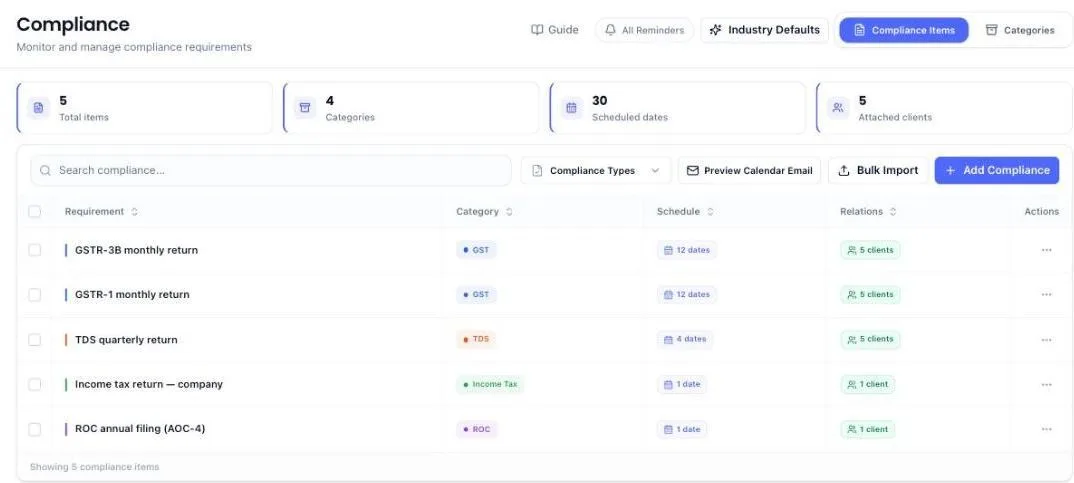
The app offers a walkthrough the first time you open the page.
Narrow the list with the cards at the top
The four cards above the list are also filters. Each one has a small arrow on its right to show it can be clicked, and hovering over a card tells you what the click will do.
- Attached clients — shows only the compliance items at least one client carries. The big number is how many clients; the small number beside it is how many items you will see.
- With due dates — shows only the items that have a due date. The small number beside it is how many dates they add up to across the year.
- Categories — opens the Categories tab. Click it again to come back to your items.
- Total items — clears every filter and the search box, and shows the whole list again.
The card you picked turns blue and its arrow becomes an ×: click the card again to switch the filter off. Just above the list a line tells you how many items you are looking at — Showing 7 of 42 — with a label for each filter that is on. Click a label to remove that filter, or Clear all to remove every one. The cards work together with the search box and the Compliance Types filter.
If nothing matches, the list says which filters emptied it — No compliance items attached to a client, matching “GST” — with a Clear filters button right there.
Before you start
You will want at least one client business. A compliance item can be created first and attached later, but it does nothing until a client carries it.
The three kinds of schedule
Every compliance item is one of three things, chosen under Schedule when you create it. Getting this right at the start saves untangling it later.
- Recurring — comes round several times a year, or every week. GSTR-3B (monthly), a TDS return (quarterly), a Monday payroll run. You give it a list of dates, or a day of the week.
- Yearly — one date, every year, for ever. An annual audit, an ITR, an ROC annual return. You give it a single date and it comes back on that day each year.
- One-time — one date, once only, and then it is finished. An incorporation, a first GST registration, a one-off certificate. You give it a single date, including the year, and it never comes back.
Yearly and One-time look the same on the form — one date picker — and are not the same thing at all. Yearly repeats. One-time does not.
Create a compliance item
- Open Compliance under Firm in the left menu.
- Click Add Compliance, top right.
- Start typing the name. After a letter or two a list drops down: filings already on your list at the top, each marked already added, and the standard Indian filings below them. Pick one and the name is filled in exactly as it is already spelt, so you do not end up with "GST R1 filing" on one client and "GSTR-1 Monthly" on the next. Pick a standard filing and its description and usual due dates come with it, filled into whichever of those boxes you have left empty — anything you have already typed is left alone. If nothing in the list is what you want, keep typing your own name; the list only offers, it never blocks. Name it as the filing is known — "GSTR-3B monthly return", not "monthly work".
- Pick or create its category. Categories group filings and become the categories your services are filed under.
- Under Schedule, choose Recurring, Yearly or One-time. Recurring is already selected. The choice decides what you are asked for next.
- Add the schedule. On a Recurring filing this is the list of due dates, and it is what sets the rhythm: twelve dates makes it monthly, four quarterly. The system reads the cadence from the dates themselves. Work that falls on a day rather than a date takes a weekly day instead — see below. On a Yearly or One-time filing you are asked for a single Due Date instead, and nothing else. Either way a date is required.
- Set how many days before the due date reminders should go out. A new filing starts with 3 days before and on the due date — the calendar emailed on the 1st already gives the client a week's notice.
- Choose whether the client is told, the team is told, or both.
- Save.
Work that happens once a year
An annual audit, an income tax return, an ROC annual return — one date, and it comes back on that date every year.
- In Add Compliance, under Schedule, click Yearly.
- The date list and the weekly option disappear and a single Due Date takes their place. Pick the date it falls on.
- Set the reminders and who hears about them as usual, and save.
Only the day and the month are kept. The year you happen to pick off the calendar is not part of the answer — the filing falls on that day every year, so on the list it reads Yearly · Mar 31, with no year on it.
This is the same as adding a single date to a recurring filing, and it always was. Choosing Yearly simply asks you for one date instead of handing you a list you would only put one thing in.
Work that happens only once
Not everything comes round again. A company incorporation, a first GST registration, a one-off certificate — each is done once, on one date, and is then finished. Setting one of those up as a recurring or yearly filing means it comes back every year for work nobody will ever do again.
- In Add Compliance, under Schedule, click One-time.
- The date list and the weekly option disappear and a single Due Date takes their place. Pick the date the work is actually due.
- Set the reminders and who hears about them as usual, and save.
The date you pick keeps its year, and that is the whole difference from Yearly: a one-time filing whose date has gone past stays overdue and keeps being chased. It does not move to the same day next year.
On the Compliance list, and on the item itself, a one-time filing reads One-time with its full date beside it — "One-time · 31 Mar 2026" — so a glance tells you it will not come back, and when it was due.
Attach a one-time filing to as many clients as it applies to. Each client gets their own task for it, and only ever one; the filing itself stays a single item on your list rather than being copied per client.
You can change your mind later. Open the filing, switch Schedule, and give it whichever schedule the new choice asks for. Work already recorded against it — periods, tasks, what has already been filed — is left exactly as it is; only what happens from now on follows the new schedule.
Work that repeats every week
Some work does not fall on a date at all — it falls on a day. A weekly payroll run or a Monday review is due every Monday, whatever the date happens to be.
- Leave Schedule on Recurring.
- In Compliance Dates, open the picker and go to the Quick Add tab.
- Under Repeat every week on, click the day: Mon, Tue and so on. The field then reads "Every Monday" and the list shows the same.
- The Smart tab has Every Monday as a one-click shortcut, since it is the day most firms want.
A weekly filing and fixed calendar dates are two answers to the same question, so choosing one clears the other. To go back to fixed dates, click Clear on the weekly chip and pick dates as normal.
Picking a weekly day also shortens the reminders to 1 day before and on the due date. On a job that comes round every seven days, a reminder sent seven days ahead lands on top of the previous week's — the client would hear from you almost daily about one filing. You can change the reminders afterwards if you want to.
Attach it to clients
Open the compliance item and add the clients it applies to, or open a client business and attach filings from there. Both do the same thing. Use Industry Defaults to say which filings a new client of a given industry should normally carry, so the next client of that type starts correctly configured.
Industry Defaults lists only your own firm's filings, and saving it needs full Compliance access. A team member with view-only Compliance access can open it and read the selection, but the Save button stays off for them.
A client who files in more than one state
A client registered for GST in three states files the same return three times a month, on the same day. Track each registration separately, or three real filings show up as one. Professional Tax works the same way — it is paid and filed state by state.
Only those filings offer it, and only for a client registered in more than one state. The File this per state button appears on a filing whose name says GST (GSTR-1, GSTR-3B, CMP-08) or Professional Tax (PTRC, PTEC, PT), once the client has GST logins saved under Files & logins for two or more states. A client registered in one state has nothing to split, so their filings show no such button. Advance Tax, TDS, income tax returns and ROC filings are filed once, whatever states the client works in, so they never have it. Hover over the button and it tells you what it does before you click anything.
Where you have already saved that client's GST logins, you do not have to go looking for this. Switch on a GST filing for a client with logins in more than one state and the card says so — This client is registered for GST in Maharashtra, Gujarat and Karnataka — with a button that splits the filing across all of them in one click. Take it and you are done; the steps below are for adding a state by hand.
- Open the client and go to their Compliance tab.
- Find the filing — GSTR-1, GSTR-3B, PTRC — and switch it on as usual.
- Click File this per state under it — or Another state, once the filing already has one. No button? Save the client's GST login for each state under Files & logins first.
- The states you have already saved a GST login for are listed first, with the GSTIN beside each one. A login saved without its state still appears — the state is read from the first two digits of the GSTIN. Pick one of those and the filing is tied to that registration. Any other state can be picked from the full list, so you can start tracking a state before anybody has entered its password.
- Repeat for each state the client is registered in.
Opening the list of states adds nothing. Only picking a state does — close the list with Esc or by clicking outside it and the filing stays exactly as it was.
Each state becomes its own line on the tab, with its own executor, its own reviewer and its own task. The state is part of the task's name, so the executor's reminder, the client's email and the invoice line all say which registration they are about. Remove a state with the small x on its row — that stops the filing for that registration only and leaves the others alone.
Adding the first state moves the filing you already had onto that state rather than creating a second one, so you never end up with an extra task nobody can place.
A filing that was already split by state keeps its state lines, and its Another state button, even where the client has fewer than two logins saved or the filing is not GST or Professional Tax — so nothing disappears from under you. If the split was a mistake, remove each state with its x and the filing goes back to one line.
Once a filing is split, the Tasks screen can be read a state at a time: in List view set Group by to GST state, or pick one state under Filters.
Say who does it and who checks it
On each client's filing, set an executor — the person who does the work — and a reviewer. Those two are who the system notifies, and who appear on the task.
As soon as a filing has an executor, its task for the next due date appears on that person's Tasks board. Assigning it from the Compliance page also tells them — WhatsApp and email, with a link that opens the task itself. Switching it on from the client's own Compliance tab puts the task on their board without a message. Every task after the first appears on the 1st of the month it is due in, and the executor is told that morning. Attaching a filing from the Compliance page names the client's relationship manager as executor, so on a client with no relationship manager nobody is set and there is no task to show. Open that client's Compliance tab and name an executor, and the task appears then.
You do not have to work out when the next one comes. On the client's Compliance tab, each filing with an executor shows it under the current task — Next task on 1 Oct · due 15 Oct. A filing split by GST state shows it on each state's line. The date fields on the Add Compliance form say the same rule in a line under them.
A filing with no due date never becomes a task either, however it is attached. There is no date to work towards, so a task made from it could never come due, turn overdue or prompt anybody — it would sit at the bottom of the board looking like work. Give the filing a due date and the task appears.
Build the document checklist
Open a compliance item and list the documents the filing needs: sales register, purchase register, bank statement, and so on. Mark which are required. That checklist is what the client is asked for each period, and what decides when the job is ready to start.
Load a lot at once
Use Bulk Import for a long list of filings. Its sheet asks for due dates on every row for the same reason the form does — a row with none is reported as an error rather than imported. Preview Calendar Email shows you the monthly calendar exactly as a client will receive it before any of it goes out.
Removing a filing you no longer offer
A filing can only be deleted once no client is on it. While even one client carries it, the delete box turns into a warning — Cannot Delete This Compliance, with the count of clients still on it — and there is no delete button to press. View Assigned Clients opens the item so you can see exactly who they are.
To remove it for good: open each of those clients, go to their Compliance tab, and take the filing off there. Once nobody carries it, delete it from the Compliance list as normal. Selecting several filings and deleting them together follows the same rule — the ones nobody carries go, the rest stay, and you are told how many were kept and why.
If you only want to stop doing the work without losing the record of it, leave the filing where it is and stop attaching it to new clients. Deleting is for filings your firm never took on, not for filings it has finished with.
What the system does on its own
- A monthly compliance calendar is emailed to each client on the first of the month, listing everything due for them that month, with a follow-up on the 5th. The follow-up lists only filings that are still open; once everything for the month is marked done, it is not sent at all. A weekly filing appears on it as each of that month's occurrences; a one-time filing appears in the month its date falls in.
- Due-date reminders go out each morning to whoever is due one, at the day offsets you set on the item — email, and WhatsApp where the contact has a number. A client with more than one filing due gets one message that day listing them all — Due this week: TDS Payment (7 Oct), GSTR-1 (11 Oct) — not one per filing. On the day the calendar or the follow-up goes out, filings it already lists are not repeated. Where the filing also tells the team, each team member gets one message per filing that day listing every client it is due for, not one per client. Reminders for a filing stop as soon as its task is marked done. On a one-time filing they go out once, before its one date, and never again.
- Tasks are created for you. Attaching a filing to a client creates its first task straight away, assigned to the executor. After that, each round's task appears on the 1st of the month it is due in: PF due on 15 September is on the executor's board from 1 September. A filing due in the first few days of a month appears a week before its date instead, so it is not left until the last moment. A filing with two dates in one month gets its second task the day after the first one is due. The executor, and the manager recorded against them on the Team screen if there is one, are told by WhatsApp and email that morning. When the same filing comes due for several of their clients on the same date, they get one message listing every client rather than one per client. The firm owner and administrators are not sent a message for each one, even where they are somebody's manager — they see the whole firm's work on the Tasks screen. A one-time filing produces exactly one task per client, however many times the nightly run sees it — including when its date has already gone, so an overdue one-off still reaches the board rather than being quietly skipped. The Tasks guide has a table of example dates and every other way a task appears on its own.
- Due dates can appear in your calendar. Connect Google Calendar in Settings and the filings you are executor or reviewer on are added with reminders. A weekly filing is added as a single weekly repeating entry rather than one entry per week, a yearly one as a yearly repeating entry, and a one-time filing as a single dated entry that does not repeat at all.
- Where document automation is switched on, the client is asked for the checklist ahead of each filing and chased until it arrives. See the Automation guide.
What you cannot do (and what to do instead)
- You cannot save a filing with no due date. Every reminder is counted backwards from a due date, so a filing without one would sit on your list and never tell anybody anything, and never reach anyone's Tasks board. On a recurring filing the form says Due date is required — pick at least one date, or set a weekly cadence; on a yearly one, Due date is required for a yearly compliance; on a one-time one, Due date is required for a one-time compliance. Either way it waits. This holds when you edit an existing filing too: you cannot clear the last date off one that has them. A few filings made before this rule came in have no dates at all, and each has to be given a schedule the first time somebody opens and saves it.
- A filing can only have one kind of schedule. Switching to Yearly or One-time clears the date list and the weekly day; switching back to Recurring clears the single date. Whichever you have chosen is the only schedule the filing has.
- A yearly filing takes exactly one date. Two dates is a different cadence wearing the same label — the list would say "Yearly" while the item came due twice. If the work genuinely falls twice a year, make it Recurring and give it both dates.
- You cannot delete a filing while clients are on it. The app says This compliance cannot be deleted because it is assigned to one or more clients. Please remove the client assignments first. Deleting it would take those clients' assignments with it — their state-wise splits, their periods, the record of what was filed and when — from one confirmation box. Take the filing off each client first, as described above.
- You cannot have two filings with the same name in the same category. Saving the second one is refused, because two identical filings on one client means two sets of reminders for one piece of work. This is why the name list marks the filings you already have — pick a different category, or give the second one a name that says how it differs.
- You cannot price a compliance item. Filings carry no price — the money sits on the service linked to them. Link a service if the work is billable.
- You cannot attach a filing that belongs to another firm. Only your own items can be attached to your clients, and only your own items appear in the lists you pick from.
- Pausing a client's reminders stops all of them. To silence one filing for one client, pause it on that client's row rather than on the business.
- There is no monthly-or-quarterly switch. On a recurring filing, add or remove due dates and the cadence follows. Weekly is the exception — a day of the week cannot be written as a date, so it is chosen directly in the picker.
- A weekly filing cannot ask for documents more than six days ahead. A longer window would ask for this week's papers before last week's filing had gone in, leaving the client two open requests and no way to tell them apart.
- A one-time filing due in a few days will not ask for documents ten days ahead. There are not ten days left. The request window shortens to whatever time actually remains, so the client is never asked for papers by a date that has already gone.
- A client cannot upload to a document checklist once your firm's storage is full (10 GB on every plan, plus 100 GB for each Extra storage add-on). They are told the file could not be saved and to let you know — never shown a price. Replacing a file they already sent only counts the difference in size. The account owner can add storage from Settings → Billing.
Common questions
What is the difference between Yearly and One-time?
Yearly comes back every year on the same day — an audit, an ITR. One-time happens once and is then finished — an incorporation, a first registration. Both ask you for a single date; the difference is what happens after that date passes. A yearly filing moves to next year. A one-time filing goes overdue and stays there until the work is marked done.
We do not know the dates yet. Can we add the filing now and fill them in later?
No — a filing needs a date before it will save, whichever schedule you pick. A filing with no date never reminds anyone and never becomes a task, so saving it would only look like the work was set up. If the date genuinely varies, put in the date it usually falls on and correct it later; the dates can be changed whenever you like.
We have a one-off job like an incorporation. How do we track it?
Add it as a compliance item and set Schedule to One-time. You are asked for a single due date instead of a list, the filing runs its reminders once, and it does not come back next year. Attach it to the client it is for, and they get one task for it.
We set up an incorporation as a recurring filing by mistake and it comes back every year.
Open the filing, switch Schedule to One-time and give it the date it was actually due. The old dates are cleared when you switch. Anything already filed against it stays on the record.
A one-time filing's date has passed and it is still on the list.
That is deliberate. A one-time date keeps its year, so once it goes past the filing is overdue and stays that way until the work is marked done — it does not roll forward to next year. Mark the task done to close it.
We picked a Yearly filing's date in 2026. Does it stop after 2026?
No. Only the day and month are kept, so it falls on that day every year from now on. That is why the list shows it as "Yearly · Mar 31" with no year.
We opened an old filing to fix its name and it now asks for a due date.
That filing is one of the few made before due dates were required, so it has none. Give it its dates — or a weekly day — while you are in there and save; from then on it reminds people and appears on the executor's board like every other filing. If you genuinely do not know the date, use the one it usually falls on.
We tried to delete a filing we no longer offer and it will not go.
Clients are still on it. The delete box tells you how many, and View Assigned Clients shows you who. Take the filing off each of those clients' Compliance tabs, then delete it. The block exists because the delete would otherwise erase those clients' record of the filing along with the item — every period, every state, everything already filed.
A suggestion says "already added". Can we still use it?
Yes, as long as you file it under a different category. The tag is there so you notice the filing exists before you build a second copy of it by accident — most of the time the right move is to close this form and attach the filing you already have to the client who needs it.
We are a new firm and the name list only shows standard filings.
That is expected — the top half of the list is your own filings, and you have none yet. It fills in as you add them. The standard list underneath is always there.
A client does not need one of the filings we attached.
Remove that filing from that client. It stays on your list for everyone else.
Why did a client get a reminder for something already filed?
Reminders run from the due dates on the item. Mark the filing's task done, or pause that client's filing, and the chasing stops.
Our client is registered for GST in three states. How do we track all three?
First save the client's GST login for each state under their Files & logins tab. Then, on the client's Compliance tab, switch the filing on and either take the one-click offer to split it across all of them, or use File this per state — and Another state after the first — once per registration. Each state gets its own task, its own executor and its own reminders, and the state is printed on the task so the three are never confused for one another. States you have saved a GST login for are offered first, with the GSTIN beside them.
Why is there no File this per state button on my client's GST filings?
The client has GST logins saved for fewer than two states, so as far as the app knows they file in one state and there is nothing to split. Save each state's GST login under the client's Files & logins tab and the button, and the one-click offer to split across all of them, appear on their GST and Professional Tax filings.
Why is there no File this per state button on Advance Tax or TDS?
Those are filed once, whatever states the client works in, so there is nothing to split. The button appears only on GST and Professional Tax filings, recognised by their name, for a client with GST logins in two or more states. If one of your own filings is state-wise but its name does not say GST or Professional Tax, rename it so it does — "PT Return Karnataka" rather than "Karnataka monthly" — and the button appears.
Can two people be responsible for one filing?
Yes — the executor does it and the reviewer signs it off. Both are notified.
We assigned a filing but the person says their Tasks board is empty.
Check three things: that the filing has an executor on that client's Compliance tab, that the filing has a due date, and that the person has been given access to the Tasks module under Team. A filing with nobody set as executor never becomes a task, and neither does one with no due date.
This month's filing is not on the executor's board yet.
A filing's task for each round appears on the 1st of the month it is due in, early in the morning — or a week before the due date, if it falls in the first few days of the month. Before then it is not on anyone's board. The filing's card on the client's Compliance tab shows the exact day — Next task on …. If the day has come and it is still missing, run through the three checks in the question above.
We handle a filing with two dates in the same month.
Add both dates on a Recurring filing. Each is tracked as its own job rather than being merged.
We do a job every Monday. Should we add all the Mondays as dates?
No — use the weekly option instead. Typed-in dates repeat on the same date every year, so this year's Mondays would fall on a Tuesday next year. Choosing the day keeps it on Monday for good.
More guides
Every other part of the product, the same way.