
Leads
Track every enquiry from first contact to signed client — and let the daily follow-up digest do the chasing.
A lead is somebody who might become a client. The Leads screen keeps every enquiry in one pipeline so nothing is remembered only in a WhatsApp thread, and so the firm can see what is actually in play.
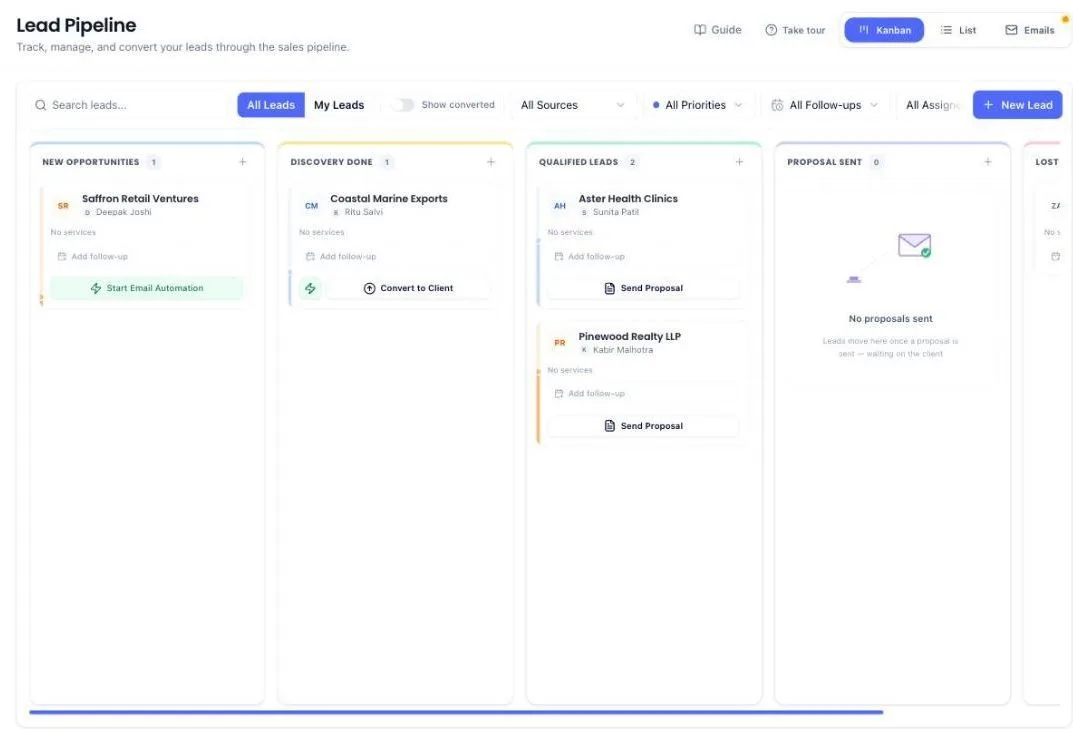
The app offers a walkthrough the first time you open the page. Take it — it is faster than reading about the columns.
Before you start
Nothing has to exist first. If you have not set up your services yet, you can do it from inside the lead form — Import standard services sits right under the services box. To turn a lead into a client later you will want your services priced up, because that is what a proposal is built from.
Add a lead
- Open Leads from the left menu.
- Click New Lead, top right.
- Fill in the person you spoke to: Contact name, Contact phone and Location are required. Email and title are optional.
- Under Services interested, pick at least one of your services. If the list is empty, or the service is not in it, see the next section. Something that is on no list at all — type it and press Enter.
- Add the business name, priority, where the enquiry came from and a follow-up date if you have them. None of these are required.
- Click Create Opportunity. The lead appears in the first column, New opportunities.
Your service list is empty or missing something
You do not have to leave the lead to fix it.
- Click Import standard services under the services box. On a firm with no services yet it sits in a shaded box headed No services added yet; otherwise it is a small link at the right, beside the hint under the box.
- A panel opens with the common CA and CS services, grouped by category — GST Registration, ITR Filing, ROC filings, audits and so on. Search to find one quickly.
- Tick the services you offer. A fee box appears beside each one you tick; fill it in now or leave it blank and set it later on the Services page.
- Click Import.
The panel closes and you are back on the same lead with everything you had typed still there. The services you imported are in the list, ready to pick. They are now part of your own services, so they also show up when you build a proposal or raise an invoice.
The button is shown only to people allowed to add services. A team member without that permission can still type a service name.
When the business and the person are the same
A proprietor, a freelancer or a one-person firm has the same name, email and phone on both halves of the form. You do not have to type them twice.
- Fill in Business name, Business email and Business phone as usual.
- In the Primary contact section, click Same as business at the top right of that card.
- The business name, email and phone are copied into Contact name, Contact email and Contact phone.
Only the business details you actually filled in are copied — a blank business email will never clear a contact email you have already typed. Everything copied stays editable, so change any of it afterwards if the person's own number is different. The button stays greyed out until at least one business detail is filled in.
Move a lead through the pipeline
The board has five columns, left to right, in the order a real enquiry travels:
- New opportunities — just arrived, nobody has spoken to them.
- Discovery done — you have made the first call or sent the first email.
- Qualified leads — they passed your vetting and are worth a proposal.
- Proposal sent — the ball is in their court.
- Lost leads — did not convert, kept so you can see the pattern later.
Drag a card to the next column, or open it and change the stage from inside. Use List instead of Kanban at the top if you would rather work in a table, and Emails to see what has been sent.
Two ways out of Qualified leads
A card in Qualified leads carries two buttons, and they are alternatives rather than steps:
- Send Proposal — for a client who wants the scope and price in writing before they commit.
- Start Onboarding, directly below it — for a client who has already said yes.
Using one does not require the other. Nobody has to send a proposal to a client who agreed on the phone.
Send a proposal and let the card move itself
- On a card in Qualified leads, click Send Proposal.
- The new proposal opens with the lead's business already picked under Business, marked as a lead so you can tell it apart from an existing client with the same name.
- Pick the services, then send the proposal as usual.
The moment the proposal goes out, the card moves to Proposal sent by itself — you do not drag it. It moves even if the email to the client could not be delivered, because the proposal is live either way.
Start onboarding without sending a proposal
When the client has already agreed, go straight to collecting what you need from them.
- On a card in Qualified leads, click Start Onboarding.
- The onboarding panel opens with the client already filled in — there is no list to search.
- Pick the services you have agreed, or pick none. Picked services set up the client's invoices and filings when you finish onboarding; skipping them collects documents and logins only, and you raise invoices by hand later.
- If you picked services, set the contract term — how many months of invoices to schedule.
- Click Start onboarding.
You land on their onboarding straight away, in the same steps an accepted proposal leads to. Starting it is also the moment the lead becomes a client, so they begin showing in your Businesses list.
If an onboarding is already running for that client, the same button opens the one in progress rather than starting a second checklist.
Narrow what the board shows
The strip above the columns holds everything that cuts the board down:
- Search leads — matches the company name or the company email.
- All Leads / My Leads — switch to only the leads assigned to you.
- Filters — opens a panel with priority, follow-up and the Show converted switch. Source, industry and assignee join them once your leads carry those details, so a brand new board shows fewer of them.
The number on the Filters button is how many filters are currently on, so you can tell at a glance that the board is showing a slice rather than everything. Clear all, at the top of the panel, puts them all back to showing everything. The same strip appears in both Kanban and List view.
Mark a lead as lost
You will be asked why. The reason is required — a Lost column full of names tells you nothing, while a list of reasons tells you what to fix.
- Click Mark as Lost on the lead's card, pick Lost from the stage list in the table view, or drag the card into Lost leads. All three open the same box.
- Pick one reason: looking for cheaper services, lost to another firm, not responding, scope conflict, decision deferred, or other. If you pick Other, you must describe it. For the rest, the detail box is optional but worth using — "quoted 40% under us" is the part you will want next year.
- If it is worth trying them again, tick Remind me to try them again later and set a date. It defaults to three months out. Leave it unticked if the deal is truly dead.
- If the lead has live proposals out, you will also be offered the option to reject them so the proposal screens agree with this. It is ticked by default.
- Click Mark as lost.
The reason then shows on the lead's card in the Lost leads column, so you can read the column without opening anything.
If you later move the lead back out of Lost, the reason is cleared — it is no longer true, and leaving it would count a live lead as a loss in your figures.
See why you are losing work
Open the Leads dashboard and look for the Why we lose panel. It counts the reasons recorded on every lead lost in the period you have selected, biggest first, with each one's share of the total. Change the period at the top of the page to compare a quarter against the one before it.
The panel counts leads by the date they were lost, not the date they came in — a lead you first spoke to two years ago and lost last week belongs in last week's picture.
It stays empty until leads start being closed with a reason, so it fills up from the day you begin using it rather than showing history you never recorded.
See when an enquiry arrived
Every lead shows when it came in. On a board card and in the list you see it in plain words — Received 2 hours ago, Received 3 days ago — and hovering over that line shows the exact date and time. Open the lead and the header carries the full arrival time.
Use it to decide what to pick up first. A website enquiry that arrived twenty minutes ago is a different call from one that has been sitting since Friday.
See which website an enquiry came from
If you run more than one website, you need to know which one produced the enquiry before you pick up the phone. The alert email names it — for example yourfirm.com — and the name is a link you can open.
Open the lead and the same website shows under Came from in the Deal details section. It is there for the record only; it is not something you type or change.
Normally what you see is the site address on its own, because that is all a browser tells us. If whoever set your form up sends the exact page as well, the full page address is shown instead — yourfirm.com/contact-us — and the link opens that page. Leads you added by hand have no website to show, so the line is not there at all.
Keep notes on a lead
- Open the lead card.
- Add a note describing what was said and agreed.
- Save. The note is stamped with your name and the time.
Notes are the record of the conversation — write the outcome, not just that a call happened.
Convert a lead into a client
- Open the lead.
- Choose Convert.
- Confirm the company details — they are carried across, so correct anything that was rough.
- Save. A client business is created with its contact, and the lead is marked converted and linked to it.
From there you raise a proposal against the new client in the usual way.
What the system does on its own
- Website enquiries alert the firm straight away. When your own website sends a lead into PracticeStacks, the owner and every administrator get an email and a WhatsApp message with the person's name, phone, email, the time it arrived and the website it came from, plus a button that opens the lead. Nobody has to be watching the screen for the enquiry to be noticed.
- The alert email carries your firm's branding. Your firm's name, logo and brand colour head the email, and the subject line names your firm too — so an enquiry landing in your inbox is recognisable as yours at a glance rather than reading as PracticeStacks mail. Set the logo and colour on your firm profile; without them the email falls back to plain PracticeStacks branding.
- WhatsApp goes to your WhatsApp number. If you have filled in a separate WhatsApp number on your profile, every alert goes there rather than to your login phone. Firms whose office number runs a WhatsApp Business account need this — that number cannot receive messages.
- A daily follow-up digest. Early each morning you get one email listing every lead whose follow-up date has come up — one message covering all of them, not one per lead.
- Closing a lead stops its reminders. The moment a lead is marked lost or becomes a client, any follow-ups still outstanding on it are cancelled — so nobody is chased about a deal that is already decided. This happens however the lead closes: you marking it lost, the client rejecting the proposal, the client signing it, or the app giving up on a lead that ignored a whole email sequence. When you mark it lost yourself, a message on screen tells you how many follow-ups were cancelled. The one exception is the revisit reminder you set in the same step — that one is deliberately kept. The cancelled reminders stay on the lead, so you can still see what had been planned.
- Sending a proposal moves the lead. When a proposal to a lead's business goes out — first time, a resend, or a renewal — the lead moves to Proposal sent from whichever earlier column it was in. Leads already in Proposal sent, lost or converted stay where they are. The lead's business also starts showing in your Businesses list, the same as when you drag the card there.
- Starting an onboarding makes the lead a client. Using Start Onboarding on a qualified card puts that business into your Businesses list there and then, the same as sending them a proposal would. The card itself stays in Qualified leads until you move it, so you can still see what is in play.
- Daily lead emails. Where you have set a lead email sequence running, the day's messages go out mid-morning without you opening the app.
- Your firm brochure is attached. Lead follow-up emails carry the brochure from your firm profile, so a prospect always has your current profile alongside the message.
- The board counts itself. Column totals and the conversion figures on the dashboard update as cards move.
What you cannot do (and what to do instead)
- You cannot save a lead without a service. Pick one of yours, import the standard ones with Import standard services, or type what they asked for and press Enter.
- You cannot close a lead without giving a reason. If none of the six fit, pick Other and write what happened in your own words.
- You cannot convert the same lead twice. Once converted it is tied to the client it became. If a second company came out of the same conversation, add it as a new lead and convert that.
- You cannot edit or delete somebody else's note. Only the person who wrote a note can change it. If a colleague's note is wrong, add your own correcting it — the trail keeps both, which is the point.
- You cannot invoice a lead. Billing starts at the client record. Convert the lead first, or start their onboarding — both create it.
- You cannot change the website a lead came from. It is recorded from what your website sent when the enquiry arrived, and it is shown as a fact rather than offered as a field.
- Converted leads are hidden by default. They are not deleted. Open Filters above the board and turn on Show converted to see them.
Common questions
I have not set up my services yet. Can I still add a lead?
Yes. In the lead form, click Import standard services under the services box, tick the services you offer and click Import. You come straight back to the same lead with the services ready to pick — nothing you typed is lost. Fees can be added in the same step or later on the Services page.
The client already agreed. Do I still have to send a proposal?
No. Click Start Onboarding on their card in Qualified leads and go straight into collecting their documents and logins. A proposal is only worth sending when the client wants the scope and price in writing first.
A colleague added the same company twice. What now?
Keep the one with the better notes and mark the other as lost. Deleting loses the history of who spoke to whom.
Can I see only my own leads?
Yes — switch All Leads to My Leads at the top of the board.
I sent a proposal but the lead stayed in its column.
The card moves only when the proposal is addressed to the lead's own business. If you picked a different client under Business — for example an existing client with the same name — the proposal belongs to that client and the lead stays put. Drag the card to Proposal sent yourself, and next time start the proposal from Send Proposal on the lead's card so the right business is picked for you.
I started an onboarding from a lead. Why is the card still in Qualified leads?
Starting an onboarding does not move the card — it only makes the client real so you can invoice and file for them. Move the card yourself when you are ready, or leave it while the work is still being agreed.
The business and the contact are the same person. Do I type everything twice?
No. Fill in the business details, then click Same as business in the Primary contact section. It copies the name, email and phone across, and you can edit any of them afterwards.
Which of our websites did this lead come from?
Open the lead and look at Came from in the Deal details section. The same website is named in the alert email you were sent, as a link you can open. Usually it is the site address on its own — the exact page appears only where your form is set up to send it. If the line is missing altogether, the lead was added by hand or your website sent no address with it.
The lead alert email does not look like it is from my firm.
The email uses the logo and brand colour on your firm profile. If those are not set, it falls back to plain PracticeStacks branding. Fill them in under your firm profile and the next alert carries your own name, logo and colour.
Where have the filter dropdowns gone?
They are all inside the Filters button, next to My Leads. Priority, follow-up and Show converted are always there; source, industry and assignee appear once your leads carry those details. Keeping them in one panel means the row above the board stays readable on a laptop screen instead of running off the edge.
A lead came in from our website and nobody was told.
Check two things. First, your profile in Settings: if your office phone runs a WhatsApp Business account, fill in the WhatsApp Number field with a personal number, because alerts cannot be delivered to a Business API number. Second, the alert goes to the firm owner and administrators — a team member on the ordinary member role is not alerted about website enquiries.
The follow-up digest did not arrive.
It only lists leads with a follow-up date that has come due. A lead with no date set is never chased — set one when you leave the call.
I marked a lead lost, but I want to try them again next quarter.
Tick Remind me to try them again later in the box that asks why you lost it, and set the date. That reminder is kept even though every other reminder on the lead is cancelled. If you have already closed the lead without setting one, open it and add a follow-up in the usual way.
I stopped getting reminders for a lead and I did not cancel them.
Check the lead's stage. If a proposal to that client was rejected, or the client signed it, the lead closes itself and its reminders are cancelled with it. Open the lead and you will see them listed as cancelled.
The Why we lose panel is empty.
It only counts leads closed since you started recording reasons, and only those lost inside the period selected at the top of the page. Widen the period, or give it a few weeks of ordinary use.
More guides
Every other part of the product, the same way.