
Your dashboard
The first screen you see each morning: what needs your attention today, across every part of your firm.
The dashboard is the screen you land on after signing in. It answers one question: what needs a person today. Everything on it is a shortcut into the module where the work actually happens — nothing is edited here.
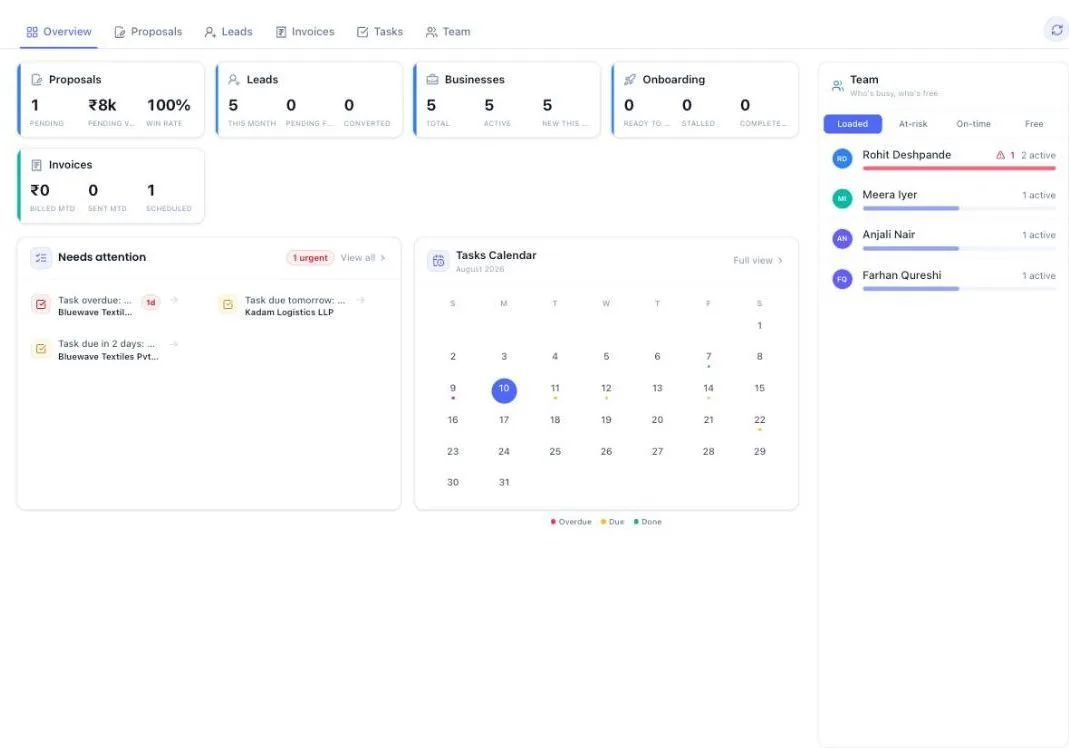
The first time you open it, the app offers a short walkthrough. Take it — it points at the panels in the order you will use them.
If you are the person who opened the firm's account, that first visit also brings a small Set your firm up box. It names the few details still missing — your firm's name and address, your signature, your departments — and says how many are done, as in 0 of 10 done. Start setup walks you through them one at a time. I'll do this later closes the box, and so does the cross or the Escape key; whichever you use, it is shown once and never again. Nothing on that list is compulsory and nothing on the dashboard is locked until you finish it — the same list waits under Settings › Firm Setup, ticked off as far as you have got, and the left menu carries a Firm Setup link with the number of steps still to go.
Before you start
Nothing. The dashboard works from your first day; the panels simply read zero until there is something to show.
Reading the top row
Five counters run across the top, one per part of the firm.
- Proposals — how many are with clients, what they are worth, and how many of your recent ones were approved.
- Leads — new enquiries this month, how many are waiting on a follow-up from you, and how many became clients.
- Businesses — your client count, how many are active, and how many joined this week.
- Onboarding — clients whose signed proposal is ready to be turned into a live engagement, and any that have stalled.
- Invoices — billed this month, sent this month, and queued to go out. Billed this month is one rupee figure even when you bill some clients in another currency: a dollar invoice is converted at the exchange rate saved on the proposal it came from, or at today's rate if it was raised without a proposal. Rest your pointer on the figure to see each currency, the rate used and the total.
Every number opens what it counted
Each card carries three numbers, and each one is its own link. Click Active on the Businesses card and the client list opens showing your active clients only — not the whole list for you to filter yourself. Click Pipeline on Proposals and you get the proposals that add up to that figure. The chip above the list names the narrowing that was applied, and Clear all beside it takes you back to everything.
Where a number covers a period — billed this month, new this month, sent in the last 7 days — the list opens over the same period, so it holds exactly what the number counted. Choose a filter by hand after that and the period is dropped, because you are now asking a different question.
A few figures are not links, and deliberately so: an average, such as Avg time to approve, has no set of records behind it to open. Percentages do have one — a win rate opens the deals that were won.
The same is true one level in. Open the Proposals, Leads, Invoices, Tasks or Emails tab above the panels and every tile there works the same way: the number takes you to the records it is counting, over the period the tab is set to.
Needs attention
This panel is the one to work from. It gathers, from every module, the things that will get worse if left: a proposal about to expire, a filing due this week with documents still missing, an invoice past its due date, a task nobody has picked up.
- Read the row — it names the client first, then the reason underneath.
- Click it to open the record itself. You are never sent to a list to go hunting.
- Deal with it, and the row disappears on the next load.
The same list appears inside each module's own tab, and there too every row leads with the client it belongs to — so a column of rows that share a reason, such as five overdue GST filings, still tells you at a glance which five clients are affected.
The panel has room for a handful of rows at a time. View all at its top right opens the whole list in a side panel, grouped into Urgent and Attention — so somebody carrying eight late filings sees all eight there, not only the first few. The tasks it holds are your own: the work assigned to you, plus your team's and anything you review if people report to you.
When it says All caught up, there is genuinely nothing outstanding — it is not a placeholder.
The tabs
Above the panels are tabs — Overview, Proposals, Leads, Invoices, Tasks and Team. Overview is the summary you land on. The rest are focused views of the same day: only proposals, only invoices, and so on. Use them when you want to work one area without the others in the way.
Calendar and Team
The small calendar on the dashboard shows the month with a mark on days that carry work. Rest your pointer on a marked day and it names what is on that day — each task with its client and the person it is assigned to, and any online meeting with its time. Click a name in that list to open that task straight away, or a meeting to open its join details. Click the day itself to open the full calendar on that day, or Full view to open it on today.
The full calendar
The full calendar puts everything with a date in one place: tasks, compliance due dates, your online meetings, the firm's holidays and its weekly offs. It opens on today, so the first thing you see is what today holds. Switch to Week or Month at the top right, and back to Day the same way. The arrows move one day, week or month at a time, whichever you are looking at, and Today brings you back.
Your day
The day view is in two parts. On the left:
- Schedule lists the day's online meetings in time order, each with its start and end time and the client it is with. Click one to open its join details.
- Due today — or Due this day when you are looking at another day — lists the compliance due dates and tasks falling on it, the most pressing first. Each line says whether it is a due date or a task, which client it is for, who has it and how far it has got. A task has a date but no time of day, so it sits here rather than on the schedule.
On the right:
- Overdue lists open tasks whose date has already passed, with how many days late each one is. Urgent and high-priority work comes first. It counts from today even while you look at another day, because a late task stays late.
- Upcoming lists what is still to do in the seven days after the day you are looking at, with the date beside each line.
Each of the two shows five lines, with a Show all button when there are more. Click any line to open it: a task opens in its side panel, and a due date opens that client's filing under Compliance.
On a narrow screen, such as a phone, Overdue and Upcoming move below the day's schedule.
Week and month
In the month, each day counts what it holds rather than listing it — 2 Due dates, 3 Tasks, 1 Meeting. A red dot beside a count means at least one of those is overdue. A holiday is shaded pink and carries the name your firm gave it; a weekly off is shaded grey and marked Weekly off. The week view lists every item by name under its day, and clicking one opens it.
Click a date in the month, or a day's heading in the week, and that day opens in the day view. Month at the top right takes you back.
On a phone, each day in the month shows coloured dots instead of counts — amber for due dates, purple for tasks, blue for meetings, red when something is overdue. Tap a day to open it.
The calendar keeps itself up to date while it is open. A task someone assigns you, a changed compliance date or a new holiday appears within about a minute, and straight away when you come back to the tab. There is no need to reload.
Due dates, including the ones still to come
A compliance filing counts as a due date, not as a task. PracticeStacks creates a filing's task on the 1st of the month it is due in, or a week before the deadline if that comes sooner — so a deadline further out has no task yet. The calendar shows it anyway, worked out from the client's compliance schedule, so next month does not look empty. Those lines carry the label Task opens in its due month.
When the task is created it takes that line's place, and the same filing is never shown twice. A filing with nobody assigned to execute it is shown with No task until someone is assigned, because no task is created for it until there is.
Deadlines still to come are shown from today onwards. For days that have already passed, the calendar shows the tasks that were created.
Whose calendar you are looking at
What the calendar holds follows what you are allowed to see — the same rules as the Tasks and Compliance screens.
- A team member sees the tasks and filings assigned to them, and the ones they review.
- A manager switches between My calendar and My team, which adds the people who report to them. For a partner, My team is everyone in their practice.
- The firm owner and administrators switch between My calendar and Whole firm.
Beside that switch is a person picker reading Everyone. Pick a name to see just that person's calendar, and type in its box to find someone quickly. It lists only people you are allowed to look at — nobody who has left the firm, and for a manager nobody outside their team — and asking for anyone else is refused.
Online meetings stay private. They come from the Google or Outlook calendar each person connected, so everyone sees only their own, in My team and Whole firm too. Once you pick a person, meetings are hidden altogether rather than showing yours on their calendar.
The Priority, Client and Status filters narrow what is shown, and a Reset button appears once any of them is set. Priority and Status describe tasks, so choosing either hides meetings and deadlines that have no task yet. A team member's Client list offers only the clients they actually have work for.
Holidays and weekly offs come from Settings › Working calendar. Change them there and the calendar follows.
A meeting opens with the people invited to it and, when one of them is a client of yours, that client's name across the top. The name is worked out from the invitation itself: PracticeStacks reads the email addresses on it and looks for a client whose contact — or whose company email address — is among them. Your own team is left out of that search, so a meeting with nobody outside the firm on it shows no client name at all, and the reminder before it calls the meeting internal. If a call has people from two different clients on it, one of the two is named.
Tasks without a due date
A task nobody has given a date to cannot sit on any day of the calendar. Rather than dropping those out of sight, the calendar keeps a single line for them just above the day, week or month, reading 5 tasks without a due date — with however many you have in place of the 5 — next to a small Not overdue label. A red dot on the right marks the line so it does not slip past you. The dot means these are waiting on a date from you; it does not mean anything is late.
The line stays shut so it never comes between you and the calendar. Click Set dates on the right to open it, and Hide to put it away again.
Open, each task takes one row: its name, its client, who it is assigned to, and the stage it has reached. The most urgent come first. Click the name to open the task in full, the same as any task on the calendar.
Each row also carries a Set due date button. Click it, pick a day, and the task moves onto that day of the calendar at once — the row goes, and the count drops by one. You never have to open the task to give it a date. When every task has a date, the line is not shown at all.
The small calendar on the dashboard counts the same tasks in a grey chip reading 5 without due date. Click that chip to open the full calendar.
The Team panel answers "who is busy, who is free", so you can see who can take the next job before you assign it. The four buttons across its top change what it lists — Loaded (busiest first), At-risk (anyone with overdue work), On-time and Free.
The panel follows your reporting lines instead of listing everyone in one run. Anyone who has people reporting to them comes first, with their level and how many people report to them shown under their name, and their team listed underneath. That figure is the size of their team and does not change when you press a different button; beside it you are told how many of them the button kept, as in 5 people reporting · 4 at risk.
Click the arrow on the left of a manager's row to fold that team away, and again to bring it back. Every team starts open, whatever the size of your firm, so the names you can count always come to the same number as the button above them. A long list scrolls inside the panel rather than folding itself away. Clicking the name rather than the arrow — a manager's or a member's — opens that person's own workload in a side panel, which is what every name in the panel has always done.
A manager whose own work does not answer the button you pressed still heads their team, but as a grey heading — Aditi Deshmukh's team — instead of as one of the names. On Free, for instance, a manager carrying plenty of work labels their team without being counted among the people who are free. The heading says how much of that team the button kept, such as 1 of 5 free.
Under the list, one line states what you are looking at in both units — 5 people at risk · 15 overdue tasks. The number on a button is always people. The number beside a name is that person's tasks. The two are meant to differ, and this line saves you working out which is which.
The count at the top right of the panel — 21 people, or whatever your firm's number is — is a button. Click it and the whole team opens in a side panel: everybody, in name order, with their role, their department, who they report to, and how much work they are carrying. It holds the people the four buttons leave out, such as somebody on leave with nothing open, so the number and the list always agree. Search at the top to narrow it by name, role, department or manager — typing a manager's or a partner's name brings up that person and everyone reporting to them — and the line under the box says how many of the team you are looking at. Click anyone to open their workload, the same side panel their name opens on the panel itself.
The small label under each name is the level saved on that person's record — Associate, Manager or Partner. Two people are labelled differently: the person who opened the firm's account reads Owner, and an administrator reads Admin, whatever level their record holds. The line below it names who they report to. Someone with a reporting manager shows that manager. Someone with no manager who sits under a partner shows the partner, as in Reports to Priya Shah (Partner). No manager assigned appears only when neither is set, and the owner has no such line at all.
People who have left the firm are not on the panel at all. Once their exit takes effect they drop out of the count at the top, out of the full team list, and out of the number of people reporting to their old manager — even though their record still names that manager. To look them up, open Team from the left menu and set the status filter to Inactive.
Anyone who has not been given a manager yet is listed together at the end under No manager yet. To set that, open Team from the left menu and edit the member: a Reporting Manager field appears for members at associate level, and the people you can choose from are the ones set to manager level. So the reporting lines the panel draws follow from the levels you give people on the Team page. Until a firm sets any of them the panel is simply one plain list, exactly as before.
If you are a manager
You get the same panel, headed My team, holding the people who report to you and yourself — nobody else in the firm. Everything on it is counted the same way: the four buttons, the totals and the Team tab all describe your team rather than the practice. The count at the top opens your team in full, and holds nobody outside it.
Your own work card sits underneath it, so the panel does not come at the cost of seeing what you are carrying yourself.
Clicking a name opens that person beside the dashboard: their clients, every open task they hold with its client, status, due date and priority, and how much of it is late. That side panel is the whole view — a manager does not have the Team page in the left menu, and does not need it. Who appears here is set by an administrator on the Team page, in the Hierarchy view or on the member's own record.
If you are a partner
Your Team panel covers the whole firm rather than one team, and it has the right-hand column to itself — there is no personal work queue underneath it. Partner-level work is carried by the people you oversee, so that queue read as empty every morning and took space the team panel needed. Anything assigned to you by name is on the Tasks tab, alongside every other task in the firm.
Switching firm
Your firm name at the top of the left menu opens a short menu — hover it or click it. The line under the name says which firm you are working in. With more than one firm or office you can switch between them, or choose All firms; your choice is remembered on every device. Invoices always follow it, and your clients, tasks and team do too if the firm switched that on in Settings. The owner and Administrators also see + Add firm and Manage firms there.
The button that folds the left menu away now sits beside Search.
A NEW label in the left menu
When we release a new part of PracticeStacks, its link in the left menu carries a green NEW label, so you know there is something worth a look. With the left menu folded away, its icon shows a green dot instead.
Open it once and the label goes on this computer and browser. Leave it and it goes on its own a month after the release. If the new part sits inside Firm, the Firm link carries the label too, so you can find it without opening the group.
The cards at the bottom of the left menu
Under the links in the left menu sit a few small cards. Which ones you see depends on your browser and on what you have already set up.
- Need support? opens a form to report a problem or ask our team a question. It always stays, so help is one click away.
- Enable Notifications switches on desktop alerts in this browser. If your browser is refusing them, the card turns red and reads Notifications Blocked — click it for the steps to allow them.
- Install App installs PracticeStacks on your computer like any other program. It only appears when your browser offers that.
- Chrome Extension links to the free extension that captures leads from LinkedIn. It goes away once the extension is installed.
If the cards are crowding out the menu, close the ones you do not need:
- Find the small × at the right of the card. Enable Notifications, Install App and Chrome Extension each have one.
- Click it. The card disappears and the menu gets that space back.
A closed card stays closed on this computer and browser, including after you reload or sign in again. On a different computer or browser it shows until you close it there as well.
Closing Enable Notifications also stops the reminder that pops up asking you to switch notifications on. When you do want them, click your name at the bottom of the left menu and choose Notifications, or open Settings › Notifications. Support is in the same menu under your name, for everyone at the firm.
What the system does on its own
- Every counter recalculates on load. There is no refresh button to remember and no overnight report to wait for.
- Needs attention is assembled fresh each time. An item you resolve stops appearing without you dismissing it.
- The full calendar refreshes itself about once a minute while it is open, so newly assigned work and changed dates reach it without a reload.
- Your daily and weekly digests are sent by email and WhatsApp separately — the dashboard does not replace them, and you do not have to open the app to learn something is overdue.
What you cannot do (and what to do instead)
- You cannot edit anything from the dashboard. Every tile is a link. Click through to the record and make the change where it belongs, so the history stays with the record. Setting a due date from the calendar's line of undated tasks is the one exception, and it exists because the alternative was opening each task to type one date.
- You cannot see a module your firm does not have. If Notices or Emails is missing from the left menu, it is not switched on for your firm rather than broken. Your firm administrator can turn it on; some parts are paid add-ons, listed on Billing & Subscription.
- You cannot rearrange the panels. The order is fixed so that everyone at the firm is looking at the same screen when they talk about it.
- You cannot bring the setup box back. It is shown once. Everything it listed is under Settings › Firm Setup, which is open to you at any time.
- You cannot pick a meeting's client by hand. It follows the email addresses on the invitation. Add the person's address to the client under Businesses and the meeting picks it up on the next refresh.
- You cannot see a colleague's online meetings on the calendar. Meetings come from each person's own Google or Outlook calendar and stay theirs, whatever your role. Ask them to share the invite if you need to be on it.
- You cannot add a holiday from the calendar. Holidays and weekly offs are set under Settings › Working calendar; the calendar picks up the change within a minute.
- As a manager you cannot look up somebody outside your team. The panel holds your own people, and opening a colleague's page by editing the address is refused rather than merely hidden. The same is true of the calendar's person picker.
- You cannot close the Need support? card. It stays so that help is always one click away. What you have reported, and the ways to reach us, are also under Support when you click your name at the bottom of the left menu.
Common questions
A box about setting my firm up appeared once and I closed it. How do I get it back?
You cannot, and nothing is lost. It is shown once, whichever way you close it — the button, the cross or the Escape key. Everything it listed lives under Settings › Firm Setup, ticked off as far as you have got, and you can carry on from there whenever you like. The left menu also carries a Firm Setup link showing how many steps are still to go.
Do I have to finish the setup steps before I can use PracticeStacks?
No. Nothing is locked and nothing is held back. The steps exist so that proposals and invoices go out with your firm's name, address and signature on them — until you do them, those documents simply go out plainer. Add your clients, log leads and raise tasks from day one if you would rather.
Only three steps were named but it said ten. Where are the rest?
The box names the few that matter most and counts the remainder, as in …and 7 more, all optional. Open Settings › Firm Setup for the full list with a tick against each one already done.
I clicked a number and landed on the list. How do I get back to everything?
The narrowing is shown as a chip above the list — Active 4, or the period the number covered. Click the cross on the chip, or Clear all beside it, and the full list comes back. Nothing is remembered between visits.
The list I landed on holds fewer rows than the number I clicked.
Check whether you have changed a filter since arriving. Picking a status by hand clears the period the number brought with it, and picking a period clears the status — you are asking a new question, so the old narrowing is dropped rather than quietly stacked on top. Click the number again from the dashboard for the original list.
Nothing happened when I clicked a number.
A few figures have no list behind them. An average — Avg time to approve, Avg first response — is worked out across records rather than being a set of them, so there is nothing to open. Every count, every money total and every rate does open something.
The numbers look wrong — is it out of date?
It is read live. The usual cause is scope: a member sees their own work, a manager sees their team, an administrator sees the whole firm. Check who is signed in before assuming a number is wrong.
I bill some clients in dollars. Why does the Invoices card show only rupees?
The card adds every currency into one rupee figure, so the month reads as a single number. Each foreign invoice is converted at the rate saved on the proposal it came from — the rate your client was quoted — or at today's rate if the invoice was raised without a proposal. Rest your pointer on the figure to see each currency, the rate used and the total. The Invoices tab above the panels converts the same way, so the two always agree. If no rate can be found for an invoice at all, the card lists each currency separately instead, so the total is never short.
The Team panel says somebody has 8 overdue, but their own dashboard shows fewer.
Both are counting the same tasks — the ones assigned to that person. What differs is how many fit on screen: Needs attention lists a handful and keeps the rest behind View all at its top right. Click that and all eight are there. A manager's own dashboard is wider than the number beside their name, not narrower — it also carries their team's work and anything they review — so if you are checking one person's eight, sign in as them or open their name on the Team panel.
Why is a client I just added not counted?
"New 7d" on the Businesses card means the last seven days counted back from now, not the calendar week. A client added eight days ago has dropped out of it, even if that was the same week. The client is still on the full list — click Total instead.
Can my team see the same dashboard?
They see the same layout, filled with what they have access to. Someone who has only been granted Leads and Compliance sees those panels and not the rest.
I am a manager and my Team panel is short. Where is everyone else?
It is showing your team, which is what it is for. It holds the people whose reporting manager is set to you, plus yourself. If somebody you manage is missing, their record does not name you yet — an administrator sets that on the Team page.
I am a partner and my own task queue has gone from the dashboard.
It was taken off the partner's dashboard on purpose: it stood empty because partner-level work sits with the people you oversee. The Team panel now uses that space. Open the Tasks tab for anything assigned to you.
There is a red dot on "5 tasks without a due date" — am I late on something?
No. The dot is there to catch your eye, nothing more. Those tasks have never been given a date, so there is no deadline to have missed — which is why the line also carries a Not overdue label. Work that really is late has a date that has already passed and shows on the calendar marked overdue.
How do I give one of those tasks a date?
Click Set dates at the right of that line to open it, then Set due date on the task's row and choose the day. The task moves onto the calendar as soon as you pick it, and the count drops by one. You do not have to open the task to do this.
The line of undated tasks will not stay open.
It opens only while you are working through it and starts shut on each visit, so it never sits between the filters and the calendar. Click Set dates to open it again; Hide closes it.
Can I open a task straight from the small calendar?
Yes. Rest your pointer on the day, then click the task's name in the list that appears — it opens the task itself. On a phone or tablet there is no pointer to rest, so tap the day to open the full calendar on that day and pick the task from its list.
The calendar opens on today. Can it open on the month instead?
No. It always opens on today, because what needs doing today is what most people open it for. Month at the top right is one click away, and clicking a date there brings you back to that day.
Why is a task not on the schedule at a time?
A task has a due date but no time of day, so there is no hour to put it at. The day's tasks are listed under Due today, just below the meetings.
The month shows numbers, not task names. How do I see what is on a day?
Click the day. It opens in the day view, with its meetings in time order and its due dates and tasks under them, and each line opens its task, meeting or filing. If you would rather read names across a whole week, switch to Week, which lists every item under its day.
A deadline is on the calendar but not on the Tasks board.
Its task has not been created yet. Look for the Task opens in its due month label on that line: the task appears on the 1st of the month the filing is due, or a week before the deadline if that is sooner, and then it is on the Tasks board as well. If the line says No task until someone is assigned, open it and assign someone to the filing.
A meeting is showing the wrong client, or no client at all.
The client is matched from the email addresses on the invitation, so it is named only when somebody on that invite is saved against a client — as one of the client's contacts, or as the client's company email address. Anyone who signs in to PracticeStacks at your firm, and anyone whose address is on your firm's own email domain, is read as a colleague rather than as the client, whatever else their address happens to be saved against. If the client's own people joined from an address you have not saved, no name appears. Open the client under Businesses, add that address as a contact, and the meeting picks the name up the next time the calendar refreshes. Meetings more than a week in the past are left as they are.
A meeting has two of my clients on it. Why does only one show?
A meeting carries one client name, so PracticeStacks names one of the two and does so consistently — the same call will not swap between them from one refresh to the next. Everyone invited is still listed in the meeting's own details, so the second client is not lost.
I switched to My team, but none of my team's meetings are there.
That is intended. Meetings come from each person's own connected calendar and are never shown to anyone else, including their manager or the firm owner. Your team's tasks and due dates are all on it; the meetings are only yours.
Where did the Assignee filter go?
The person picker beside My calendar took its place. It shows one person's whole calendar at a time and lists only the people you are allowed to look at. A team member does not get the picker at all — their calendar already holds only their own work.
The Client filter does not list one of the firm's clients.
As a team member you are offered only the clients you hold work for — picking any of the others would have emptied the calendar. If a client you expect to work on is missing, ask your administrator to assign you a task for them.
On my phone the calendar shows dots, not counts — where did they go?
Nowhere. A phone screen is too narrow to fit seven days of counts side by side, so the dots stand in for them: amber for due dates, purple for tasks, blue for meetings, red when something is overdue. Tap the date and that day opens, with its full list.
The Team panel says 21 people but I can only count 11 names.
The list underneath follows the button you have chosen. Loaded holds only the people with open work, so anybody free or on leave is left out of it. The count above is the whole team. Click the count itself and the full list opens, with everyone on it.
Somebody runs a team, but the full team list calls them Associate.
The label is the level saved on their record, not a judgement the app makes. Open Team from the left menu, edit that member and set their level to Manager; the label changes the next time the dashboard loads. Once they are at manager level they can also be chosen as the Reporting Manager of the people who work under them, and the Team panel then draws them at the head of that team.
Why does the owner not read Associate, Manager or Partner?
The person who opened the firm's account is labelled Owner everywhere — on the dashboard and on the Team page alike. They sit above the three levels rather than on one of them, so they have no level to show and nobody to report to.
At-risk says 5, but the overdue numbers beside the names add up to far more.
They are counting different things, and both are right. At-risk 5 is five people. The 8 overdue beside a name is that one person's eight late tasks. Five people between them can easily hold fifteen. The line under the list states both, so you never have to guess which a number is.
I can count more names in the list than the button says.
Count only the names with a face beside them. A grey heading such as Aditi Deshmukh's team is a label for the group underneath it, not somebody the button has picked — it appears when the manager themself does not answer that button. The faces always come to the number on the button.
Somebody in my firm does not appear under any of the four buttons.
Anyone with nothing open is missing from Loaded and from At-risk, and someone who is on leave is missing from Free as well, so a person can fall between all four. Click the count at the top of the panel to open the full team — they are there, with a label saying why they are not on the working list. The one exception is somebody who has left the firm: they are not on the panel at all.
A manager's team count went down, but nobody was moved.
Somebody on that team has left the firm. The panel counts only people who still work here, so a leaver no longer adds to people reporting or appears in that team's list, even though their record still names the manager. You can still find them on the Team page by setting the status filter to Inactive.
A manager I opened in the Team panel shows fewer people than I expected.
The panel lists the people the button at the top is asking about. On At-risk, for example, a manager's group holds only the members who actually have overdue work. The heading of that group gives you both figures — how many the button kept and how many are on the team altogether, as in 4 of 5 at risk — so you can see how much of the team the view is leaving out. Switch to Loaded to see the whole team again, or open the count at the top and search that manager's name to see everyone reporting to them at once.
I closed one of the cards in the left menu. How do I get it back?
There is no button to bring a closed card back, and nothing it offered is lost. Notifications are under your name at the bottom of the left menu, and in Settings › Notifications. If you want every card back on this computer, clear this site's data in your browser's settings — be aware that this also signs you out.
More guides
Every other part of the product, the same way.