
Onboarding a new client
Turn a signed proposal into a live engagement: collect documents and portal logins, set up billing, and hand the client a link that needs no password.
Onboarding is what happens between "the client signed" and "we are actually working for them". It collects the documents and portal logins you need, settles how they will be billed, and finishes by putting the agreed work live.
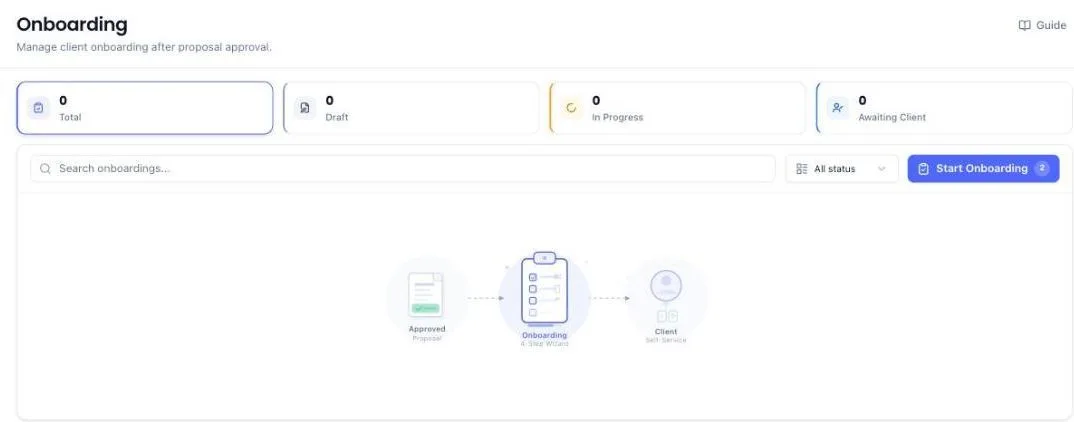
Before you start
- An approved proposal for that client. Onboarding starts from one and cannot be started without it.
- Your firm profile complete — the client portal link cannot be sent without it.
- A contact with an email or phone, so the link has somewhere to go.
Start an onboarding
- Open Onboarding from the left menu.
- Click Start Onboarding, then With proposal.
- Pick the client. Each row shows the client's name in bold, with the proposal under it. The client and the agreed services come across with it.
- Work through the steps on the left: Registrations, Documents, Compliance, Invoicing and Review.
Pick the client's compliance
The Compliance step lists only the filings switched on for this client. If four are picked, you see those four, not every filing your firm has.
- Go to Compliance. Under the list it says how many are switched on for this client.
- To add another, click Show all … to switch more on. Every filing appears, and the ones not picked show Click to enable.
- Click a filing to switch it on. The full list stays open so you can keep picking.
- Click Only this client's … to go back to just the picked ones.
A client with nothing picked yet opens on the full list, so there is always something to choose from.
Portal passwords are saved, not shown
When you type a client's portal password into a registration, it is scrambled before it is stored and is never displayed again — not to you, not to anyone else at the firm.
- Type the password once. The box shows Password saved underneath from then on.
- Next time you open that registration the box is empty. That is normal — it does not mean the password was lost.
- Leave it empty and the saved password stays as it is. You can safely correct a registration number or a state without retyping the login.
- Type a new password only when you actually want to replace the old one.
If a password stops working, type the correct one over it. There is no way to read the old one back.
Let the client do their part
- Open the onboarding and generate the Client Portal Link.
- Send it. The client opens it with no account and no password — the link is the key.
- They see exactly what is outstanding: documents to upload, registration details to confirm, logins to supply.
- Their progress appears on your screen as they go, under Client Activity.
Use Send test to me first if you want to see what the client will see. Use Revoke link to kill it if it went to the wrong person.
When the client's link expires
A portal link works for 30 days. After that the list shows a red Link Expired badge next to the client. You do not have to do anything special — every button that sends or copies the link gives the client one that works.
- Notify sends the client's current link again. If that link has expired, it makes a new one first and sends that instead. You will see "Old link had expired — new link sent".
- Resend does the same and also emails you a copy of the link.
- Copy copies a working link. If the old one had expired, a new one is made and copied.
A link that still works is never replaced, so whatever the client already has open or saved keeps working. Once a new link is made, the old one stops working — ask the client to open the newest message.
The client can also fix it themselves. Opening an expired link shows Send me a new link. One tap sends a fresh link to the email and WhatsApp number you have on file for them, with nothing for you to do.
Look at a document the client uploaded
- Open the onboarding and go to Documents.
- In the Document Checklist, find the file under the document it was uploaded for.
- Click the eye icon next to the file name.
The file opens in a window on top of the onboarding. You do not leave the screen, and nothing is saved to your computer.
- PDFs and photos are shown as they are.
- Excel and CSV files are shown as a table, with a tab for each sheet. Only the first 500 rows of each sheet are shown; download the file to see the rest.
- Word, ZIP and other files cannot be shown in the window. It says so and offers Download.
Download, top right of the window, saves the original file whatever its type. The same eye icon works on a client's Documents tab under Businesses.
Sign the WhatsApp message with your own name
When you onboard without a proposal, the WhatsApp message for the client box ends with the Government fees note and a sign-off. To sign off as you want, with your firm's name and a line such as "Team of CS, CA & Advocates":
- In the Message box, type your sign-off under the last service. For example: Regards, then your firm's name, then your title.
- Click Copy or Open WhatsApp. Your sign-off replaces the built-in "Thanks & Regards" and firm name, and the Government fees note moves above it. The client gets one sign-off, not two.
- When asked Keep these changes for next time?, choose Save for next time. Every client you onboard after that gets your sign-off without retyping it.
A sign-off you typed into a service's Note for the client works the same way when that service is the last one in the message.
Finish the onboarding
Once the client has sent every required document and portal login, Registrations and Documents tick themselves. You only need to mark Compliance and Invoicing.
- Check the documents and credentials collected are what you asked for.
- Confirm the billing arrangement — cycle, start date and amounts.
- Choose Mark client as onboarded.
The engagement is now live: the compliance items from the proposal are attached to the client, the invoice schedule is set running, and the client's portal closes.
The client's first invoice usually exists already: it was raised when they signed the proposal. The Invoicing step says what happens to it — if it has not been sent, finishing the onboarding replaces it with the schedule; if it has, the schedule leaves out what it billed. Either way the client is billed once.
The invoices it creates are Scheduled, not Draft: each goes to the client on its due date. The completed onboarding lists them under N invoices created — click one to open it, send it early or change it, or click View all for every invoice for that client.
The Onboarding card on your dashboard
The Onboarding card on your dashboard shows three numbers. Click any of them to open this list showing only the onboardings that number counted.
- Ready — open onboardings that have reached the last step and are waiting for you to finish them.
- Stalled — open onboardings (Draft, In Progress or Awaiting Client) with no change in more than 5 days.
- Done MTD — onboardings completed this month.
What the system does on its own
- The signed proposal supplies the work. You do not re-enter the services — completing onboarding attaches the compliance items that came from it.
- The billing schedule starts. Recurring services begin producing invoices on their agreed cycle from the start date.
- The portal closes on completion. The client's link stops working once you mark them onboarded, so old links cannot be reused.
- An expired link is replaced when it is next sent. Notify, Resend and Copy never hand out a dead link, and the client can request a fresh one from the expired page.
- Uploads land against the client as they arrive — nobody has to move files across.
- Portal passwords are scrambled the moment they are saved and are never sent back to any screen. A blank password box means "already saved", not "missing".
- Logins the client sends show up on their Credentials. When the client types a portal login on their link, it appears under Businesses, then the client, then Files & logins, then Credentials. No retyping. Delete one there and it stays deleted, and the client's link asks for it again.
- Client steps tick themselves. When everything you asked the client for is in (a file, or an answer such as "don't have"), Registrations and Documents show Done without you pressing Mark as Done.
What you cannot do (and what to do instead)
- You cannot onboard from a proposal that is not approved. Get it signed first; onboarding sets up work the client has agreed to pay for.
- You cannot read back a saved portal password. Nobody can — that is the point. If you need a different one, type it over the top.
- You cannot complete a cancelled onboarding. Start a new one.
- You cannot complete the same onboarding twice. If something was missed, reopen it, fix it, and complete it again.
- You cannot delete a completed onboarding. Live work and invoices depend on it.
- You cannot reopen an onboarding that was never completed. It is still open — carry on where you left off.
- You cannot send a portal link without a firm profile. Complete Settings, then Profile, first — the client sees your firm's name and branding on that page.
- You cannot upload documents once your firm's storage is full (10 GB on every plan, plus 100 GB for each Extra storage add-on). The upload is refused and says how much is used. If a client uploads through their onboarding link while storage is full, they are told the file could not be saved and to let you know — they are never shown a price. The account owner can add storage from Settings → Billing.
Common questions
The dashboard says 4 stalled, but the Onboarding page shows 5. Which is right?
Both. Total on the Onboarding page counts every onboarding, including ones already completed or cancelled. Stalled counts only the open ones with no change in more than 5 days, so a completed onboarding is never stalled. Click the Stalled number on the card to see exactly which ones it counted.
I completed the onboarding but there is no invoice under Draft.
Invoices from an onboarding are created as Scheduled, not Draft. Open the completed onboarding: the N invoices created card lists them with the date each goes to the client. Click one to open it.
The client says the link shows "expired" or "no longer active".
They opened an old message. Click Notify — they get a link that works — and ask them to open the newest message. If the page they are on shows Send me a new link, they can tap that instead.
The portal password box is empty. Did we lose the password?
No. Saved passwords are never shown again, so the box always opens empty. If Password saved appears under it, one is on file and will keep working. Leave the box alone.
I only wanted to fix the registration number. Will that wipe the password?
No. An empty password box means "keep the one already saved". Only typing something new replaces it.
The client sent their GST login on the onboarding link, but Credentials is empty.
Open the client's Credentials tab once. Any login they sent earlier is copied in and shows straight away.
The Compliance step only shows a few filings. Where did the rest go?
Nothing is gone. The step shows only the filings switched on for this client. Click Show all … to switch more on under the list to see every filing and switch another one on.
The client will not use the portal.
Collect the documents however they prefer and upload them yourself from the onboarding screen. The portal is a convenience, not a requirement.
What actually happens when I mark a client as onboarded?
Their compliance items go live, the invoice schedule starts, and their portal link stops working. Do it when you are genuinely ready to act for them.
Clicking the eye on a spreadsheet used to download it. Why does it open now?
The eye used to hand the file to your browser, and browsers cannot show Excel files, so they downloaded them. It now opens the file in a window inside PracticeStacks. Use Download in that window when you want the file itself.
The WhatsApp message shows a firm name that is not ours.
Type your own sign-off under the last service in the message box and choose Save for next time when you send. Your sign-off replaces the built-in one for every client from then on.
We forgot to collect a document.
Reopen the completed onboarding, add the document, and send the client a fresh link.
Most of our clients came before we used the product. Do they need onboarding?
No. Onboarding is optional — an existing client can be given compliance items and invoices directly.
More guides
Every other part of the product, the same way.