
Emails
Client mail, filings and follow-ups in one inbox — sorted by client, with drafts written for you and bulk sends to a whole category.
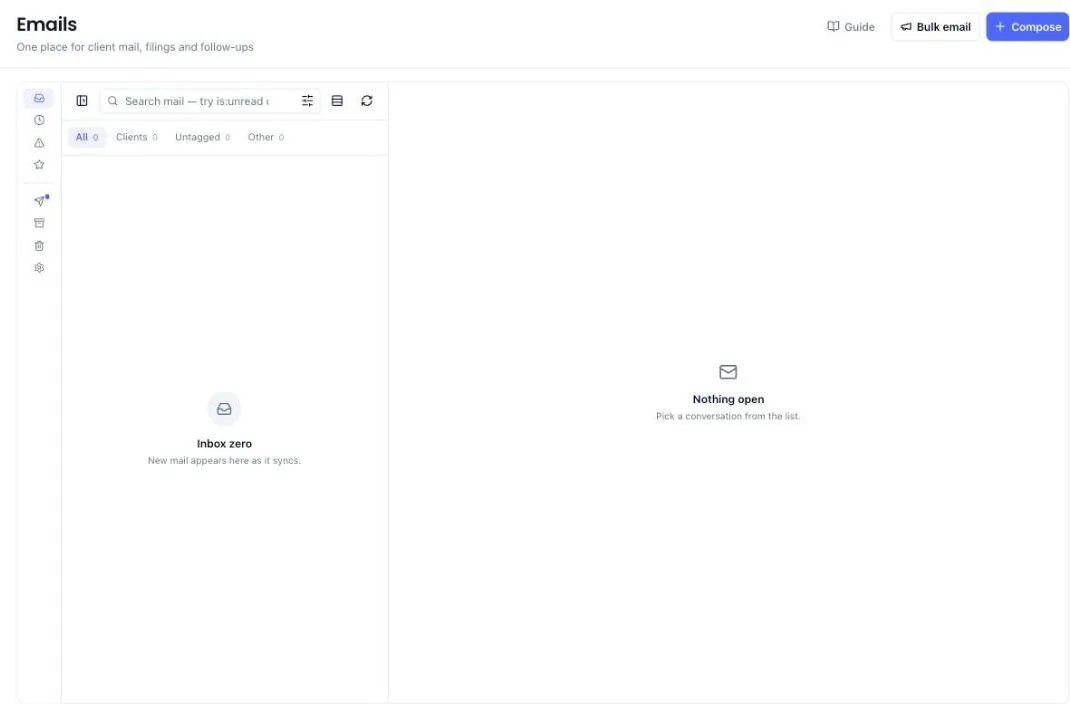
The Emails screen brings your client mail into the product, tagged against the client it belongs to. The point is not to replace your mail app — it is that a message about a filing sits next to the filing, and anybody at the firm can see it.
Before you start
- The module must be enabled for your firm, and mailbox sync is part of the higher plan. If Emails is not in your menu, check Billing & Subscription.
- Your own connected mailbox. Everybody who uses Emails connects their own — open Emails, then Mailboxes down the left. Every provider is listed on that screen — Gmail, Outlook / Microsoft 365, Zoho Mail, Yahoo Mail, Hostinger, GoDaddy, and Custom for anything else — and picking yours opens its own setup steps. It is per person, not per firm: your firm owner having a mailbox connected does not give you one. Your mail stays yours — colleagues do not read your inbox — and anything you send goes from your own address, so the reply comes back to you.
- Client contacts with email addresses, which is how mail is matched to a client.
Read and reply
- Open Emails from the left menu.
- Use the filters along the top: All, Clients, Untagged, Other. Clients is the one that matters — mail from people you act for.
- Underneath them, the Show row narrows the same list by whether you have read it: All, Unread, Read. Mail you have not opened yet carries a dot and a bold subject; mail you have read goes grey, so you can tell at a glance what is still waiting on you.
- At the right-hand end of that same Show row is Client. Click it, start typing a client's name in the Search clients box, and pick them — the list drops to that client's mail only, and the strip above says whose it is and how many conversations there are. Clear client at the foot of the same dropdown puts everything back. It is the quickest way into one client's correspondence when you already know whose mail you are after.
- Click a conversation to open it. It opens in the panel on the right and reads top to bottom like any mail app: who it is from, then the message, then its files.
- Reply from the buttons along the bottom of the panel. The reply goes from your connected mailbox, so the client sees your normal address.
The views down the left
The narrow list down the left side of the screen is not your mail folders — it is the cuts a firm actually works from.
- Inbox — everything that has not been archived.
- Needs your reply — client conversations where they wrote last, so it is your turn.
- Waiting on clients — client conversations where you wrote last and nobody has come back.
- Notices — mail carrying a statutory deadline.
- Starred — whatever you have starred.
- Sent — mail you sent yourself, from your connected mailbox.
- App emails — mail PracticeStacks sent for you: proposals, reminders and bulk sends, with a record of who opened them.
- Completed — conversations you marked done. They are still sitting in your inbox as well.
- Archived and Deleted — filed away, and still recoverable.
- Mailboxes — where you connect your own mail account, and where you come back to if it needs reconnecting. Until you have one connected, this screen lists every provider so you can pick yours and start straight away.
Which of the first two a conversation falls into is decided by who sent its newest message, not by which folder it sits in. That matters on a real mailbox: a reply a colleague sent from their own address arrives back in the shared inbox, and it still counts as yours, not as a client waiting on you.
The number beside each view is counted the same way the list is, so it always matches the conversations you get when you click it.
Say who a conversation belongs to
Every action for a conversation lives in one place: the top right of the reading panel. Nothing sits inside the message itself.
- Tag to client — pick the client this conversation is about. Once tagged, the client's name shows at the top left of the panel on every message in the conversation.
- Add as lead — the person-with-a-plus icon. The sender is a prospect, not a client yet. This creates the lead from their details.
- Add as business — the building icon. The sender is a client you have not added yet. This creates the business from their details.
- Not a client — the crossed-out person icon just after those. Use it for newsletters and vendors, and the conversation stops being counted as untagged.
The envelope icon puts the conversation back to unread and closes it, which is how you hand something on to whoever actually deals with it. The done, star, archive and snooze icons sit at the end of the same row, immediately after the tagging buttons, so deciding who a conversation belongs to and filing it are the same movement. After them, past a short divider, sit the three that think for you: Summarise, Suggest reply and Create task. Once a conversation is tagged the tagging buttons drop away and only the icons remain.
Every one of them is an icon, so the whole row fits on one line and the message keeps the height. Rest the pointer on any icon and it tells you what it does. On a narrow window Summarise, Suggest reply and Create task move into a ⋯ menu at the end of the row rather than wrapping onto a second line.
Until a conversation is tagged it will not appear on any client record, and its attachments cannot be filed.
Your firm's client list is the one used for tagging, whoever you are. A conversation you tag against a client shows on that client's record for everybody at the firm, and mail from an address already on a client's contact record is matched to that client for you.
Clear what you have already handled
The dashboard's Emails tab lists what is still open in two panels — Needs your reply and Waiting on clients. An email that has been sitting there for 89 days is not a problem the system can solve on its own: the age next to a row is information, and nothing clears itself just because it got old. You tell it what has been dealt with.
Each row carries a Done button and a ⋮ menu on its right.
- Done — the work this email asked for is finished. The row leaves both panels and is counted under Completed in the row of figures at the top. The email is not deleted and not archived: it stays in your inbox, now marked Completed in the list, and anyone can see who cleared it and when.
- Remind me — tomorrow, in three days, next week, or a date you pick. The conversation leaves the panel and comes back on the morning you chose.
- Assign as a task — hand the email to somebody. This opens the task form already filled in with the client, the subject and the message, so the only thing left to choose is who does it and by when. The task keeps the link back to the email.
- Follow up — opens the conversation with the reply box already open, for chasing a client who has gone quiet.
- Open conversation — the full thread, same as clicking the row.
If the client writes again on the same subject, the conversation comes back into Needs your reply — marking it done closes what was asked, not the relationship.
You can do the same from the reading panel: the tick icon at the top right marks the open conversation done, and clicking it again reopens it. A wrong click is never a dead end.
Jump from a figure to the mail behind it
The row of figures across the top of the dashboard's Emails tab is clickable. Each one opens your inbox already narrowed to the mail it counted, newest first, so a number that says ninety-two never leaves you hunting for the ninety-two.
- Awaiting your reply — the conversations where a client wrote last. Each row shows the subject, the client, when it landed and how long it has been waiting.
- Waiting on clients — the ones where you wrote last and nobody has come back, with the wait shown against each.
- Completed — everything you have marked done.
- Linked to clients — the Clients cut of your inbox: mail matched to a business you act for.
- Emails sent — the mail you sent from your own mailbox, over the same stretch of time the figure covered. Change the period at the top of the tab and the list follows.
Avg first response is the one figure that does not open anything. It is an average, so there is no list of mail sitting behind it.
The panels underneath those figures work the same way.
- Volume by client — click a client's name to open every conversation with that client.
- By category — click a slice of the ring, or the same name in the list beside it, to open the conversations on that topic. A conversation counts if any message in it was on that topic, so one you have already answered still shows.
- Inbox hygiene — Unlinked emails, Linked to a client and Moved to Other open those cuts of your inbox. Attachments received opens the conversations carrying a file. Converted to tasks opens your task list, narrowed to the tasks that came out of mail.
Attachments filed to vault is the one line here that opens nothing: it counts filing actions, not mail.
The panels count messages, while the inbox lists conversations — so the strip above the list can show a smaller number than the figure you clicked. Both are right: several messages on one subject are one conversation.
Rest the pointer on a card and it tells you where it goes before you click. Once you land, a strip above the list says what you are looking at and how many there are — Needs your reply · 92 conversations — with Clear filter beside it to put the whole inbox back. Newest mail stays at the top throughout, so anything that arrives while you are working appears above what you have already read.
Files in a conversation
Attachments are listed under the message, where you reach them after reading what the mail is about. They cover the whole conversation, not just the message you have open. A client who sent the challans last week and "any update?" today still shows the challans — the line above the file list tells you how many came from earlier in the conversation.
- Click a file name to open it in the viewer.
- Click File to <client> beside a file to save it against that client's documents.
- When there is more than one file, File all to <client> saves the lot in one click.
Filing needs the conversation tagged to a client first — until then the button reads Tag to file this. In the conversation list, a paperclip with no number means the files are on an earlier message of that conversation.
Let it draft the reply
On a client email, ask for a reply draft with the speech-bubble icon at the top right of the panel. It reads the message and what the system knows about that client, and writes a first version for you to edit. It is a starting point, not a send button — read it before it goes.
The sparkle icon beside it summarises a long message into a few lines instead, which is the quicker way into a thread somebody else has been handling. The summary appears above the message and is only ever shown to you.
Send to many clients at once
- Click Bulk email.
- Choose who it goes to — by client category, or by picking businesses.
- Write the subject and the message.
- Review the recipient count, then send.
Categories are the reason to tag clients: "everybody who does GST" becomes one send rather than a copy-paste exercise.
Turn an email into work
Where a client's mail is actually a job — "please file this by Friday" — create a task from it with the list icon at the top right. The task keeps the link back to the message, so whoever picks it up can read what was asked.
What the system does on its own
- Mail syncs on its own throughout the day; older mail is filled in behind you.
- Messages are matched to clients by the sender's address and sorted into Clients or Other.
- Attachments are kept against the client, and older attachments stay linked to your mail server rather than being duplicated, so storage lasts longer.
- Logos and pasted pictures inside a message are saved with it, so a signature or a screenshot still shows months later. Older mail that predates this is repaired in the background, a batch at a time.
- Rules you set — sort by sender, file into a category — run as mail arrives.
- A conversation you marked done comes back if the client replies on it again.
What you cannot do (and what to do instead)
- Not everyone can send bulk email. It is limited to firm administrators. Ask one to send it, or have your role changed.
- Email filters and rules are set by an administrator. If a rule is sorting mail the wrong way, ask one of them to change it — you cannot edit the firm's rules yourself.
- You cannot bulk send without choosing an audience. Pick at least one category or business — there is no send-to-everybody.
- You cannot file an attachment from an untagged conversation. Tag it to a client first; the button tells you so.
- You cannot get a reply draft for internal mail. Drafts are only offered on client email, where the system knows the context.
- You cannot summarise an email with no text. A message that is only an attachment has nothing to read.
- You cannot un-send. Check the recipient count on a bulk send before pressing it.
- Marking done does not remove the email. If you want it out of the inbox entirely, archive it instead — that is the icon beside the tick.
- Needs your reply and Waiting on clients only cover client mail. A conversation nobody has tagged to a client is in your inbox but not in either of those two, which is another reason to tag it.
- Filtering by client only finds tagged mail. A conversation nobody has tagged to that client will not appear under their name, however obviously it belongs to them.
Common questions
My mail is not appearing.
Check your mailbox is connected: open Emails, then Mailboxes down the left. Sync runs regularly rather than instantly.
Compose says "Connect your email to send mail".
Nothing is wrong with your account — you have not connected a mailbox of your own yet. Open Emails, then Mailboxes down the left, pick your provider from the list on that screen, and set yours up with the same address you already use for client mail. This is per person: your firm owner having a mailbox connected does not give you one. Once yours is connected, Compose opens the message form straight away and your inbox starts filling in.
Do I have to be an administrator to connect a mailbox?
No. Anybody who has the Emails module connects their own. What stays with administrators is the firm's shared settings — the email filters and rules, and bulk email.
Will my colleagues be able to read my mail?
No. You see the mail from the mailbox you connected, and they see theirs. What is shared is the client side of it: a conversation tagged to a client shows on that client's record, so the firm can see what was said about the work.
How do I see only the mail I have not read?
Pick Unread in the Show row above the list. Pick Read for the opposite, and All to go back to everything. The strip above the list names what you are looking at and counts it, with Clear filter beside it. Opening a conversation marks it read, so it leaves the Unread list once the list next refreshes — it does not vanish from under you while you are reading it.
How do I see only one client's emails?
Click Client at the right-hand end of the Show row above the list, type enough of the name to find them, and pick them. Only that client's conversations are listed from then on, and the strip above the list carries their name and the count. To go back, open the same dropdown and press Clear client, or press Clear filter on the strip. Picking a client this way is exact — two clients with almost the same name stay separate, which typing a name into the search box could not do.
I opened an email by mistake and want it back as unread.
Click the envelope icon at the top right of the reading panel. The conversation goes back to unread and closes, so it is waiting for you — or for the colleague who handles it — the next time anyone looks at the inbox. It closes on purpose: staying open would mark it read again straight away.
A client's email landed in Other.
They wrote from an address not on their contact record. Add that address to the contact and future mail is matched.
An email I already dealt with keeps showing on the dashboard.
Nothing clears itself. Press Done on that row — the mail stays in your inbox with a Completed mark, and the dashboard stops counting it as open.
I marked something done by mistake.
Open the conversation and click the tick icon at the top right again. It goes back to being open.
Where did "Awaiting reply" go?
It was one view doing two jobs, and it listed the opposite of what its name promised — the mail you had sent, rather than the mail you owed an answer to. It is now two, side by side: Needs your reply and Waiting on clients. Any saved filter that pointed at the old view now runs inside Needs your reply.
Sent is showing different mail than it used to.
Sent is now the mail you sent yourself, from your connected mailbox — the same mail the "Emails sent" figure on the dashboard counts. The proposals, reminders and bulk sends that PracticeStacks sent for you, with the record of who opened them, moved one line down to App emails.
I clicked a figure on the dashboard and mail seems to be missing.
It is filtered, not missing. The strip above the list names the filter — the view, or the client or topic you clicked — and counts what is in it; press Clear filter to get the whole inbox back.
Summarise and Suggest reply are not under the subject line any more.
They moved up into the row of icons at the top right, beside the star: the sparkle summarises, the speech bubble drafts a reply, and the list makes a task. Nothing was removed — the row they used to sit on now belongs to the message.
The sender's initials in a circle have gone.
Removed, so the subject line starts at the same left edge as the message, the files and everything else in the panel. The sender's name and address still sit under the subject.
The attachments used to be above the message.
They moved below it, the way every mail app shows them — the message now runs full height instead of sitting in a small window, so a short mail no longer starts halfway down the panel. Scroll to the end of the message and the files are there.
The tagging buttons are not inside the email any more.
They moved to the top right of the reading panel, alongside the star, so every action for the conversation is in one row. Nothing was removed.
The list shows a paperclip but the newest message has no file.
The file is on an earlier message of the same conversation. Open it — the file list under the message covers every message in the conversation.
Pictures in an older email show as empty boxes.
Those are logos and pasted images from the sender's signature. Mail synced before this was handled did not keep them, and they are being repaired in the background — the message reads normally in the meantime, and nothing is lost from it. New mail is unaffected.
Does the client see this was sent from PracticeStacks?
No. Replies go through your own connected mailbox.
More guides
Every other part of the product, the same way.