
Account and firm profile
Your own details, how you sign in, the devices you are signed in on, your firm's profile and branding, your working calendar and holidays, how your data is kept, your team, your calendar (Google or Outlook), your own email sending domain, webhooks into your other systems, and the activity log.
This screen holds two different things: you, and your firm. Your details decide how you are addressed and reachable. The firm profile decides what your clients see on every proposal, invoice and email that leaves the product — which is why finishing it is the first thing to do.
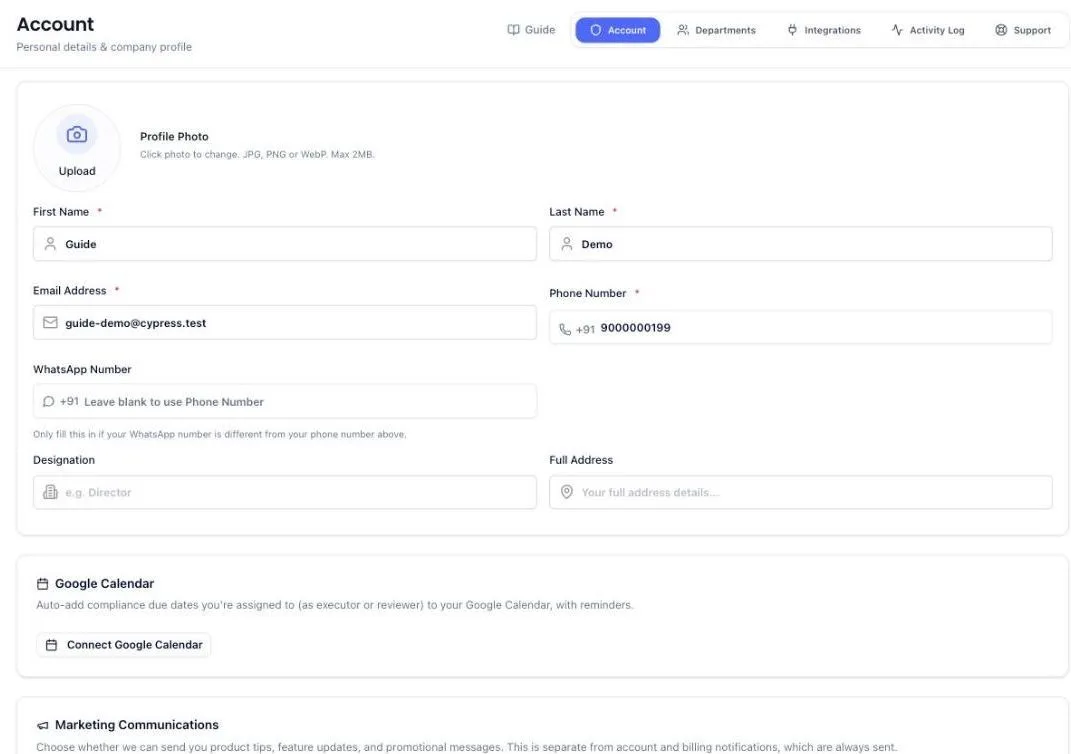
Ten tabs across the top: My account, Notifications, Firm, Team, Automation, Billing, Invoicing, Integrations, Activity and Support. Your own details and your firm's are deliberately kept apart — changing your photo never takes you near the firm profile.
Inside each tab the sections are listed down the left, and each one is a card you can fold shut by clicking its heading. They all start open. Following a link straight to a setting always opens that card, even if you had folded it away earlier.
Before you start
Nothing. This is usually the first screen a new firm completes — proposals and client portal links are blocked until the firm profile is filled in.
Your own details
- Open Settings and stay on My account.
- Set your name, designation and photo. Click the photo to change it — JPG, PNG or WebP, up to 2 MB.
- Check your phone number.
- Fill in the WhatsApp number only if it differs from your phone. Left blank, your phone number is used.
- Choose whether you want product tips by email or WhatsApp. This is separate from account and billing messages, which are always sent.
Nothing here has a Save button. Each change is saved a moment after you stop typing, and Saved appears at the bottom right of the card when it has gone through.
How much of your profile is filled in
Under the section list on the left, a card reads Profile 83% complete with a bar and a count of what is still missing. It counts six things: your photo, your name, your designation, your mobile number, two-step login, and a connected calendar.
Each thing still missing is listed underneath as a link. Click one and the screen scrolls to the card that fixes it and opens it for you. When all six are done the card turns green and says so.
It counts your own setup only. Your firm's profile, logo and public page have their own progress indicator on the Firm tab.
Which number gets your WhatsApp messages
Once a WhatsApp number is set here, every WhatsApp message PracticeStacks sends you goes to it — new website enquiries, task alerts, reminders, digests and your login code. Your phone number is still your login and still where a text message would go, but it stops receiving WhatsApp.
Fill this in if your office number runs a WhatsApp Business account. A number connected to the WhatsApp Business API cannot receive ordinary messages at all, so leaving this blank means the alerts are sent and silently never arrive. Put a personal number here and they land.
Your calendar
On the My account tab, the Calendar section connects your own calendar to PracticeStacks. Two services are offered — Google Calendar and Microsoft Outlook. Connect either one, or both.
Once connected, two things happen. The filing due dates you are named executor or reviewer on are added to that calendar as repeating reminders. And your online meetings appear on the dashboard calendar beside your tasks, with a link to join.
- Open Settings and stay on My account.
- Click Calendar in the list on the left.
- Click Connect Google Calendar or Connect Microsoft Outlook.
- Sign in to that account and allow access when you are asked.
- You land back on this screen, and the line now reads Connected with the address you used.
Connecting is separate from signing in with the same account. Logging in with Google or Microsoft never asks for your calendar — you have to connect it here.
The Integrations tab also lists Calendar, but only as a signpost back here. Calendars belong to a person rather than to the firm — each of your team connects their own, and nobody sees anybody else's.
Google may show a screen saying it hasn't verified this app while our review with Google is still going through. It is safe to carry on: click Advanced at the bottom, then Go to PracticeStacks. If you would rather not, connect Outlook instead — Microsoft does not show that screen.
Outlook allows one reminder per event. A filing set to remind you seven, three and one day before therefore alerts seven days before in Outlook, and the event itself names the other two. On Google all three are set.
Disconnect beside a connected calendar removes the due dates PracticeStacks put there and stops the sync. It affects only that one calendar — disconnecting Outlook leaves Google connected.
Keyboard shortcuts
One shortcut opens search from anywhere in PracticeStacks: ⌘ Cmd + Shift + Space on a Mac, Ctrl + Shift + Space on Windows. It is the only one — the Search button at the top of the left menu shows it, and clicking that button opens search too. Type a client, a filing or an invoice number, or type new task to create one without leaving the page.
The full list is under Settings, My account, Keyboard shortcuts.
On a Mac, hold Shift (⇧), not Control (⌃). ⌘ + Control + Space is the Mac's own emoji picker, so pressing it opens emojis instead of PracticeStacks.
With the PracticeStacks Chrome extension installed, the same ⌘ Cmd + Shift + Space opens search from any website, such as Gmail, Razorpay or a government portal, as long as Chrome is the app in front. When another app is in front, Control + Shift + 1 opens it instead. If either does nothing, paste chrome://extensions/shortcuts into Chrome's address bar and check that PracticeStacks has a shortcut set. You can change it to any keys you like there.
Signing in
The login screen asks one thing at a time. Above the field, choose Email or Mobile — that single choice decides where your code is sent. On Mobile the field carries a fixed +91 and wants the ten digits after it. Type the address or the number, then click Send code. The line under the button says what will happen before you press it: a four-digit code, good for ten minutes.
Send code stays greyed out until what you have typed could actually work — a complete email address, or ten digits starting 6 to 9. A button you can press and be told off for pressing is worse than one that visibly waits for you.
On the next screen, type the four digits. It submits the moment the last one lands, so most people never touch Verify and continue underneath. The box above the digits tells you where the code went and offers a fresh one: Resend counts down from thirty seconds first, so a mistyped number cannot fire off a run of messages. If you picked the wrong channel or mistyped the address, Change details at the top takes you back with what you typed still in the box.
Prefer a password? Log in with a password instead swaps the code for a password box, and Log in with a code instead swaps it back. Passwords are optional — an account that has never had one signs in perfectly well with the emailed or texted code.
Keep me signed in is already ticked, and keeps you signed in for thirty days. Untick it on a shared or office machine and the session ends after a day.
Underneath the button a quick browser check runs on its own, and usually finishes without you noticing it happened. If it asks you to tick a box, tick it and the button comes to life. If it says it could not run, an ad blocker or an office firewall is the usual cause — Try the check again sits in the same place.
At the very bottom, Contact support is there for when none of the above works.
Two-step login
On the My account tab, Sign-in and security holds three things: two-step login, your password, and the devices you are signed in on. Two-step login adds a second step to your own sign-in. With it on, your password or OTP is no longer enough — you also type a six-digit code from an app on your phone. Someone who steals your password still cannot get in.
You need a free authenticator app on your phone first: Google Authenticator, Microsoft Authenticator or any similar one.
- Open Settings, stay on My account and click Sign-in and security on the left.
- Click Turn on two-step login. A square QR code appears.
- In your authenticator app, add an account and scan the QR code. If your app cannot scan, type in the key printed underneath it instead.
- Your app now shows a six-digit code that changes every thirty seconds. Type the current one into the box and click Turn on two-step login.
- Ten backup codes appear. Copy or download them and keep them somewhere only you can reach — a password manager, or paper in a locked drawer.
From the next sign-in onwards, these four ways in ask for the code: email and password, the email code, the mobile code, and the one-tap login links in your WhatsApp messages.
Note the two different codes: the one we send you to sign in is four digits, and the one your authenticator app shows is six. They are not the same code and they do not replace each other.
Your password
The Password row sits in the same section, under two-step login. What it offers depends on your account.
If you already have a password, it says when you last changed it and offers Change. You are asked for your current password, then the new one twice. The new password needs at least eight characters, with an uppercase letter, a lowercase letter and a number — and it cannot be the one you are already using.
If you have only ever signed in with Google, Microsoft or an emailed code, there is no password to change and the button reads Set a password instead. It does not ask for a current one, because there isn't one. Setting a password is optional — it simply gives you a second way in.
Changing or setting your password signs you out on every other device. The one you are using stays signed in. That is the point: you change a password when you think someone else may have it, and leaving their session running would make the change pointless.
Forgotten your password and cannot get in at all? Do not use this screen — use Forgot password on the login page, which sends a code to your email.
Devices you are signed in on
Active sessions, at the bottom of the same section, lists every browser and phone currently signed in to your account. Each row names the browser and the device — Chrome on Windows, Safari on iPhone — with the last time it was used, and the one you are reading this on is marked This device.
Two buttons:
- Sign out beside a row ends that one session. Do this when you recognise the device but have finished with it — a client's machine, an old phone.
- Sign out others at the top ends every session except the one you are using. Do this when you see something you do not recognise, and change your password straight afterwards.
A device that has been signed out is asked to log in again the next time it tries to do anything. Signing out your own row logs you out here and now, and returns you to the login screen.
The list only knows about devices that signed in after this feature arrived. If you were already signed in, your own browser will not carry the This device mark until the next time you sign in — the screen says so when that is the case.
Signing in with Google or Microsoft
Those two buttons work differently. They hand you straight to Google or Microsoft, which leaves no moment for us to ask for your six-digit code — so once two-step login is on, those buttons stop working for your account and send you back to the login screen with an explanation.
Sign in with your email instead: by password, or by asking for a code to be sent to you. Either one then asks for your six-digit code. Nothing is lost if you have never set a password — the emailed code works for every account.
If you would rather keep the Google button, turn two-step login off here and use Google's own two-step verification on your Google account instead.
Backup codes, and losing your phone
The ten backup codes are your way back in when your phone is lost, wiped or replaced. Each one works once, and typing one in the code box signs you in exactly like the app would.
They are shown once, at the moment you create them. There is no screen that shows them again — if you did not save them, use Create new backup codes under Sign-in and security to replace the set with a fresh one you can save properly. Doing that stops the old ten working immediately.
The same section always tells you how many are left, and warns you when you are down to two.
Turning two-step login off
Under Sign-in and security, click Turn off and enter a current code — from your app or one of your backup codes. Asking for the code is deliberate: it stops someone who walks up to a screen you left open from quietly removing your protection.
The firm profile — do this first
- Go to the Firm tab and open Business profile.
- Enter your firm's name, industry, official email, phone and address.
- Add your GST identification and registration number. These appear on invoices.
- Watch the profile strength indicator — it tells you how complete the profile is.
Until this is done, a new proposal shows Setup Required and a client portal link cannot be sent.
Only the person who created the firm sees this tab. If you were added to a firm by someone else, the firm profile is theirs to edit, not yours.
Two shortcuts save typing. Search Business (Auto-fill) at the top of the card looks your firm up by name and fills in the address, website and phone it finds. Under the GST field, Fill from GSTIN takes the GST number you have typed and fetches the registered name and address against it. Both only fill boxes you have left empty — a name you typed yourself is never overwritten, because a trading name and a name on the GST register are often not the same thing.
Branding
On the Firm tab, upload a logo and a cover image, and set your accent colour. The preview shows how a proposal will look. This is what a client sees, so it is worth ten minutes.
The logo is not only for clients. It also becomes the mark at the top of the sidebar, for you and for everyone in your firm — partners, managers and staff alike — beside your firm's name. Your firm's name sits there from the moment the profile is saved; until a logo is uploaded, your firm's own initials stand in for it, so A N Gawade & Co LLP shows as ANG.
Your public firm page and brochure
Set a profile URL slug and your firm gets a public page. From it, a brochure PDF is generated automatically — or upload your own. That brochure is attached to daily lead follow-up emails, proposal emails and proposal reminders, so prospects always receive your current profile alongside the message.
Your other firms — offices and separate companies
Many practices bill under more than one name: a second office in another state with its own GSTIN, or a separate company the partners also run — sometimes one registered for GST and one not. Add each of them once under Settings → Firm → Your firms, and pick which one is speaking on each proposal and invoice. Your registered firm stays exactly as it is and is always the first entry, marked as the main firm.
- Open Settings, the Firm tab, and choose Your firms on the left. You can also hover or click your firm name at the top of the left menu and choose + Add firm.
- Pick what it is. Another office of your firm is the same firm at another address — its invoices print your firm's name and logo with that office's address and GSTIN. A separate company is its own business — its invoices print its own name and none of your firm's letterhead.
- Fill it in the way you filled your own profile: search the business to auto-fill, then the name, email, phone, website, operating address, GST number and registration number. Typing a full GSTIN tries to look the business up and fills any boxes still empty; where the lookup is not available you will see a note and can type the details in.
- Give it its own invoice prefix, for example PUNE. Each firm numbers its own invoices, because GST expects a separate unbroken series for every GSTIN. The prefix cannot be the same as your main firm's or another firm's.
- Save. It appears in the list with an Office or Separate company badge.
A separate company also gets two more sections in its sheet. Letterhead holds its logo, brand colour and up to two signatures with names and designations — its proposals and invoices print these instead of yours. Proposal templates holds its own cover letter and terms; leave them blank to use your firm's. An office has neither: it prints your firm's letterhead with its own address and GSTIN.
Your own firm's PAN is on Business profile, under the GST number: with a GSTIN it is read from it, and without one there is a PAN box to type it in. The TDS your clients deduct is reported under it.
A separate company also has a PAN, which is what its clients quote when they deduct TDS. Enter a GSTIN and the PAN is read from it and shown under the box; a company with no GST has a PAN box to type it in. An office has no PAN of its own — it is your firm, so it uses your firm's.
Make default decides which firm new invoices start from for clients that have no firm of their own. What each firm keeps separate — three switches under the list — decides whether switching firm at the top of the left menu also narrows your clients, tasks and team. With them off, firms only change who bills; your practice is still shared.
Once an invoice has gone out under a firm, its GSTIN and prefix cannot be changed — that registration and series are on documents your clients hold. If a firm re-registers, add it as a new firm and remove the old one. Removing a firm never deletes it: invoices already sent keep showing it, and its clients and team move back to your main firm.
Only the firm owner or an Administrator can add, change or remove firms. Anyone can switch between them.
Your working calendar
Under Operations on the Firm tab, Working calendar is where you say when your office is actually open. Six things live here.
- Working days. Click a day to switch it on or off. New firms start on Monday to Saturday. Every combination is allowed, including all seven — plenty of practices work Sundays around a deadline, and some close on a weekday instead. You cannot switch all seven off; at least one day has to stay on.
- Saturdays off. Shown only when Saturday is a working day. Pick which Saturdays of the month the office is shut — most practices pick the 2nd and 4th. Nobody is chased on those days, and nobody is counted absent on them. A 5th Saturday only comes round in some months.
- Office hours. An opening and a closing time. Closing has to be later than opening, and the screen tells you if it is not. Times are India Standard Time, which is the clock everything in PracticeStacks runs on. Attendance follows them too: your team is asked to punch in at the opening time and reminded to punch out at the closing time.
- Ask for location on attendance. Off, nobody is asked where they punched in or out, and no location is kept. On, the browser asks when someone punches from the dashboard, and WhatsApp asks right after a punch there. The punch is saved either way — saying no to the question still records the day. Only you and your administrators can see the exact spot.
- Office location. Appears once the location switch is on, and is how you check people were really at the office. Stand in your office, click Use my current location, allow the browser to share it, then click Save changes. Pick how far from that pin still counts as the office: 100 m, 200 m, 500 m or 1 km. From then on every punch in and punch out shows At office, Away with how far, or No location if nothing was shared — on Attendance → Everyone today, on each person's calendar and in the export. Unless you switch on the rule below, a punch away from the office is still recorded, never refused; it is marked so you can ask. Managers and partners see Away from office without the distance.
- Only allow punch in at the office. Appears once an office pin is saved, and is off until you switch it on. On, a punch in from outside the distance you picked is refused — on WhatsApp and on the dashboard — with the message "You are not within the office radius. Please come within the office radius to mark your attendance." Nothing is recorded until the person shares a location inside that distance and then takes a selfie there. On the dashboard, Punch In opens a window that finds their location and asks for the selfie. On WhatsApp, they send in (or tap Attendance → Office punch in), tap Send location, then send a selfie within 15 minutes of sharing the location. Someone visiting a client chooses Client visit punch in instead, picks one of the clients assigned to them, and punches in within the same distance of that client's saved address. A client whose address was typed rather than picked from the suggestions has no saved location, so a visit there is refused until you pick the address on the client's profile. Punch out is not checked. Under Can punch in from anywhere, choose the people the rule should not apply to — field staff, or a partner who is rarely in — and they punch in as before, with no location check and no selfie. Selfies open from the Selfie link on Attendance → Everyone today, for you, your administrators and the person themselves.
- Holidays. Pick a date, name it — Diwali, Holi, a team offsite — and click Add holiday. The list sits above the date box, and the bin icon beside a holiday removes it. Adding the same date twice is refused, so a double-click cannot leave you with two Diwalis.
Changes to everything except holidays — days, hours, the location switch, the office pin and who may punch in from anywhere — are saved with the Save changes button, which appears once you have edited something. Holidays are saved the moment you add or remove them.
What it controls is deliberately narrow: it decides when we are allowed to message people. On a day your office is shut, nobody is chased — not your staff, not your clients. Chases that reach clients are also held outside your office hours. Nothing is lost, because these are messages that repeat: a follow-up held on Sunday goes out on Monday.
What it does not do is move a due date. A GST deadline does not take a holiday, so filing dates, task due dates and the reminders tied to a specific number of days before a filing all stay exactly where they are.
Only the firm owner can change the calendar. Everyone else in the firm sees it and can see why a reminder did not arrive.
Data and privacy
Also under Operations on the Firm tab, Data and privacy states in plain words what happens to the data your firm keeps here. It is a statement, not a set of switches — there is nothing to configure, and the rules are the same for every firm.
- How long we keep it. While your subscription is active, everything stays. If you cancel, your personal details are anonymised thirty days later. An account that never subscribed and goes quiet for three years is anonymised too. Either way a warning email reaches you forty-eight hours beforehand, and logging in once stops the clock.
- What survives that. Invoices and consent or audit logs are kept with your name, email and phone stripped out. Tax law requires the invoices and the DPDP rules require the logs — the person is removed, not the record.
- How it is protected. Everything travels over an encrypted connection. Files you upload — brochures, client documents, logos — are stored in Amazon's Mumbai region and encrypted where they sit.
Firms on the DPDP module also get a link from this card to the consent register, where the lawful basis for each client's personal data is recorded.
Your team and departments
The Team tab holds your people, the departments they belong to, and how many admin seats you are using. Create the departments first — Taxation, Audit, Legal — and you can assign each person as you add them.
Connected apps
The Integrations tab is where PracticeStacks meets everything outside it. Five sections:
- Claude.ai and Claude Code / Desktop — let an AI assistant read and update your leads, proposals and filings in plain language.
- API tokens — a key your website or your own software uses to push leads in.
- Email sending domain — send from your own address instead of ours.
- Webhooks — have PracticeStacks tell your other systems when something happens.
- Calendar — a signpost to the My account tab, where each person connects their own.
Your mailbox is connected from the Emails screen, so client mail appears there.
Only administrators see this tab. Staff members do not, because everything on it applies to the whole firm.
Sending from your own email address
Out of the box, proposals and follow-ups leave from a PracticeStacks address. That works, but it does not look like it came from you, replies do not land in your inbox, and unfamiliar senders end up in spam more often. Setting up your own sending domain fixes all three.
You will need whoever manages your website's domain — often the person who set up your email — because three records have to be added to your DNS.
- Open Settings → Integrations → Email sending domain.
- Fill in the address you want to send from: something like proposals before the @, and your own domain after it.
- Click Set up domain. A table of three records appears — their type, where they go, and what to put in them.
- Add all three at your DNS provider, exactly as shown. Click a value to copy it rather than retyping it.
- Come back and click Check again.
Each row in the table says whether we have found that record yet — Found, Waiting or Missing. Once all three are found the card turns to Verified, and from that moment proposals and follow-ups leave from your address.
Until it is verified, nothing changes. Mail keeps going out from the PracticeStacks address, and the card says so. That is deliberate: mail claiming to be from a domain that has not been proved gets treated as forged, and it would be your firm's name in the spam folder rather than ours.
DNS changes can take up to 48 hours to show up, so a first check that finds nothing is normal. If a record is genuinely wrong, the card says which one and what the problem was, rather than just failing.
The bin icon removes the domain. Sending returns to the PracticeStacks address and you can delete the DNS records afterwards.
Webhooks — telling your other systems
A webhook is PracticeStacks knocking on your own software's door. When a lead arrives or a proposal is signed, we send the details straight to a web address you give us — so it lands in your CRM, your dashboard or your accounts system without anyone opening PracticeStacks to copy it across.
This one is for firms with a developer or a technical person. If nobody on your side can give you a URL to send to, there is nothing to set up here and nothing is lost.
- Open Settings → Integrations → Webhooks.
- Click Add endpoint.
- Give it a name you will recognise later — Zoho, our dashboard — and paste the address your developer gave you.
- Tick the events you want sent. Six are offered: a lead arrives, a lead becomes a client, a proposal is accepted, a proposal is rejected, a compliance is filed, and an invoice is paid. An invoice-paid message also says which of your firms issued the invoice, with that firm's GSTIN, so it can land in the right set of books.
- Click Add endpoint. A signing secret appears.
Copy the signing secret before you close that box. It is shown once and there is no screen that shows it again. Your developer needs it to prove each message really came from us. If you lose it, Rotate secret issues a new one — and your developer has to update their end when you do.
Send test event fires a sample at your address so your developer can check their side before you rely on it. It goes only to that one endpoint, and it is marked as a test, so nothing in your account is affected and no other endpoint receives it.
Under each endpoint, Recent deliveries lists the last ten messages we tried to send, newest first. A green dot means your server accepted it. Amber means it is queued to be tried again. Red means it failed, and the line underneath says exactly what your server replied — that sentence is what your developer needs.
An endpoint that keeps failing is flagged Not reaching you at the top of its card, so a quietly broken integration does not stay quiet.
The switch beside each endpoint pauses it. Use that when your server is down for maintenance — the endpoint and its settings are kept, and nothing is queued up while it is off. The bin removes it altogether, along with its delivery history.
Activity log
The Activity tab is a record of what changed and who changed it. Use it when something looks different from yesterday and nobody remembers touching it.
This tab is the only place the log lives. It used to have a row of its own in the sidebar as well, which was the same screen twice — the row has gone, and an old link or bookmark to it now opens this tab.
Every line is a sentence, not a code. It reads as when, who, and what happened — and the "what" names the client, proposal, invoice or filing itself, so a line tells you it was Sharma Textiles that changed, not that a record with a long reference number did. Under the name sits the kind of record and a short note of the change: Status → INACTIVE, Password → ••••••, Added.
Finding one thing
- Type in the search box at the top. It looks at three things: the person who acted, the name of the client or record they touched, and the kind of record. Typing a client's name gives you everything anyone did to that client.
- Narrow it further with the four dropdowns underneath — the person, the action (created, updated, deleted, viewed, downloaded, signed in, signed out), the kind of record, and how far back to look (today, the last 7, 30 or 90 days, or all time).
- Clear appears beside them as soon as anything is set, and puts the list back to everything.
The count on the right says how many events match. Fifty are shown at a time, with arrows at the bottom for the rest.
Opening one event
Click any line and a panel opens on the right with the whole story: who did it, the exact date and time, a link straight to the record, and — for a change — each field that moved, with the old value struck through beside the new one.
Two things that panel is careful about. A record someone has since deleted still shows its name, taken from what was recorded at the time, and says the record no longer exists rather than offering a dead link. And a password, a client's portal login or an API key is shown as dots: the log records that it changed, never what it changed to.
Sign-ins carry the browser and device, and the internet address they came from, which is what you want when a line surprises you.
Work done by automation
When one of your automation rules did something, the Who column names the rule and marks it Automation rule. Nobody on your team is credited with work they did not do.
Taking a copy
Export at the top right downloads everything matching your current filters as a spreadsheet — when, who, the action, the record and what changed. It follows the filters, so filter first and export second. Up to 2,000 events come down in one go; narrow the date range if you need more than that.
Who sees this tab: administrators, and a partner. An administrator reads the whole firm. A partner reads their own practice — everyone underneath them — and the line above the table says so, because "every change anyone in your firm made" over a shorter list would read as missing data. Managers and staff do not get the tab at all, but the history of a single client, task or proposal still sits on that record's own page, where the people working on it can see it.
What the system does on its own
- Saves your details as you type, a moment after you stop, and shows Saved at the bottom of the card.
- Counts how much of your own profile is filled in and lists what is left, with a link to each one.
- Sends every WhatsApp message to your WhatsApp number once you set one, and to your phone number when you have not.
- Keeps the Send code button inactive until the address or number you have typed could actually work.
- Keeps you signed in for thirty days while Keep me signed in is ticked, and ends the session after a day when it is not.
- Holds the resend for thirty seconds after a login code goes out, then offers it.
- Asks for your six-digit code once two-step login is on — on password sign-in, the emailed code, the mobile code and the one-tap links in WhatsApp.
- Turns away the Google and Microsoft buttons for accounts with two-step login on, because those flows cannot pause to ask for a code.
- Locks the code box for fifteen minutes after five wrong codes in a row, so nobody can sit and guess.
- Records each device you sign in on and keeps its last-used time up to date while you work.
- Signs out every other device when you change or set your password, leaving the one you are using alone.
- Puts your branding on client documents — logo, colour and firm details flow onto proposals and invoices.
- Shows your firm's name and logo in the sidebar to everyone in your firm, not just to you, and falls back to your firm's initials — never the PracticeStacks mark — while no logo has been uploaded.
- Generates the brochure from your firm page once a profile slug is set, and keeps it attached to outgoing emails.
- Holds every reminder and digest on a day your office is shut — a non-working day or a holiday you added — and sends it on the next working day instead.
- Holds client chases outside your office hours, so a follow-up cannot land on a client's phone late at night.
- Leaves due dates alone whatever the calendar says. Only messages wait; deadlines do not move.
- Syncs every calendar you connect — Google, Outlook or both — pushing your filing due dates out as repeating reminders and pulling your online meetings onto the dashboard calendar.
- Tells you when a calendar stops syncing, on the Calendar section itself, so a calendar that quietly lost access does not just go stale.
- Keeps sending from the PracticeStacks address until your own domain is verified, and says so on the card while you wait.
- Re-checks your DNS records each time you click Check again, and marks each record found, waiting or missing.
- Signs every webhook it sends, so your developer can prove the message came from us and not from someone imitating us.
- Retries a failed webhook six times over about nine hours, spacing the attempts out, then stops and shows you your server's own error.
- Flags an endpoint that is not reaching you at the top of its card as soon as a delivery fails.
- Skips a paused endpoint entirely rather than queueing messages up behind it.
- Records every change in the activity log, against the name of the client or record it touched.
- Credits an automation rule by name in the activity log, so work nobody did by hand is not filed under a person.
- Hides passwords and portal logins in the activity log, showing dots in place of the value while still recording that it changed.
- Keeps the name of a deleted record in the activity log, so a line about something that no longer exists still says what it was.
- Sends an old Activity link to the Activity tab in Settings, so a bookmark saved when it had its own sidebar row still opens the log.
What you cannot do (and what to do instead)
- You cannot ask for a second login code straight away. Resend opens up thirty seconds after the last one was sent.
- You cannot have a code sent to your email and your mobile at once. Pick one above the field; Change details lets you switch and try the other.
- You cannot sign in with a non-Indian mobile number. The field is fixed to +91. Use the Email option instead.
- You cannot create a proposal without a completed firm profile. The document has nothing to put its name to. Finish the profile.
- You cannot send a client portal link without one either, for the same reason.
- You cannot auto-generate a brochure without a profile URL slug. Set one, or upload your own PDF.
- You cannot upload a photo over 2 MB, and it must be JPG, PNG or WebP.
- You cannot turn off account and billing emails. The marketing preference does not cover them.
- You cannot change your password without knowing the current one. If you have forgotten it, sign out and use Forgot password on the login screen, which sends a code to your email.
- You cannot change a password on an account that has never had one. The button offers to set one instead, and asks for nothing but the new password.
- You cannot see devices that signed in before this list existed. They appear the next time each one signs in. Sign out others still ends them.
- You cannot sign someone else out of their account. The device list is your own; each person manages theirs.
- You cannot use the Google or Microsoft buttons while two-step login is on. Sign in with your email and a code instead.
- You cannot see your backup codes a second time. Create a new set under Sign-in and security and save those instead.
- You cannot turn two-step login off without a code. Use your app, or one of your backup codes.
- You cannot turn two-step login on for someone else. Each person switches it on for their own account, from their own My account tab.
- You cannot switch off every working day. At least one has to stay on, otherwise nothing would ever reach anybody and there would be nothing on screen to explain why.
- You cannot set a closing time that is not after the opening time. The screen refuses it rather than quietly holding your messages all day.
- You cannot use a different timezone. Everything scheduled in PracticeStacks runs on India Standard Time.
- You cannot move a filing deadline by adding a holiday. The calendar decides when people are messaged, never when work is due.
- You cannot set your own data retention period. One rule applies to every account, and the Data and privacy card states it.
- You cannot get more than one reminder per event in Outlook. Microsoft allows only one, so the earliest offset is the one that alerts and the event names the rest. Connect Google as well if you want each of them to fire.
- You cannot connect two Google accounts, or two Outlook accounts. One of each, per person.
- You cannot see a colleague's meetings. A connected calendar is personal — only you see what it brings in, even when the work is the firm's.
- You cannot connect a calendar from the Integrations tab. It points you back to My account, because calendars belong to a person and not to the firm.
- You cannot send from your own address before the DNS records are verified. Mail from an unproved domain is treated as forged, so we keep using the PracticeStacks address until the check passes.
- You cannot set up a sending domain for a free mailbox. It has to be a domain your firm owns and can add DNS records to — a Gmail or Yahoo address will not do.
- You cannot have two sending domains. One per firm. Remove the first if you are moving to another.
- You cannot see a webhook's signing secret again. It is shown once. Rotate it and save the new one, then have your developer update their end.
- You cannot send to a plain http address. Only https is accepted — anything else would put your clients' details on the open internet in readable form.
- You cannot save an endpoint that listens for nothing. Tick at least one event, or it would never fire.
- You cannot test a paused endpoint. Switch it back on first.
- You cannot resend a webhook that has run out of retries. Fix your end, and the next real event goes through.
- You cannot find Activity in the sidebar any more. It is a tab in Settings, and your avatar at the bottom of the sidebar has an Activity Log shortcut straight to it.
- You cannot edit or delete anything in the activity log. It is a record, not a list you keep tidy — that is the whole point of having one.
- You cannot read a password out of the activity log. Values behind a password, a portal login or an API key are shown as dots to everyone, including you.
- Your managers and staff cannot open the activity log. It is administrators and partners only, and a partner sees their own practice rather than the firm. The history of a client, task or proposal is still on that record's own page for the people working on it.
- Your staff cannot see the Integrations tab. Everything on it applies to the whole firm, so it is for administrators only.
- Your staff cannot see notifications for work they have no access to. Under Notifications, Who gets told what lists only the alerts belonging to the modules that person has been given. Someone with Tasks and Attendance alone sees no lead, proposal or invoice rows there — and is not sent those messages either, even if an old lead or proposal still has their name on it. Give them the module and the rows appear.
- Your staff cannot send a test notification. The Send test button is for administrators and partners. A member can still switch off anything they would rather not receive.
Common questions
Why does a new proposal say Setup Required?
The firm profile is incomplete. Fill in the business profile section on the Firm tab and the proposal screen opens normally.
Our WhatsApp is a different number from our phone.
Put it in the WhatsApp field. Left blank, the phone number is used for both.
We get no WhatsApp messages at all.
Your phone number is probably registered as a WhatsApp Business account, which cannot receive them. Add a personal number in the WhatsApp field and everything — alerts, reminders and login codes — moves there.
My profile says 83% and I cannot see what is missing.
The missing items are listed under the bar as links. Click one and the screen takes you to the field it is asking for. Two of the six are not fields at all — turning on two-step login, and connecting a calendar.
I do not want to connect a calendar, so I can never reach 100%.
That is true, and nothing goes wrong because of it. The card is a checklist, not a requirement — nothing in the product is blocked by it.
We were closed for Diwali and our clients were still chased.
Add the day under Working calendar on the Firm tab. Holidays only apply from the moment they are added — the system cannot know about a closure you have not told it about.
We closed for a holiday. Did those reminders get lost?
No. Follow-ups, chases and digests repeat, so a message held on a closed day goes out on the next working day. The only things that never wait are the deadlines themselves.
Our office works 10 to 5, not 9 to 6.30.
Set your real hours under Working calendar. Client chases are then held outside them. Your team's morning and evening digests keep their own fixed times — those are for your staff, not your clients.
Someone was marked Away but they were in the office.
A laptop without GPS works out where it is from nearby Wi-Fi, and can place itself a few hundred metres off. Open Working calendar and pick 500 m. If everyone reads Away, the pin itself is in the wrong place: click Move pin to where I am while you are in the office, then Save changes. Past punches are re-checked against the new pin straight away.
How do I see only the people who were not at the office today?
On Attendance → Everyone today, open the status filter and pick Away from office or No location shared. Both appear once your office pin is set and someone has punched in.
Nothing happened when I clicked Fill from GSTIN.
Two likely reasons. If the boxes it fills — your firm name and address — already have something in them, it leaves them alone and says so. If it reports that lookup is not switched on, that is a service we have to enable for your deployment; type the details in and tell support.
Where do clients see our branding?
On proposals, invoices, the client portal and your public firm page. The preview on the Firm tab shows a proposal.
Our proposals still go out from a PracticeStacks address.
Either no sending domain is set up, or the one you added is not verified yet. Open Integrations → Email sending domain: the card tells you which, and lists any record still missing.
I added the DNS records and it still says Pending.
Wait and click Check again. DNS changes can take up to 48 hours to reach us. If it has been longer, compare each row in the table against what is actually saved at your DNS provider — some providers add your domain to the end of the host on their own, which quietly creates the wrong record.
Who do I send the DNS records to?
Whoever manages your website or your email — often your web developer or IT support. Click each value to copy it exactly rather than retyping.
Do I need webhooks?
Only if you run other software that should know about things happening here, and you have someone technical who can receive them. Most firms never need to touch this section.
My webhook says Not reaching you.
Open Recent deliveries under that endpoint. The red line names your server's own reply — a wrong address, a rejected request, or no answer at all. Send that sentence to whoever built the receiver.
I closed the box before copying the signing secret.
Click Rotate secret on that endpoint. A fresh one appears and can be copied. Your developer has to put the new one in place, because the old one stops working straight away.
Our server is down for maintenance this weekend.
Use the switch beside the endpoint to pause it, and switch it back on afterwards. Pausing keeps the endpoint and everything you configured on it.
Activity has gone from my sidebar. Where is it?
It moved into Settings → Activity. It had been in both places at once, showing the same screen twice, so the sidebar row went and the tab stayed. The quickest way in is your avatar at the bottom of the sidebar, then Activity Log. Old links and bookmarks to the sidebar page open the tab on their own.
Who changed this client's details?
Open Settings → Activity and type the client's name in the search box. Every line about that client comes back, newest first, with the person's name beside each one. Click a line to see exactly which fields moved.
The activity log says one of my staff changed forty clients at 3am.
Look at the Who column again. If an automation rule did it, the rule's name is there with Automation rule underneath instead of a person. Nobody was working at 3am.
A line in the activity log has no link on it.
Either the record has since been deleted — the panel says so, and still names what it was — or that kind of record has no screen of its own to open. The details of the change are in the panel either way.
Can I see who looked at a client's portal password?
Yes. Set the action filter to Viewed and the kind of record to Portal credentials. You will see who looked and when. The password itself is never shown — in the log it is dots, for everyone.
My staff say they have no Activity tab.
That is right — the log is for administrators and partners. Your staff see the history of the clients, tasks and proposals they work on, on those records' own pages.
I am a partner and my Activity list is shorter than my colleague's.
A partner reads their own practice, not the whole firm, so you see the changes made by the people under you. The line above the table says as much. An administrator sees everybody.
There is a device in my list I do not recognise.
Click Sign out others, then change your password on the same screen. That ends every other session and stops the old password working. If it keeps coming back, contact support.
I changed my password and my phone logged itself out.
That is intended. A password change signs out every device except the one you changed it on. Sign in on the phone again with the new password.
My team still sees the PracticeStacks logo in the sidebar.
Nobody in a firm with a saved profile should. Everyone in the firm gets your firm's name, and either your logo or your firm's initials beside it. Upload the logo under Branding on the Firm tab and it replaces the initials for the whole team at once.
A manager sees a different firm's name in the sidebar.
That happens when their own account also carries a business profile of its own, from a signup they completed before you added them to the firm. The sidebar now always shows the firm they work in. If you still see the wrong name, sign out and back in once, and tell support if it persists.
I clicked Connect Google Calendar and nothing connected.
Google shows a warning screen — "Google hasn't verified this app" — while our review with Google is still pending, and closing that screen cancels the connection. Click Advanced at the bottom of it, then Go to PracticeStacks. If something else goes wrong, the reason is now shown on the settings screen when you come back, rather than leaving you to guess. Connecting Microsoft Outlook instead avoids the warning altogether.
Do I have to connect a calendar at all?
No. Filing reminders still reach you by email and WhatsApp without one. Connecting simply puts the same dates into the calendar you already keep open, and brings your meetings onto the dashboard.
The Send code button is grey and will not press.
Two possible reasons, in this order. First, the field: the button only wakes up once you have typed a complete email address, or ten digits on Mobile. Second, the quick browser check under the button may not have finished — it normally takes a second. If a message appears saying the check could not run, an ad blocker or your office firewall is stopping it: click Try the check again, or open the page in a different browser.
Should I untick Keep me signed in?
On your own laptop or phone, leave it ticked. On a machine other people use, untick it and the session ends after a day instead of thirty.
I have lost my phone and my backup codes.
Contact support. Nobody inside the product can read your codes back to you — they are stored scrambled on purpose — so the account has to be reset from our side.
I always signed in with Google and now it will not let me.
That is two-step login doing its job. On the login screen choose Email, type your address and click Send code instead — that works whether or not you have ever set a password — and enter your six-digit code after it.
Does turning this on affect my team?
No. It applies to your own sign-in only. Each person on your team decides for themselves, on their own My account tab.
My code keeps being rejected.
The code changes every thirty seconds — wait for the next one and type it fresh rather than the one that has just expired. If it still fails, check that your phone's clock is set to update automatically.
More guides
Every other part of the product, the same way.