
Team and departments
Add your people one at a time or a whole spreadsheet at once, decide what each of them can open, group them into departments, and understand which of them costs a seat.
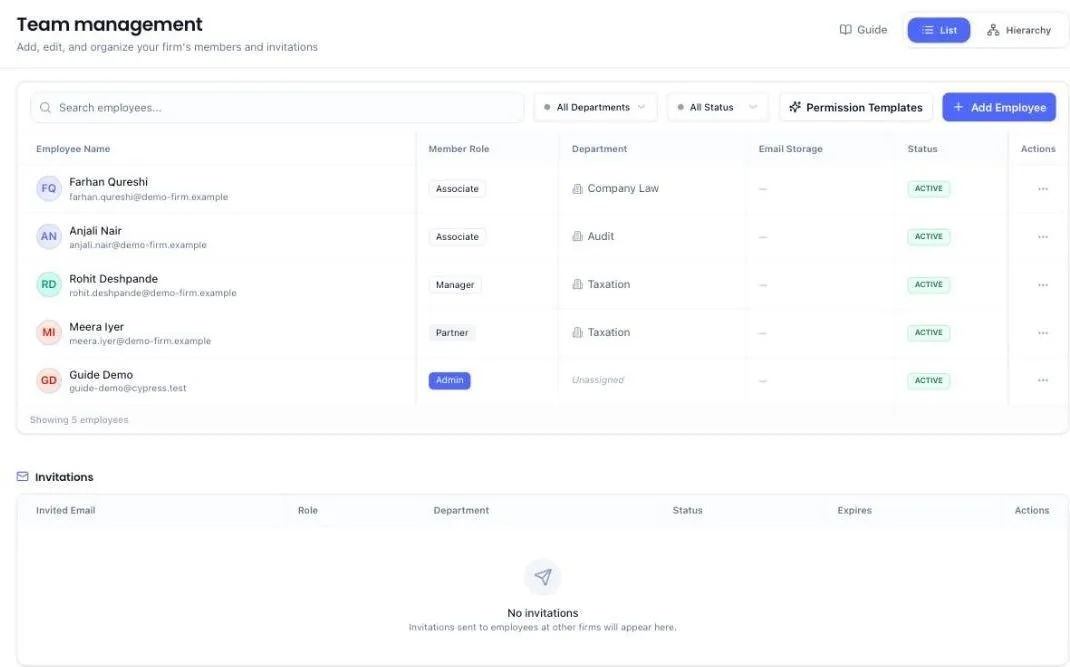
Team is where your firm's people live. Each member gets their own login, sees only what you grant them, and can be assigned work, made responsible for a client, or set as the reviewer on a filing.
Before you start
- You must be a firm administrator to add or change members. A partner can edit the people in their own practice, but not add one.
- Departments help but are not required. Set them up under Settings, then Departments.
Who can open this screen
Administrators and partners. An administrator opens the whole firm. A partner opens their own practice — themselves and everybody underneath them, however many levels down. Associates and managers do not have Team under Firm in their left menu, and typing the address does not get them in — they land back on their dashboard. The same goes for Activity, the record of who changed what.
This screen holds people, their reporting lines and their departments, along with everything that changes them. An administrator sees the firm's, headed My Practice; a partner sees their own, headed My Team, and never another partner's people — not in the list, and not by typing somebody's address either.
A partner can edit their own people, not the firm's decisions. Name, phone, department, weekly capacity and who somebody reports to inside the practice are theirs to change. Adding a member, inviting one, deleting one, recording an exit, sending a login link, changing anybody's role, level or module access, and changing a sign-in email all stay with an administrator — those decide seats, pay and access, which belong to whoever runs the firm.
A manager still sees their own team — on their dashboard, not here. Their dashboard carries a My team panel listing the people who report to them: how much each one has open, how much is late, and what they are working on right now. Clicking a name opens that person's businesses and their full list of open tasks beside the dashboard. It covers the people who report to that manager and nobody else, so one manager never sees another manager's team.
Nobody except an administrator sees another person's pay, permissions or login details anywhere in the app.
Your own row, if you own the firm
Whoever owns the firm appears on this list like everybody else, with Owner in the Member Role column. Owner is a rank of its own, not one of the four member roles — it sits above all of them, and it cannot be changed by anybody, including you and any other administrator.
Open your own row and choose Edit Employee and you can still fix your name, sign-in email, phone and weekly capacity. There is no role picker and no module list on your row, because owning the firm already carries every module, and a department is optional for you.
Your name is offered in Reporting Manager and Reporting Partner when you edit anybody else. If you are a sole proprietor with no managers or partners of your own yet, that is how your staff get a reporting line at all — set yourself, and expense approvals and escalations come to you.
Add a member
- Open Team under Firm in the left menu.
- Click Add Employee, top right.
- Enter their name and mobile number. Add their email too if they have one of their own — it must be one nobody at your firm already uses. No email of their own? Leave Email blank; they sign in with their mobile number instead.
- Choose their role:
- Employee — sees only the parts you grant. Free, and you can have as many as you like.
- Admin — full access to everything, including billing and the team itself. Each one takes a paid seat.
- Set their department and level.
- Pick who they report to. An associate needs a Reporting Manager. A manager needs a Reporting Partner — a partner, an administrator, or you as the owner — and their Reporting Manager reads N/A. A partner or an administrator reports to nobody, so neither is asked. What you pick here is applied the moment they accept the invitation.
- For an employee, tick the parts of the product they should see — leads, compliance, invoices, and so on. Grant what the job needs; the menu shows only what is ticked.
- Save. If you gave an email, they are invited by email. If you left it blank, nothing is emailed — the screen shows Share on WhatsApp and Copy invite link. Send them the link; they accept it and sign in with their mobile number.
Staff who share one office email
Many firms have one inbox for everybody. Two people cannot share an email here — each email belongs to one person — so for everyone without an email of their own, leave Email blank and fill in their own mobile number. That number is how they are told apart and how they sign in.
What is different for someone added without an email:
- They sign in with their mobile number and a one-time code sent to it.
- Nothing from the app reaches them by email — no invitation email, no email reminders or digests, and no password reset by email. Alerts that already go out on WhatsApp still reach their mobile.
- You send the invitation yourself. Right after saving, use Share on WhatsApp or Copy invite link. If you closed that screen, open their row in the Invitations list: Share on WhatsApp and Copy invite link are there in place of Resend.
Add your whole team from a spreadsheet
If you are setting up for the first time, or a batch of articles has just joined, do not add them one at a time. Bulk Add, next to Add Employee, takes a spreadsheet and invites everybody in one go.
- Click Bulk Add, top right.
- Click Download template. The file already lists your own department names and explains each role, so you are not guessing at spellings.
- Fill in one row per person. First name and last name are required, and every row needs an email or a phone. Leave Email blank for anyone without one of their own and fill in their Phone instead. Department and role are optional.
- Under Module access for everyone in this file, pick one access set. Everyone in the file gets it. Administrators always get everything regardless, and you can change any single person afterwards from this screen.
- Drag the file onto the box, or click to browse. CSV and Excel both work.
- Check the preview. Every row is listed with a green tick or a red cross, and each problem row says exactly what is wrong with it.
- Click Invite. Everyone with an email is invited by email at once, and the last screen tells you whether each invitation was delivered. People without an email are marked No email — share the invite link; send theirs from the Invitations list.
Already have a staff list somewhere else?
Click Already have a staff list? on the same screen. It copies a prompt you can paste into ChatGPT or Claude along with your existing sheet, and you get back a file in exactly the right shape. You do not have to retype anything.
What the Role column means
Leave it blank and the person is added as an associate. Otherwise write one of four words: ASSOCIATE, MANAGER, PARTNER or ADMIN. Associates are free and unlimited. Managers, partners and administrators each take a paid seat — so if your file has more of them than you have seats free, the whole file is held back and told you so, rather than inviting the first few and stopping.
The file has no column for reporting lines, so people added this way join without one. Once they have accepted, open each associate and manager with Edit Employee and pick who they report to — their profile will not save until you do.
Nothing is half-done
If a single row has a problem, nobody in the file is invited. That is deliberate: a half-finished import leaves you reconciling your spreadsheet against the screen by hand. Fix the rows the preview flags, save the file, and upload it again. Common flags:
- The same email twice in one file. One email, one person — delete the duplicate row. If several people share an office inbox, leave Email blank for them and fill in their phones.
- A row with neither an email nor a phone. Add one of them. Without an email, the phone is how that person signs in.
- A department that does not exist. Names must match yours exactly. Create it under Settings, then Departments, or clear the column and set it later.
- Somebody already on your team, or already invited. Remove that row; use Resend on the Invitations list instead.
- A phone number that belongs to another account. A number can belong to one account only. Clear it for that row.
Up to 50 people per file. If you have more, split the list and upload it twice.
Reuse an access set
Permission Templates saves a combination of modules under a name — "Compliance executive", "Billing clerk" — so the next hire is set up in one click instead of a dozen ticks. Anything you save here also appears in the access list on the Bulk Add screen.
See the shape of the firm
Switch List to Hierarchy to see who reports to whom. Reporting lines are not decoration: they decide who approves an expense claim, who is escalated to when a client goes quiet, and which people appear on a manager's dashboard. The firm owner sits at the top of this chart, marked Owner, and anybody set to report to them is drawn underneath. A partner sees the same view over their own practice, and can set who reports to which of their managers; moving somebody into a different partner's practice is an administrator's change.
Who reports to whom
Each level has one rule, and it is the same whether you add somebody, edit them, or a partner edits their own people:
- Associate — must have a Reporting Manager: a manager, or you as the owner. A Reporting Partner is optional.
- Manager — must have a Reporting Partner: a partner, an administrator, or you as the owner. A manager has no manager of their own, so that box reads N/A.
- Partner and administrator — report to nobody, so neither box is shown.
If a profile is missing its line — somebody added before this rule, or from a spreadsheet — Update Employee tells you which box to fill in and does not save until you pick someone.
Changing somebody's level moves them to that level's rule. Make an associate a manager and the manager they had is cleared; you are asked for their partner instead.
Open one person's page
Open the menu at the end of somebody's row and choose View Details to see their own page: how many tasks they have open and how many are late, how many businesses they look after, and how much of their work went in on time this month. The Overview, Tasks and Businesses tabs across the middle break the same picture down.
Businesses is the number of businesses this person is the relationship manager on or has been assigned to. Leads that have not been converted to clients are not counted, and neither is a business where they only do the filings without being assigned to it. On Overview, the Businesses panel shows that total beside its heading and lists the first five; View all opens the full list.
Click any task to open it. A task under Needs attention on Overview, or any row on the Tasks tab, opens on the right of the screen with its full details — change its status, add a comment or read its history there. Close it and you are back on the same person's page, on the same tab.
To come back, use the back arrow to the left of their name at the top of the screen. It takes you straight to the team list whichever tab you were reading, so you do not have to press the browser's back button several times to get out.
See how the team is doing
This screen is the firm's people. How much they are carrying is a different question, and it lives on your dashboard: open Dashboard and pick the Team tab across the top.
Four figures run along the top, in the order you would act on them:
- Overdue — tasks already past their date, and how many people are holding them.
- Statutory at risk — filings that are late or fall due within the next seven days. These are the ones that carry a penalty for the client, so they are counted apart from ordinary work.
- Over capacity — how many people have more hours of open work than their week holds.
- Can take work — how many are under 80% of their week, so you know there is somewhere to move a file to before you go looking.
Under them, Who's working on what lists one line per person: how many tasks they hold and how many hours that adds up to, anything overdue or statutory, a bar showing those hours against their week, and whether they are over capacity, near it, have room, or are free. Click anyone's line to open their businesses and their full list of open tasks beside the dashboard, or the link at the bottom to come back to this screen — Add or edit people for an administrator, Edit your people for a partner.
The buttons above the list — Everyone, Over capacity, At risk, Can take work — each carry their own count, so "is anyone drowning" is answered before you click. Where you have set reporting lines, a second control narrows the list to one manager's team, and the four figures at the top follow it — so they always describe the same people the list is showing.
How the capacity percentage is worked out
It is the estimated hours of somebody's open work against the hours in their week. To set a person's week, find them on this screen, open the menu at the end of their row, choose Edit Employee and fill in Weekly capacity (hours). Leave it blank and 40 is assumed. A task with no estimate on it counts as two hours rather than nothing, so a colleague never looks free just because nobody filled the estimate in.
That means the percentage is only as good as your estimates. If most of your tasks carry no estimate, read the figure as a rough sort order rather than a precise load, and put hours on the work that actually varies — an audit and a challan payment should not weigh the same.
Which firm someone works in
If you run more than one firm or office, open a person's Edit profile and choose their Firm. The Team list then shows it beside their department and can be filtered by firm. It is where they start when they sign in — it does not change which clients they can see, and they can still switch to any firm from the top of the left menu.
Departments
Departments group people by the work they do — Taxation, Audit, Legal. They are how the team screen filters, and how workload is read across the firm. The Departments panel on the dashboard's Team tab uses the same measure as everything else there: the department's hours of open work against the hours its people have in a week. Manage departments under Settings, then Departments.
When somebody leaves
Do not delete them. Record the exit instead, so their finished work stays attached to their name and everything still open moves to a colleague in one pass. Find them on the Team list, open the menu at the end of their row, and choose Mark as Leaving. Four steps follow, in the order the decisions depend on each other. Recording an exit is an administrator's job — a partner who has somebody leaving asks an administrator to run it.
Step 1 — Exit details
Set the leaving date first; everything else reads from it.
- Last working day. Pick a date in the future and they stay active until it passes, so they can work their notice. Pick a date that has already gone and the screen tells you sign-in ends as soon as you save.
- Reason for leaving. Resigned, articleship completed, contract ended, terminated, retired, or other — choosing Other asks you to say what happened, and that is kept with the record.
- Sign-in ends. After their last working day, or right away.
- Notes. Anything the next person should know.
If the person takes a paid seat, this step also tells you the exit frees one, and where you stand against your plan.
Step 2 — Hand over work
Every group of open work is listed, including the empty ones — a group that says Nothing here is the screen telling you it looked.
- Under Give it all to, pick the colleague who takes over. Every group turns green against that name at once.
- Now handle the exceptions. Open any group and you get the actual rows inside it — each task by its own name and client, each client by name, each repeating filing. Set a different colleague on any single row and only that row goes to them; the rest stay with the person you picked at the top. A leaver's book almost never moves as one lump, so the GST work can go to one colleague and the audit file to another without leaving this screen.
Each group's heading tells you where it stands: who it is going to, "Split between 3 people", or how many rows still need someone. You cannot continue while any row has nobody against it — an exit that leaves work on somebody who has gone is how a filing is missed. The warnings at the bottom are clickable; each one opens the group it is about.
Step 3 — Revoke access
What happens to their own access, listed so you can see it rather than assume it. There is nothing to fill in.
It also says what the app cannot do: cutting their access stops the browser extension filling client portal logins, but it does not change the password on the portal itself. If they ever saw a client's portal password, change it on that portal. The app does not record who viewed which credential, so it cannot narrow that list for you — treat every portal for the clients they handled as worth changing.
Step 4 — Review
A last read-through before anything is written: the date, the reason, when sign-in ends, how many items move, and who picks up what — a count per colleague, which is the quickest way to spot that you have quietly given one person forty items. Type their name to confirm, and save.
What happens the moment you save
- Their sign-in stops — checked against the clock, not against an overnight job, so it happens on the minute you chose.
- Sessions they already have end, on every device, including the browser extension, which stops auto-filling client portal logins.
- Personal API tokens stop working, and any mailbox they connected stops syncing into the firm's inbox. Mail already collected stays.
- Reminders stop reaching them — task chases, the end-of-day check, compliance due dates and expense nudges all skip someone whose access has ended.
- They stop being offered new work. Their name leaves the executor, reviewer and assignee lists the moment the exit is recorded — even while they are still working out a notice period.
- Every task that moved says so. Open one and Handover History names who held it, who took it, who moved it, when, and why.
- A repeating filing and its task travel together. A filing under "recurring filings they do" carries its own to-do with it, so the compliance screen and the task list never end up naming two different people. That is why the filing's task is not listed separately among the open tasks.
- Repeating work follows the handover. Next month's copy of a filing they used to do is created for whoever took over, not for them.
- Each person is told their own share — the colleague who got one task is told about one task, not about the whole handover.
A scheduled exit holds the last three back until the day arrives: they are still working, so their tokens, mailbox and reminders carry on through the notice period.
Recorded the wrong exit?
Open their row on the team list and choose Cancel Exit. They go back to being active and can sign in again. Whatever already moved stays with whoever took it — those colleagues were told the work is theirs, so it is not taken back automatically. Reassign anything that should return.
What the system does on its own
- Sends the invitation by email — or, for someone added without an email, gives you a link to send them on WhatsApp.
- Tells you if an invitation email bounced. After a bulk add, each person's row says whether their email was delivered. The invitation itself is still valid either way — use Resend on the Invitations list.
- Hides what they cannot use. A member without invoicing does not see Invoices in the menu, and typing the address does not get them in either.
- Keeps a record of who changed what. Adding a member, editing one, recording an exit and handing work over are all written to Activity, under Firm in the left menu, with the name of whoever did it and when. An administrator reads the whole firm's; a partner reads their own practice's, covering the people underneath them. Associates and managers do not have it.
- Counts seats. Administrators count against your plan, and your own owner row is counted with them; employees never do. Invitations you have already sent are counted too, so a bulk add cannot quietly overshoot your plan.
- Puts the owner on the team list. Your own row is created for you the first time this screen is opened, so you can be picked as somebody's reporting person and as a client's relationship manager without adding yourself as an employee.
- Applies the reporting lines you picked when an invitation is accepted. If the manager or partner you chose has left or changed level while the invitation was waiting, that line is dropped rather than blocking the new joiner, and you are asked for it the next time you save their profile.
- Clears a line a level does not have. Make an associate a manager, a partner or an administrator and the manager they had is cleared; make a manager a partner or an administrator and their partner is cleared too.
- Routes approvals down the reporting line — an expense claim goes to that person's manager.
- Puts a manager's team on their dashboard. Set somebody's manager here and that manager gets them in the My team panel on their own dashboard, with their open work and anything late.
- Works out who is over capacity. The dashboard's Team tab compares each person's hours of open work against their week and flags anyone past it, alongside the filings that are close to their date.
- Sends managers a weekly roll-up of their team's backlog.
- Closes a scheduled exit on the day. Someone whose last working day has passed is marked as having left overnight, their tokens and mailbox are closed out, and their sign-in stops the moment that day ends whatever the overnight job does.
What you cannot do (and what to do instead)
- You cannot add the same person twice. One email or one mobile number, one member. If they moved departments, edit the existing record.
- You cannot give two people the same email. If your staff share an office inbox, leave Email blank for them — they sign in with their own mobile number instead.
- You cannot save an associate without a Reporting Manager, or a manager without a Reporting Partner. Pick one — in a firm with no managers or partners yet, pick yourself as the owner.
- You cannot give a manager a Reporting Manager. A manager reports straight to a partner, so that box reads N/A.
- You cannot pick somebody at the wrong level. Only managers and the owner can be a Reporting Manager; only partners, administrators and the owner can be a Reporting Partner. Nobody can report to themselves, or to someone who has left.
- You cannot change a manager's or partner's level while people still report to them. The save tells you how many. Move those people to someone else first — from their profiles, or the Hierarchy view — then change the level.
- You cannot delete the firm owner from here. That account owns the firm and its subscription.
- You cannot change the firm owner's role or level. Owner is not one of the four member roles, so their row has no role picker and no module list, and the change is refused if it is asked for another way. Everything else on their row still edits normally.
- You cannot record an exit for the firm owner either — the firm would lose access to itself.
- You cannot record a second exit for the same person. Cancel the first one if the details were wrong.
- You cannot bring a leaver back by editing their status. That would leave the list saying active while they still could not sign in, so it is refused and points you at Cancel Exit.
- You cannot hand a leaver's work back to the leaver, or to another colleague who is also on their way out.
- You cannot split a repeating filing from its own task. They are one job and they move to the same person.
- The app cannot change a client's portal password for you. Only somebody signing in to that portal can.
- A deactivated member cannot sign in, and reactivating is how you let them back.
- Associates and managers cannot open this screen at all. Team and Activity are for administrators and partners. If somebody needs to add or invite people, they need to be an administrator.
- A partner cannot add, invite or delete anybody, or record an exit. Those decide seats and access, so they stay with an administrator. A partner edits the people already in their practice.
- A partner cannot promote anybody, or change what they can open. Role, level and module access are the firm's call, so those parts of the edit screen are not shown to a partner and are refused if asked for another way. The same goes for somebody's sign-in email.
- A partner cannot move somebody into or out of another partner's practice. They can set who a colleague reports to inside their own practice, and nothing beyond it.
- A manager cannot look up a colleague who does not report to them. Their dashboard covers their own reportees, and opening anyone else's page is refused.
- You cannot add an administrator beyond your seat count. Add a seat on Billing & Subscription, or make the person an employee with the access they need — employees are free and unlimited.
- You cannot give people different access in one bulk file. Everyone in a file shares the access set you pick on that screen. Upload the juniors and the managers as two files, or change individuals afterwards.
- Employees cannot create, delete or reassign tasks. That belongs to managers and partners.
Common questions
It says "Employee with this email already exists", but that is our shared office email.
Each email can belong to one person only. Leave Email blank for this person and enter their own mobile number instead. After you save, use Share on WhatsApp to send them the invitation. They accept it and sign in with their mobile number and a one-time code — no email needed.
Why does my own row say Owner instead of Admin?
Because you own the firm, and that sits above the four member roles rather than beside them. It carries every module already, and it cannot be changed — not by you, and not by another administrator you have added. Your name, email, phone and weekly capacity are still yours to edit from your own row.
I am a sole proprietor. Who do my staff report to?
You. Open somebody's row, choose Edit Employee, and your name is in both Reporting Manager and Reporting Partner even though you are not set to either of those levels — you are above them. Setting it sends their expense claims to you for approval and puts them under you in the Hierarchy view.
I only changed a phone number and it asks me to pick a Reporting Manager.
That person is an associate with no manager on record. Every associate reports to a manager, so pick one — or yourself, if you have no managers — and save again. It only asks once.
Somebody on my team is a manager, but their profile shows both Reporting Manager and Reporting Partner as choices.
Then their level is still set to Associate. Open Edit Employee, choose Manager under Member Role, pick their Reporting Partner, and save. Their Reporting Manager then reads N/A.
Why is Reporting Manager greyed out and showing N/A?
The person is a manager. Managers report straight to a partner, an administrator or the owner, so they have a Reporting Partner instead.
Employee or Admin?
Admin only for people who genuinely need billing and firm-wide settings. Everyone else is an employee — free, and can still be granted every working module.
Why can a colleague not see Invoices?
Either their access does not include it, or the module is off for the whole firm. Check their row on this screen first.
How many businesses does a colleague look after?
Open Team, choose View Details on their row, and read the Businesses figure along the top. It counts the businesses they are relationship manager on or assigned to. The Businesses tab lists every one of them.
Team and Activity have gone from my manager's menu. Is that a fault?
No, that is deliberate. Both are for administrators and partners: Team is people and everything that changes them, and Activity is the record of those changes. A manager does not need either to run their own team — their people are on their dashboard.
I am a partner. Why do I see fewer people than my colleague?
Because the screen shows your practice, not the firm. Everybody who reports to you, directly or through one of your managers, is listed under My Team; another partner's people are not, and neither are yours to them. Your firm's administrator sees everybody.
I am a partner and there is no Add Employee button.
Adding somebody takes a seat on the firm's plan, so it stays with an administrator, along with inviting, deleting and recording an exit. You can edit the people already in your practice — their department, their weekly capacity, their phone, and who they report to inside your practice.
Then where does a manager see their people?
On their dashboard. The My team panel lists everybody who reports to them, with how much each one has open and how much is late. Clicking a name opens that person's businesses and every open task they hold, beside the dashboard. Set who reports to whom in the Hierarchy view on this screen — that is what decides who appears there.
Can a manager see another manager's team?
No. They see the people whose manager is set to them, and nobody else. Opening a colleague's page by editing the address is refused as well, not just hidden.
Somebody shows 260% on the Team tab. Is that right?
It means they hold roughly two and a half weeks of work against one week's hours. It is not a fault — it is the number you would have worked out by hand. Use Can take work above the list to find who has room, then move the least urgent items across.
Why does the whole firm look busier than I expected?
Tasks with no estimate on them count as two hours each. If you have a lot of quick jobs and none of them are estimated, they add up. Put real hours on the work that varies most and the picture tightens.
Someone left mid-job.
Record their exit from their row on this screen and name who takes over. Everything still open moves at once, each moved task keeps a note of where it came from, and repeating work goes to the same colleague from then on.
Their work needs to go to three different people, not one.
It can. Open the group on step 2 and set a colleague on each row individually. Anything you leave alone follows the name you put in Give it all to, so you only ever fill in the exceptions.
Somebody has left. Are they really locked out?
Yes, and not just from signing in again — whatever they were already signed into stops working too, on every device, along with the browser extension. What the app cannot do is change a client's password on the client's own portal. If they had seen any, change those.
Who had a task before it came to me?
Open the task and read Handover History in the details on the right — it names the previous holder, the person who moved it and the reason, and it keeps working after that person has left. The task's History tab is the wider view: every change anyone made to that task, in order. That tab stays available to whoever holds the task, manager or not.
Who added or removed this person?
Open Activity under Firm in the left menu and filter On to Team members or Invitations. It names who made each change and when. You need to be an administrator or a partner to open it, and a partner sees the changes made by their own practice.
If I split the work, who gets next month's repeating filings?
Whoever you named in Give it all to. If you never used that box and set every row by hand, it is whoever took the largest share of their work.
Somebody left and I did not name a successor.
If they had nothing open at all, there is nobody for repeating work to follow, so next month's copy is not created for anybody — nothing is quietly assigned to an account that cannot sign in. Set the person up as the executor on those filings, or reassign the next round by hand when it appears.
Expense claims were sitting with them to approve.
They follow the reporting line. Whoever takes over their team members on step 2 gets the claims as well, and step 3 tells you how many there are.
I uploaded a file and nobody was invited.
At least one row had a problem, so none of them went through. The preview lists every row with its own reason — fix those rows in your file and upload it again.
More guides
Every other part of the product, the same way.