
Invoices and billing
Turn agreed work into invoices, run them through approval, send them, and record payment — with the queue showing what is ready to bill.
Invoicing takes work you have agreed or completed and turns it into a bill — and where the work was never a task at all, you raise the invoice yourself with Create invoice. The screen has three parts: Dashboard for the money view, Billing queue for work waiting to be billed, and Invoices for the invoices themselves. Your firm's invoicing details — GST, the bank accounts clients pay into, and how invoices are sent — live in Settings, on the Invoicing tab.
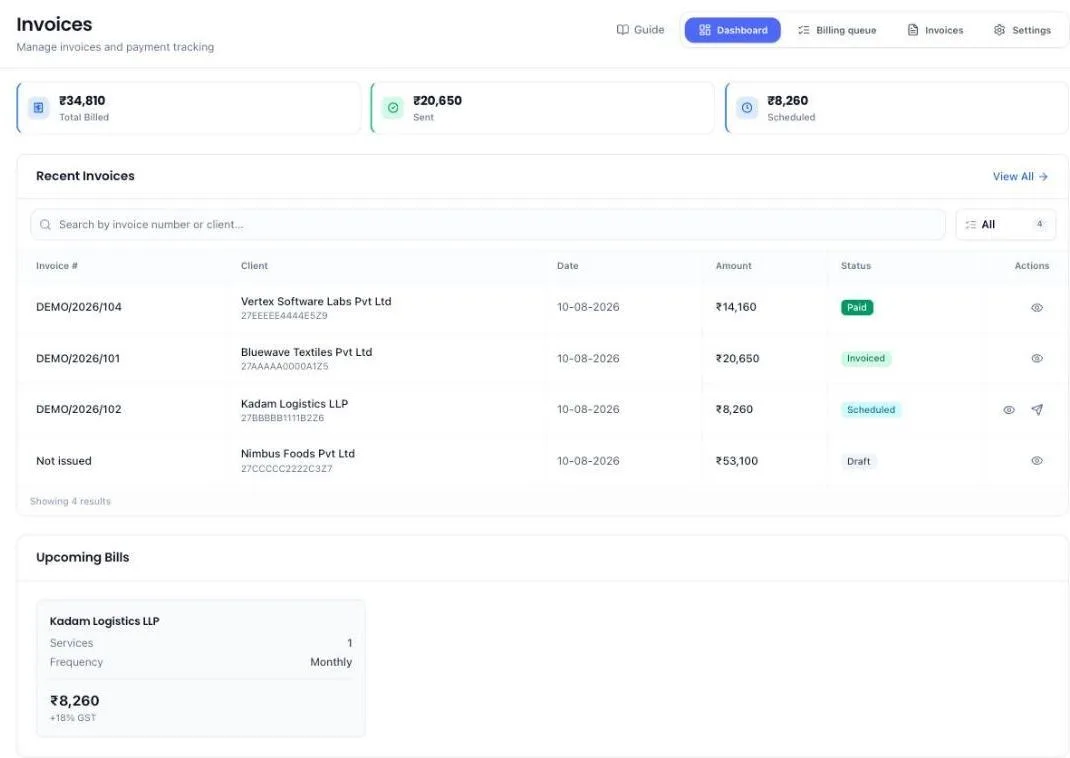
The four numbers at the top
Three of them cover the financial year, April to March — the same year your invoice numbers run in — so they line up with the figures you reconcile. The fourth covers the month you are in.
- Total Billed — everything you have invoiced this financial year, whether or not the client has paid yet. An invoice does not drop out of this once the money arrives.
- Awaiting Payment — what your clients still owe you. Part payments come off it, so an invoice can sit in this figure for less than its face value: a ₹25,00,000 bill with ₹20,00,000 received counts as ₹5,00,000 awaiting.
- Billed in this month — what went out to clients this calendar month. The same money is inside Total Billed; this is the slice you are billing right now.
- Scheduled — work queued to be invoiced but not sent yet. It is not counted as billed, because the client has not seen it. If any of it has passed its send date, the tile turns amber and names the amount still waiting to go out.
The figures are shortened so they fit the cards — thousands as k, lakh as L, crore as cr, so ₹1,75,000 reads ₹1.75L. Hover any of them and the exact amount appears above it. Amounts in the tables underneath are always shown in full.
An invoice counts from the day it goes to the client, not the day you drafted it. One raised in July and sent in August is August's. A cancelled invoice counts in none of them.
Under the four numbers — and under Revenue leakage, when there is finished work or an accepted proposal nobody has billed — is a short table of the five invoices you raised most recently, newest first — so one you have just created is the top row. The line below the last row says how many you are looking at out of how many you have — 5 most recent of 14 — and opens the full list.
Before you start
- A client business.
- Your invoicing details — firm details, numbering, the bank accounts clients pay into, and notification channels — set in Settings from the left menu, on the Invoicing tab. The number series matters: once an invoice is sent it has taken a number from that series.
Bill work that is waiting
Completed work that nobody has billed collects under Revenue leakage on the Dashboard tab of this screen — the tab Invoices opens on. It is grouped by client, oldest work first, because the job finished two months ago is the one most likely to be forgotten — and because one client with six unbilled jobs is one invoice to raise, not six. The list only appears when there is something to bill; with nothing waiting it is not shown at all. The Revenue leakage count on the Billing queue tab opens the same list.
- Open Invoices from the left menu. Revenue leakage sits under the four numbers at the top.
- Read which jobs are leaking. A client with one unbilled job shows it by name on the row. A client with several shows View 6 jobs — choose it and each job is listed by name, with the date it was finished and how long ago that was. Hide folds it back up.
- Choose Raise invoice on the client's row. The Create invoice panel opens with that client already chosen and every one of their unbilled jobs already listed under Not billed yet.
- Tick the jobs you are charging for and type what each is worth.
- Set the due date and choose Create draft invoice. It joins the queue at Draft, where you send it for approval.
Most jobs carry no price, and the row says so. A job only has an amount on it if someone put one there, so a row that reads Not priced yet is not a job worth nothing — it is a job nobody has valued yet. You put the amount in when you raise the invoice.
Where some jobs do carry a price, the row shows what those add up to and says how many they were — ~₹12,000 · on 1 of 6 priced. It is an estimate over the priced jobs only, never the client's whole bill, which is why it is marked with a ~.
The arrow at the end of the row opens that client's own Invoices tab — the same unbilled jobs, sitting above every invoice you have already raised for them — for when you want the fuller picture before billing.
Accepted proposals with no invoice
Revenue leakage also lists every proposal a client has accepted that nothing is billing yet — one row each, with the client, the proposal and its value, marked accepted, no invoice. Choose Create invoice on the row to raise it, or, when there are several, Create all 3 invoices below the rows — the number is how many are waiting. The arrow at the end of the row opens the proposal.
When is an invoice created?
A client is billed in two steps, and neither one waits on the other.
- When the client signs the proposal, their first invoice appears in the Billing queue under Ready to invoice, marked Proposal. It holds every one-time fee and the first month or quarter of each recurring fee, at the GST rate each service carries. The client already agreed the amount by signing, so it skips the approval steps. You do not have to complete the onboarding for this to happen.
- When you complete the client's onboarding, every later bill is scheduled, starting from the billing date you set on the onboarding's Invoicing step.
Nothing reaches the client until you send it. Click Review invoice on the proposal, or open it from the queue, check the lines — the pencil on the queue row lets you correct them — and choose Send. Schedule to send instead holds it back and sends it on its due date. A proposal you approved internally, or an onboarding started without a proposal, raises its first invoice under Draft instead, because the client never saw the price.
The first period is never billed twice. If you have not sent the first invoice by the time you complete the onboarding, the schedule replaces it. If you already sent it, it is kept, and the schedule leaves out what it billed. The onboarding's Invoicing step tells you which of the two will happen for that client.
On the proposal itself, the Invoice row under After acceptance shows where that first invoice is and says when the later bills come.
One row per agreement in the queue
A year of monthly retainer invoices is one arrangement you agreed, not twelve separate things to think about. The Billing queue shows it that way: one row for the client, with the agreement it came from, the amount each invoice carries and how many there are, the months they cover, and what is still owed across all of them.
- Open the Billing queue tab.
- Read the row — ₹60,000 × 11 · Sept 2026 – Jul 2027 tells you the arrangement at a glance.
- Choose View 11 invoices to open it. Each invoice is listed by the month it bills, with its own due date and its own button.
- Act on the one you want. Choose Hide to fold the row back up.
A few things worth knowing about these rows:
- Nothing has changed about the invoices themselves. All twelve are still raised, still take their number on the day they go out, and still go to the client one per month. Only the way the queue lists them changed.
- Sending is still one invoice at a time. There is no send-all on the row, because sending takes a number from your series and that is a decision per invoice, not per year.
- Invoices at different stages sit in different rows. The ones still scheduled are one row; the ones already with the client are another. Each row's button is the action that fits every invoice inside it.
- The total is what is still owed, not what the contract is worth — so it falls as payments come in, and a part payment brings it down by what you received.
- A client with a single invoice at that stage stays an ordinary row, with no fold to open.
- Where a row mixes currencies no combined figure is shown, because adding a dollar to a rupee gives a number that is true in neither. Open the row and each invoice shows its own amount.
- The count beside In the queue still counts invoices, not rows, so it keeps agreeing with the stage buttons above it.
Raise an invoice yourself
Not everything you charge for is a finished task. A fixed fee, an urgent-filing surcharge, work agreed on the phone — all of it is billed from Create invoice, the button at the top right of the Invoices screen. It is there on all three tabs, so you never have to find the right one first.
- Choose Create invoice. A panel opens from the right.
- Pick the client. Type in the search box at the top of the list rather than scrolling — a firm with hundreds of clients sees the first fifty and narrows from there.
- Tick the work you want to charge for. Under Not billed yet is the client's finished work that nobody has billed. Tick a line and type what it is worth.
- Add anything that is not a task. Under Anything else, either pick a service from your catalogue — which brings its price with it — or choose Add line and type your own description and amount.
- Set the due date, and decide the GST treatment (below).
- Check where the client pays. If your firm keeps more than one bank account, Client pays into shows your default already picked — choose another for this invoice if the money should go elsewhere. With one account there is nothing to choose, and the invoice prints that one.
- Add a note if the client needs one — Registration work, August 2026.
- Choose Create draft invoice.
Work the proposal already pays for is shown, and cannot be ticked. It sits at the top under Covered by the proposal, marked already paid for, greyed out with no checkbox. It is on screen so you can see it has been dealt with, not so you can bill it twice.
The total is live. Subtotal, the tax rows and the total are at the foot of the panel and move as you type, so you are never finding out what the invoice comes to after you have saved it.
What comes out is a draft. It has taken no number from your series and nothing has gone to the client — it joins the billing queue at the first stage, where you move it on when you are happy with it.
Before it will let you save
Anything that would make the invoice bounce is named in red above the total, and Create draft invoice stays disabled until it is fixed. Each one names the field and the fix, not just "invalid":
- A line with no description — say what the client is being charged for.
- A line with no amount, or an amount of zero. Every line needs a figure above zero.
- A total of zero. A client cannot pay a zero invoice; write the work off instead.
- A missing due date.
Three more are checked when the invoice moves on towards the client rather than while you are drafting it: the due date must not fall before the invoice date, your firm's GSTIN must be on file if the invoice charges GST, and the client must have an email address to send it to.
Which firm an invoice is from
If you bill under more than one firm — see Your other firms in the Settings guide — every invoice has a Bill from field, when you raise it and when you edit it before it goes out. It starts on the firm you are working in (the one named under your firm name at the top of the left menu), then the client's own firm, then your default firm.
- The chosen firm's name, address and GSTIN print as the seller, and it numbers the invoice from its own series.
- An invoice raised on its own — from a proposal's schedule or a workflow — goes out from the firm the proposal was sent from; otherwise from the client's firm.
- A firm without a GSTIN cannot send an invoice that charges GST. Switch GST off for that invoice or bill from another firm.
- The invoice asks to be paid into that firm's own bank account. A separate company only ever offers its own accounts; an office uses its own first, then your main firm's.
- Once sent, the firm is fixed — the client holds that document.
Switching firm at the top of the left menu narrows the invoice list, the billing queue, the invoice dashboard and the TDS deducted by clients list to that firm. Choose All firms to see everything again.
GST on an invoice
GST is off until your firm turns it on. That switch is in Settings, and it decides what every new invoice starts as. Nothing adds tax to a bill on its own.
On the invoice itself, the GST box offers Charge GST or No GST on this invoice. Changing it applies to that one invoice, and the panel says so — Different from your firm setting — this invoice only. It is there for the exempt job at a firm that normally charges tax, and the taxable one at a firm that normally does not.
With GST on, each line carries its own rate — 0, 5, 12, 18 or 28%, the slabs and nothing else, so a mistyped 17% cannot happen. Lines may differ: a taxable service and an exempt one sit on the same invoice and are totalled separately, not averaged.
Which tax decides how that tax is split:
- Client in your state — CGST + SGST, half the rate each.
- Client in another state — one IGST line at the full rate.
- Work it out — the default. Where both your GSTIN and the client's are on file, the first two digits of each say which state you are both in, and the split follows. Where either is missing — which is most clients, as most are not registered — it falls back to your firm's usual setting and shows you which one it has chosen, so you can say otherwise.
Either way the money is the same. What differs is which pair of taxes the invoice names, and a tax invoice naming the wrong pair is not a valid tax invoice.
Bank accounts clients pay into
The Payment Details box on an invoice tells the client where to send the money. Your firm can keep every account it is paid into, and each invoice names one of them.
- Open Settings from the left menu, choose the Invoicing tab and go to Payment.
- Under Bank Details (for Invoice), choose Add bank account — or Add account once you already have one.
- Fill in the bank name, account number and IFSC code, or a UPI ID, or both. Name for this account is optional and only you see it — HDFC current, Partner practice a/c — so you can tell two accounts apart when you pick one.
- Choose Add account. It is saved straight away; there is no need to press Save Settings as well.
Your first account is the default. It is picked for you on every new invoice, and invoices that raise themselves — a recurring schedule, a workflow — use it too. To change it, choose Make default on another account.
Half an account is refused. An account number with no IFSC code looks payable and is not, so once you start the bank fields the form asks for all three and names the one that is missing. A UPI ID must look like name@bank, and an IFSC code is 11 characters, like HDFC0001234.
An invoice keeps the account it was raised with. One you create yourself takes its account when you create it. One that raised itself takes your default on the day it is sent. Changing your default afterwards moves neither — the client is holding a bill that says where to pay.
Correcting an account — the pencil on its row — changes every invoice that uses it, sent ones included. That is how a mistyped account number gets fixed everywhere at once. If you have actually moved banks, add the new account and make it the default instead.
Removing an account — the bin on its row — takes it off the list for new invoices. Invoices already sent keep showing it. Invoices not yet sent that had picked it move to your default account, and if you removed the default, the next account on your list becomes the default.
Who can do this. The firm owner and administrators add, change and remove accounts. Anyone who can raise an invoice can choose between them.
Correct an invoice before it goes out
An invoice you have not sent yet is still yours to change — a wrong amount, a missing line, a due date that slipped, or IGST where it should have been CGST + SGST. You do not have to cancel it and start again.
- Find the invoice, and choose the pencil on its row — on the Invoices tab, or on a draft in the Billing queue. You can also open the invoice and choose Edit at the top.
- Change what is wrong. Each line has its description, quantity, rate and GST %, each under its own heading, and Add line puts another one on. The last line cannot be removed — an invoice needs at least one.
- Correct the due date if it needs it.
- Which tax sets how the GST on those lines is split — CGST + SGST for a client in your state, IGST for a client in another state. Raised it with the wrong one? Change it here. Every line stays as it is, and the tax rows in the total underneath switch as soon as you pick.
- Client pays into changes which of your bank accounts the invoice asks to be paid into, when your firm keeps more than one.
- Send this invoice to overrides where it goes. Leave it blank and it uses the client's own address; fill it in when the address on file is not the one the client actually reads. This is the commonest reason a send fails, which is why the remedy sits on the invoice rather than on the client record.
- Check the running total underneath, then Save changes.
Editing is open at every stage before the invoice is issued — Draft, Internal approval, Client approval, Ready to invoice and Scheduled. Scheduled is included on purpose: it is where an invoice sits after a failed send, and that is exactly the moment you need to fix an address or an amount.
Once it is invoiced, it is fixed. The pencil disappears, and the app will tell you why if you try: the client is holding that document and it has taken a number from your GST series. Correcting it is a credit note and a fresh invoice, not an edit. The same goes for a cancelled invoice — raise a new one.
Who can do this. The firm owner and administrators. Cancelling is held to the same two — writing off money the firm has billed is a different decision from correcting a figure.
Find an invoice
The Invoices tab lists every invoice you have raised, and narrows three ways: the search box (invoice number or client name), the date filter, and the status filter. Nothing is spread over pages — whatever matches is all on screen.
The count buttons and the line under the table answer two different questions. The status button counts what you have — All 14 means fourteen invoices in total. The line under the last row counts what you are looking at — Showing 5 of 14 invoices means your search or filter has set nine aside, not that nine have gone missing. With nothing filtered the two agree and the line simply reads Showing 14 invoices.
Both count invoices, never rows. Where the line ends · 2 recurring contracts grouped, those contracts' invoices are all counted in the figure beside it — they are folded into a row, not left out of the list.
To find one invoice without leaving the Dashboard or Billing queue, type the client's name or the invoice number in the search box at the top. Matching invoices drop down with their amount and status — click one to open it. See all results takes you to the Invoices tab with the same search already filled in.
A year of invoices reads as one contract
Completing an onboarding for a twelve-month retainer raises twelve invoices at once — same client, same amount, all created that afternoon. Listed one per row they look like the same bill twelve times over. The Invoices tab folds them into a single row for the contract instead.
- Open the Invoices tab.
- Read the row: Recurring · 12 invoices, the client, the months it covers — Jul 2026 – Jun 2027 — and the total with its working under it, ₹60,000 × 12.
- Under the label is what has already gone out: 3 invoiced · 9 scheduled.
- Choose the row to open it. All twelve are listed in month order, each with its own number, status and buttons. Choose it again to fold it back.
A few things worth knowing:
- Nothing about the invoices changed. All twelve are still raised, still take their number on the day they go out, and still reach the client one per month. Only the way the list shows them changed.
- One row per contract, not per client. A client with two separate agreements gets two rows, because they are two different things you agreed.
- The row always describes the whole contract — its twelve invoices and its full value — whatever you have filtered. Filter to Scheduled and the row still reads twelve and the full total, and adds 3 hidden by filter to account for the ones the filter set aside. The contract is worth what it is worth whichever way you are looking at the list.
- Searching and filtering open every contract for you, so an invoice you are looking for can never be hiding inside a folded row.
- Nothing acts on a whole contract at once. Send, edit and cancel stay on the individual invoices — sending a year of invoices from one button would take a year of numbers from your series in one press.
- One-time work is untouched. An invoice you raised yourself, or one billed from a task, keeps its own row exactly as before.
- A contract that raised only one invoice stays an ordinary row, with nothing to open.
- Where a contract mixes currencies no combined figure is shown, because adding a dollar to a rupee gives a number that is true in neither. Open the row and each invoice shows its own amount.
Which period an invoice covers
An invoice raised for a recurring service bills one period of it, and that period shows under the invoice number — Aug 2026 for a monthly one, Aug – Oct 2026 for a quarter. Open a contract row and this is what tells its instalments apart: they share a client, a date and an amount, and differ only in the period each one bills.
A one-time service covers no period, so those rows show the number on its own.
Cancel an invoice
An invoice you should not have raised — a duplicate, a job that was never done, a client who was billed twice — can be withdrawn. Only the firm owner and administrators can do this.
- Open the Invoices tab and find the invoice, or open it from any list.
- Choose Cancel — the ⊘ button on the row, or the Cancel button at the top of the invoice.
- Type why it is being cancelled. This is required, and if the invoice has already gone out the client reads this wording.
- Confirm. The invoice moves to Cancelled and stops counting towards Total Billed and Awaiting Payment.
What cancelling does not do:
- It does not delete anything. The invoice stays in your list under the Cancelled filter, with its reason and the date it was withdrawn.
- It does not free the number. An invoice that went to a client keeps the number it took, so your series stays consecutive and an auditor asking about that number gets an answer instead of a gap.
Both sides are told. If the invoice had already been sent, the client gets an email saying it has been cancelled and no payment is due, quoting your reason — and a copy goes to the mailbox your invoices go out from, so the rest of the firm sees it too. Cancelling an invoice that was never sent tells nobody, because nobody had seen it.
You cannot cancel an invoice that has money against it, even part of the amount. Delete the payment first — that is a separate decision, and it should be recorded as one.
How an invoice moves
Each stage is a real gate, not a label:
- Draft — price the work, then send it for approval.
- Internal approval — someone at the firm has to sign off the amount.
- Client approval — you are waiting on the client to agree the amount, for clients who want to see it before it is issued.
- Ready to invoice — everyone agrees. Schedule it.
- Scheduled — queued. It goes out on its due date without anyone pressing send.
- Invoiced — with the client, waiting for the money.
- Paid — settled in full.
Every stage before Invoiced can be walked back. In the Billing queue, the arrow beside an invoice sends it back one stage — which is how you stop a scheduled invoice going out, because only Scheduled ones are picked up for sending.
Cancelled sits outside that run. It is where an invoice stops, not a step it waits at, and there is no moving one back into the queue — raise a fresh invoice instead.
Your invoice numbers
An invoice number reads INV-2026-27-004: your prefix, the financial year, and the running number.
- One series for the whole firm. Every client is numbered from the same series — you do not set a prefix per client.
- Keep the prefix short. The finished number cannot run past 16 characters. The Settings screen shows you what the number will look like and refuses a prefix that would make it too long, or one using characters other than letters, numbers, hyphen and slash.
- A number is taken only when the invoice goes to the client. Drafts, invoices in approval and scheduled ones show a greyed On send in the Invoice # column instead of a number, and hovering it says why. That is deliberate: a scheduled invoice you later change or drop must not take a number with it and leave a hole.
- The series restarts at 001 every April, because the financial year is already in the number.
- Numbers are never reused. Once a number has gone to a client it is spent, whatever happens to that invoice afterwards — cancelling it included.
Billing a client in another currency
You do not set a currency on the invoice. It follows the price you quoted, all the way down:
- A service or package in your catalogue is priced in a currency.
- The proposal takes that currency when you add the service to it.
- Every invoice raised from that proposal is issued in the same currency — including the recurring ones that raise themselves, and the copy the client downloads.
Nothing is converted. A service priced at $100 is billed as $100, not as a rupee equivalent. The figure your client agreed is the figure they are asked for.
The same currency shows wherever that invoice's money appears — the Invoices list, the billing queue, and the amounts you see when recording a payment against it.
If you re-price a proposal into a different currency, the invoices it has already raised but not yet sent move with it. Invoices already sent do not: the client is holding that document and it has taken a number from your series, so a currency change there is a credit note, not an edit.
Where a firm bills in more than one currency, totals are kept apart rather than added together — each tile shows one line per currency, with the code beside it, because adding a dollar to a rupee gives a number that is true in neither.
Record a payment
- Open the Billing queue tab and find the invoice. It sits at Invoiced.
- Choose Record payment on its row.
- Enter the Amount received, the date it came in under Received on, how it was paid under How, and a Reference such as the UTR or cheque number. Paid in full fills in the whole balance for you.
- Choose Record payment. Paid in full moves the invoice to Paid; a part payment leaves the balance outstanding, and that balance is what Awaiting Payment counts.
The payments already recorded against the invoice are listed under Already recorded, so you can see a transfer is already there before you enter it twice.
When the client deducted TDS
Many clients pay your invoice less the TDS they deduct on your fee. Record both parts together, and the invoice closes instead of showing the TDS as still owed.
- Choose Record payment on the invoice's row, as above.
- Choose Paid less 10% TDS. It puts 10% of your fee — worked out before GST, the way clients deduct it — into TDS deducted, and the rest of the balance into Amount received. On a ₹1,33,000 fee with ₹23,940 GST, that is ₹13,300 TDS and ₹1,43,640 received.
- If the client deducted a different amount, type it into TDS deducted and correct Amount received to what reached your bank.
- Check the line above the button — ₹1,43,640 + ₹13,300 TDS = ₹1,56,940 · fully paid — and choose Record payment.
TDS counts towards the invoice just like money received, so the invoice moves to Paid and drops out of Awaiting Payment. Under Already recorded the payment reads ₹1,43,640 + ₹13,300 TDS.
Paid less 10% TDS only shows before any payment has been recorded against the invoice. After a part payment, type the TDS in yourself.
Already recorded only the cash? Choose Record payment again, leave Amount received empty, type the TDS into TDS deducted and save. The leftover balance clears and the invoice moves to Paid.
Cash and TDS together cannot come to more than the balance still owed. If they do, the payment is refused and the message tells you how much is outstanding.
TDS deducted by your clients
To claim TDS back when you file your own return, you match what each client deducted against your Form 26AS. The TDS deducted by clients list on the Dashboard tab keeps that ready for you. It appears once you have recorded TDS on any payment.
- Open Invoices. The list sits below the four numbers at the top, with the year's total TDS and how many clients it came from.
- Pick the financial year at the top right. The current year and the one just closed are always there, plus any earlier year where you recorded TDS — so in April you can still open the year you are reconciling.
- Each row is one client, with their PAN (or their GSTIN if there is no PAN on file) and the TDS they deducted that year. Choose a row to see each payment behind it: the invoice number, the date it was received and the TDS quarter — Q1 is April to June, Q2 July to September, Q3 October to December, Q4 January to March.
- Choose CSV to download one line per payment — the firm it is credited to and that firm's PAN, then client, PAN, GSTIN, invoice, date received, quarter, cash received and TDS deducted — to work through against 26AS.
A payment belongs to the year and quarter in which you received it, which is when the client deducted the TDS — not the date on the invoice.
If you bill under more than one firm, a client deducts TDS under the PAN of whichever firm billed them, and each PAN has its own Form 26AS. So the list gives each firm its own section, with that firm's PAN and its own total, and never adds one firm's TDS to another's. An office of your firm shares your PAN, so its TDS sits in your main firm's section. A separate company shows under its own PAN — if it reads PAN not set — add it, choose that link and enter the company's PAN in its firm sheet. Switching firm at the top of the left menu narrows the list to that firm alone.
What the system does on its own
- Scheduled invoices are sent for you each morning, on their due date, by email to the client.
- Recurring services invoice themselves on their cycle, from the arrangement agreed at onboarding.
- Every invoice takes the next number in your series as it goes out, whether you sent it by hand or it sent itself. Changing how an invoice is raised does not start a second series.
- An invoice that raised itself takes your default bank account on the day it is sent, and keeps it even if you change the default afterwards.
- Approved amendments add to invoices that have not gone out. An invoice already sent is never altered — it has taken a number from your series.
- Cancelling an issued invoice tells the client, and copies your own invoicing mailbox, so neither side is left holding a bill that no longer stands.
- Completed billable work collects under Revenue leakage on the Dashboard tab, so nothing quietly goes unbilled.
- A client accepting a proposal raises its first invoice as a draft — one-time fees plus the first period of each recurring fee — for you to check and send. If it could not be created, the firm owner and the client's relationship manager are told, and the proposal lists under Revenue leakage until it is billed.
- TDS you record counts as paid, and is added up per client and per year in the TDS deducted by clients list.
- Unbilled billable expenses are chased weekly to the client's relationship manager.
- Unpaid invoices past their due date are chased every Monday morning, on WhatsApp and by email. The firm owner hears about the oldest one, with the rest summed up in a sentence, and can answer Paid in full, Part paid or Not yet straight from WhatsApp. If that client came through onboarding, their relationship manager is told too. It is one message a week, however many invoices are late — switch it off under Settings → Notifications → Reminders.
- An onboarding raises its invoice schedule once. Marking the same onboarding complete a second time does not raise a second set of invoices for the same work.
What you cannot do (and what to do instead)
- You cannot delete an invoice. Cancel it instead — the row and its number stay, which is what keeps your series valid. An invoice that has never been sent can also simply be walked back a stage in the Billing queue so it does not go out.
- You cannot cancel an invoice with money against it. Delete the payment first.
- You cannot bring a cancelled invoice back. Raise a new one.
- You cannot send an invoice still waiting on internal approval. Approve it first, then send.
- You cannot send one waiting on the client's agreement. Record their approval, then send.
- You cannot change an invoice that has gone to the client. Everything before that — including a scheduled one that has not gone out — is still yours to edit. Once it is invoiced or paid, raise a credit note and a corrected invoice.
- You cannot bill the same work twice. Work already on an invoice is refused by the queue.
- You cannot re-use an invoice number. Sent invoices have burned a number from your series — that is what keeps the series valid.
- You cannot give one client its own number series. The prefix is a firm setting, so all of a firm's invoices run in one series — which is what an auditor expects to see. If you bill under more than one firm, each firm has its own prefix and its own series.
- You cannot mix currencies on one proposal. A dollar service and a rupee service cannot sit on the same offer — the totals would mean nothing. Raise one proposal per currency.
Common questions
Several rows say On send instead of an invoice number. Have they failed?
No. Those invoices have not gone to the client yet, so no number has been taken for them — On send is the column telling you the number arrives the moment the invoice goes out. It is shown in grey italics precisely so it does not read as a number of its own; hover it and the full reason appears. Every one of those rows also carries its real state — Draft, Internal approval, Client approval, Ready to invoice or Scheduled — in the Status column beside it, and that is the one to act on.
A run of them is normal for a firm that has just completed an onboarding: a year of recurring invoices is raised in one go and all of them wait for their send date. On the Invoices tab they are folded into one contract row, so you will see them together when you open it. If you want to see only the ones that have a number, filter that tab by Invoiced and Paid.
Why do the top figures read ₹1.75L instead of the full amount?
So they fit the card whatever the size of your practice — a firm billing over a crore would otherwise push the tiles out of shape. Nothing is rounded away: hover a figure and the exact amount appears above it, and every table on the screen shows amounts in full.
The filter says 14 but I can only count 5 rows.
Read the line under the last row — it says which of the two you are looking at. On the Dashboard tab it reads 5 most recent of 14: that table is only ever your five newest, and the link beside it opens the rest. On the Invoices tab it reads Showing 5 of 14 invoices, which means a search, a date or a status filter is narrowing the list; clear them and it goes back to Showing 14 invoices. Nothing is hidden past a page break — there are no pages here.
Total Billed does not match what I count in the table.
The table lists every invoice you have ever raised; Total Billed covers this financial year only, and leaves out anything still in the queue — drafts, invoices awaiting approval, and scheduled ones that have not gone out — as well as anything cancelled. Filter the Invoices tab by Invoiced and Paid to see what makes up the figure.
Total Billed is higher than the invoices I have been paid for.
It should be. Total Billed counts everything you have issued this year, not everything you have collected — an invoice sitting with the client is billed, it is simply not paid. The difference between the two is the Awaiting Payment tile. If a figure in there is one you did not mean to raise, cancel that invoice and both tiles drop by its amount.
A client paid me. Why has Total Billed not gone down?
It should not. You still billed that money. Payment moves the amount out of Awaiting Payment, and the figure for the month stays as it was.
The client paid half. Why does Awaiting Payment not show the balance?
It does. Part payments come off it as you record them, and the invoice stays at Invoiced until it is settled in full — so a half-paid bill sits in Awaiting Payment at half its value and in Total Billed at all of it.
The client paid less because they deducted TDS. The invoice still shows a balance.
The TDS has not been recorded yet. Choose Record payment on the invoice again, leave Amount received empty, type the TDS into TDS deducted and save — the balance clears and the invoice moves to Paid. Next time, choose Paid less 10% TDS when you record the payment and both parts go in together.
I cannot see the TDS deducted by clients list.
It appears once TDS has been recorded on at least one payment. If you have recorded some and the list reads No TDS recorded, check the year picker at its top right — the list shows one financial year at a time.
The Scheduled tile has turned amber and says an amount is past its send date.
Those invoices should already have gone to the client and have not. Nothing is lost — they are still Scheduled, so they are not billed and no number has been taken from your series. The Upcoming Bills list further down only shows invoices still to come, so these will not appear there; the tile is where you see them. Open the Billing queue, find them under Scheduled and send them, and the amber clears.
The Scheduled amount is larger than the scheduled invoices I can see.
The tile counts every scheduled invoice you have. The lists on the same screen are shorter on purpose — the table under the numbers holds only your five most recent, and Upcoming Bills leaves out anything already past its send date. Open the Invoices tab and filter by Scheduled to see all of them.
The same client appears several times with the same amount and the same date.
They no longer should, on either screen. Invoices from one recurring arrangement are folded into a single row — in the Billing queue by stage, and on the Invoices tab by the contract itself, where the row reads Recurring · 12 invoices with the months and the full value on it. Open the row and the instalments are listed underneath.
If you are looking at rows that were not folded, they are not instalments of one arrangement. Start with the line under each invoice number: if they read Aug 2026, Sep 2026, Oct 2026, they bill different periods and are not duplicates whatever else they share.
An onboarding with several billing cycles also raises more than one invoice on the same day — one per cycle — and those are real too, each covering different lines. Open them and compare the lines to see what each one bills. If the periods and the lines are identical as well, they are duplicates: cancel the ones you do not want, giving "duplicate" as the reason. If they have already gone out the client is told they no longer stand, and your totals drop by their amount.
A number is missing from my series — it jumps from 001 to 004.
If the Invoices tab shows a note naming the missing numbers, no invoice was ever issued with them. They were skipped by how numbering used to work, which has since been corrected. Nothing went to a client, nothing was reused, and your series carries on from the highest number you have issued.
The note is there so you can answer the question if an auditor asks it. Once you have read it, close it with the × — it stays closed for good, and only comes back if a different number ever goes missing. Numbers issued before the correction are left exactly as they are: your clients hold those invoices, and renumbering them would be worse than the gap.
A cancelled invoice never causes a gap: it keeps its number, so it is still there in the series with Cancelled against it.
My older invoices are numbered differently from my new ones.
Invoices issued before the numbering was reworked carry the month in place of the financial year, so you may see both INV-202608-001 and INV-2026-27-004. Everything issued from now on uses the financial-year form. The older numbers are not changed — they are on invoices your clients already hold.
I quoted in dollars. Which currency will the invoice be in?
Dollars, at the figure you quoted. The currency travels from the price in your catalogue to the proposal to every invoice raised from it, and appears on the invoice your client opens, the PDF attached to their email and the reminder if it falls overdue. No conversion happens at any step.
Where did this invoice come from?
Probably a recurring service agreed at onboarding, or a client accepting a proposal — an invoice marked Proposal names the proposal it came from. Open it and the lines show which service and period they cover.
The client disputes an invoice that has been sent.
Raise a credit note and issue a corrected invoice. Editing a sent invoice would break your number series.
Can I skip the approval stages?
Yes — a firm that does not need them can move a draft straight to ready. The stages exist for firms where a second person signs off amounts.
Nothing appears in the billing queue.
It fills from completed work marked billable. Work that was never marked billable, or is already invoiced, does not appear.
Where did Revenue leakage go from my main dashboard?
It moved here, to the Dashboard tab of Invoices, so the work waiting to be billed sits on the screen where you bill it. The list, the View jobs fold and the Raise invoice button all work exactly as before. If you do not see it, nothing is waiting to be billed.
I got the amount wrong on a draft. Do I have to cancel it and start again?
No. A draft has not gone anywhere and has taken no number, so correct it in place — the pencil on its row, on the Invoices tab or in the Billing queue. Cancelling is for an invoice that should not exist at all, not for one with a typo in it.
I raised an invoice with IGST, but the client is in my state.
If it has not gone to the client yet, choose the pencil on its row, change Which tax to CGST + SGST and choose Save changes. The lines, their rates and the total stay exactly as they were — only the split changes, from one IGST row to CGST and SGST at half the rate each. There is no need to cancel it or type the lines in again. The other way round works the same. Once the invoice has gone to the client it is fixed: raise a credit note and a corrected invoice.
I want to bill something that was never a task.
Choose Create invoice, pick the client, and under Anything else add a line with your own description and amount — or pick a service from your catalogue and it brings its price with it. Nothing has to exist as a task first.
The pencil is not on the row I want to edit.
That invoice has already gone to the client, so it is fixed — its number is spent and the client is holding the document. The row will be at Invoiced or Paid. Raise a credit note and a corrected invoice instead. If the row is at Cancelled, the same applies: raise a new one.
A member of my team cannot open or edit invoices.
Raising, correcting and sending invoices sits with the firm owner and administrators today, so granting an employee the Invoices module under Team is not enough on its own — make them an administrator if they need to bill. Cancelling an invoice stays with owners and administrators in every case: writing off money the firm has billed is a different decision from raising a bill.
I clicked the arrow on a Revenue leakage row. Where does it take me?
To that client's Invoices tab, not their Overview. It is the one screen that carries the unbilled jobs you were just looking at together with every invoice you have already raised for them, so you can see the whole billing position for that client before you charge. If you only have permission to view invoices rather than raise them, you land on the same tab and see their invoice history without the unbilled work card.
Where did the Settings tab on Invoices go?
Invoice settings now live in one place: open Settings from the left menu and choose the Invoicing tab. GST, Payment and Sending are all there, exactly as they were. An old link to the Invoices Settings tab takes you straight to the same place.
We bank with two accounts. Can clients pay into either?
Yes. Add both under Settings › Invoicing › Payment, then pick one in Client pays into when you create the invoice. Each invoice prints only the account you chose.
I changed my default account. Why does an older invoice still show the previous one?
Because that invoice was raised with it, and the client may already be holding it. Changing the default only affects invoices raised from then on. If the invoice has not gone to the client yet, choose the pencil on its row and change Client pays into.
More guides
Every other part of the product, the same way.