
Automation
The bot checks the government portals each day, closes filings that are already done, collects documents from clients, and reports client logins that stopped working.
Automation does two jobs your team would otherwise do by hand. It signs in to the government portals each day and closes compliance work that has already been filed. And it asks clients for the documents a filing needs, chases what is missing, and tells the assigned staff member the moment the work can start.
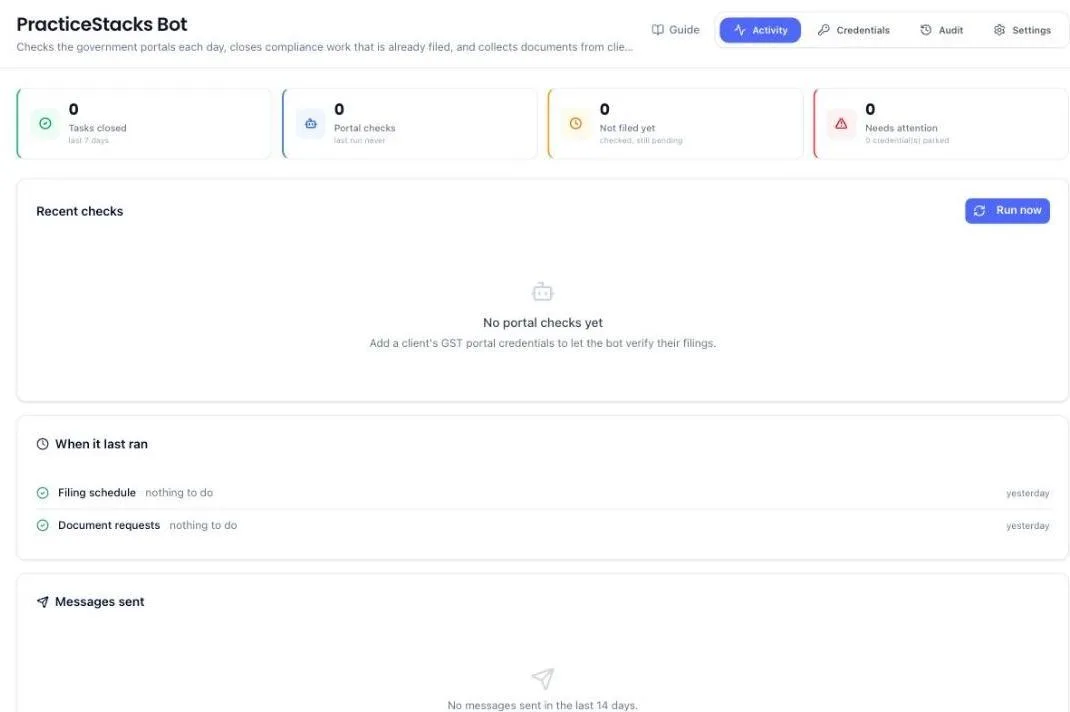
The screen is called PracticeStacks Bot, reached from Automation under Firm. It has four tabs: Activity, Credentials, Audit and Settings.
Before you start
- The module must be enabled for your firm. If Automation is not in your menu, ask your administrator.
- Compliance items with document checklists. The bot asks for what is on the checklist — an item with no checklist has nothing to collect.
- Clients with a contact and a WhatsApp number, because that is how the asking happens.
Switch it on — three switches, all off by default
Nothing reaches a client until all three are on. That is deliberate: a message sent to a client cannot be unsent.
- The module — enabled for your firm by your administrator.
- The firm mode, on the Settings tab:
- Off — nothing is sent.
- Internal only — messages meant for clients come to your own number instead, so you read exactly what a client would get. Messages to your staff still send for real, because those are what you are judging.
- Live — clients are messaged.
- Each client — turn on Auto-collect documents in the header of that client's business page. Off by default, one client at a time.
On top of those, any filing or client with reminders paused is left alone.
Set the working window
Two dates matter and they are not the same. The filing is due to the government on one date; the client's documents are due to you earlier. The gap is your working window — around ten days for a monthly GST return, considerably more for an annual audit. Set the house default on Settings, and override it on any compliance item that needs longer.
Clients are only ever shown the documents date. Showing them the filing date invites them to work to the later one.
Let the bot check the portals
- Open the Credentials tab.
- Add a client's portal login.
- The bot checks it on its daily run. Run now triggers a check immediately.
Where it finds a return already filed, it closes the matching task. What it checked and what it found is on the Activity and Audit tabs.
The GST username is the user ID created on the GST portal — not an email address, and never more than 15 characters. PracticeStacks will not save a GST login that breaks either rule and tells you why, because GST's own login page refuses such a username before the password is even tried.
The Credentials tab is your clients' own logins
There is no separate set of logins for the bot. The Credentials tab here lists the same logins saved on each client's own Credentials tab, for every client at once. A login added in either place shows in both. Click a client's name to open that client's Credentials tab.
Launch opens the portal in a new tab and the PracticeStacks Chrome extension types the saved user name and password. The button reads Launching… until the extension answers. Without the extension installed, Launch is greyed out and the tab tells you to install it. If the portal cannot be opened — for example the login has no password saved, or the extension gives no answer within 30 seconds — you are shown why, rather than a message saying it worked.
Watch a run, and stop it
A run is not quick. The bot signs in to one client at a time — a single GST sign-in with a security code takes the better part of a minute — so a firm with a long list is watching several minutes of work. While it runs, Run history shows how far it has got: Checking 126 of 368, the name of the client being signed in to at that moment, and how many have failed so far.
The Run now button becomes Stop run for as long as the run lasts, carrying the same count. Press it and you are asked to confirm, because stopping decides that the rest of your clients go unchecked today.
Stopping is safe. Everything already checked is saved — a return the bot confirmed as filed stays confirmed, and a task it closed stays closed. Nothing is undone. The clients it never reached are simply still outstanding, and the next run picks them up exactly as it would have.
It does not stop the instant you press it, and that is deliberate. The bot finishes signing in to the client it is already on, so you will see Stopping after this client for up to a minute. Abandoning a sign-in halfway can look to the government portal like a failed login attempt against your client's account, which is worth a few seconds to avoid.
Afterwards the run stays in Run history marked Stopped, with the whole count: how many were checked, how many succeeded, how many failed, and how many were never reached. Open it and it names who stopped it and at what time.
One run at a time. While a run is going, nobody at your firm can start another — not in a second tab, and not on somebody else's computer. Two at once would sign in to the same client accounts twice over, which is how a portal starts refusing you. If you reload the page mid-run, the button still reads Stop run, because the run belongs to your firm rather than to that browser tab.
A short wait after a run on our server. If your firm runs the GST check on our server, a new server run cannot start for ten minutes after the last run finished or was stopped. During that time the button is greyed out and reads Next server run in 3 min, counting down; hover over it for the reason. It turns back into Run GST checks on server by itself — there is nothing to reload. The wait is there because every run is a real sign-in to your clients' government accounts, and the clients a run could not check are the ones a quick second run would sign in to again.
Which clients get checked on a given day
Not every client, every day. A daily sign-in to all of them would be dozens of real logins into client government accounts to re-read something that changes once a month. The bot narrows it to the clients where the answer could actually have changed since it last looked: the ones with an open GSTR-1 or GSTR-3B task, whose period has already arrived — a July return cannot be filed in July, so there is nothing to see until August — and which it has not already confirmed as filed.
It also leaves a client alone for six hours after it has read that client's portal. Pressing Run twice in one morning used to sign in to the same accounts a second time to read the same "not filed yet" back. Now the second press skips them, and the daily run — which is a day apart — is never held back by this.
So a short list is usually the bot being sensible, not the bot being broken. The Next run panel, further down the Activity tab below Recent checks and Run history, says which clients the next run will sign in to, and lists every client it will skip under the reason: Checked in the last 6 hours (with when each was checked), Already filed and Login refused — and, for a firm running the check on our server, No client authorisation. Clients with nothing due yet are counted at the bottom. The panel is shown to the firm owner and administrators.
One thing worth knowing when you name your filings: the bot recognises GSTR-1 and GSTR-3B, spelt any of the usual ways. Filings it cannot read off the portal — GSTR-9, GSTR-7, LUT renewals, reconciliations — are never queued, because signing in to check them would learn nothing.
Check again before the six hours are up — Re-check all
If a client tells you they have just filed and you do not want to wait, press Re-check all in the Next run panel. The run it starts also signs in to the clients checked in the last six hours. It counts for that one run only: press Run again straight afterwards and those clients are skipped again.
Re-check all still leaves out two kinds of client. A return the portal has already confirmed as filed stays filed, so there is nothing to learn. And a login the portal refused is not tried again on demand, because repeating a wrong password is how a client's government account gets locked — fix the password on the Credentials tab and the bot picks it up by itself.
The button appears only when at least one client was checked in the last six hours and no run is going.
Which portals a login can be saved for
GST, Income Tax, TRACES, TDS e-Filing, Maharashtra Professional Tax, EPFO, ESIC, Maharashtra Labour Welfare Fund, DGFT (IEC / Foreign Trade) and ICEGATE (Customs). A client with registrations in several states can hold one login per state on the same portal.
Saving a login does two different things, depending on the portal. For the tax portals the bot uses it on its daily run. For DGFT and ICEGATE it does not: those two are there so your team can press Launch, land on the portal's login page, and have the browser extension type the client's user name and password for them. The security code on screen, and the one-time password those two portals send the client, still have to be entered by a person — which is why nothing is ever submitted for you there.
Which portals are actually checked, and how far
Saving a login and having the bot use it every day are two different things, and the Activity tab now says which is which. The panel What the bot checks, portal by portal lists every portal you hold logins for, and against each one: whether the sign-in worked, whether the filing status was read, and whether a task moved as a result.
There are three answers you will see.
- Login + filing check — GST. The bot signs in on the daily round, reads the filing table, and closes the task when the portal shows the return as filed.
- Login test only — Income Tax and TDS e-Filing. The bot signs in on the weekly round and records whether the portal accepted the password. It does not read a filing status from these portals, so nothing is closed or reopened from them — that work is marked done by your team as usual.
- Needs a person — TRACES, Maharashtra Professional Tax, EPFO, ESIC, Maharashtra Labour Welfare Fund, DGFT and ICEGATE. None of these are touched on the daily or weekly rounds. They run only when somebody at your firm presses Launch, and the browser extension then types the user name and password. On all of them but Maharashtra Labour Welfare Fund the security code on screen is yours to type, and DGFT and ICEGATE also send your client a one-time password. Nothing is ever submitted on a security code the extension had to guess at — a wrong one is a real failed sign-in against your client's government account, and enough of those lock it.
Only GST has a Run button. On Run a portal check, at the top of the Activity tab, pick any other portal and the card lists the client logins saved for it instead, each with its own Launch. Press it and the portal opens in a new tab with that client's login filled in — there is no need to open the client first. The list shows the first few logins; Show all opens the rest, and with a long list a search box lets you type the client's name. For Income Tax and TDS e-Filing the card also says when the next weekly test is due. A login the portal has already refused shows Fix password in place of Launch, which opens that client's Credentials tab.
MCA / ROC is not on that list at all. Notices are recorded against it, but there is no MCA login to save, so there is nothing for the bot to sign into.
Every line under Recent checks now names the portal it came from, so a page of GST results reads as exactly that rather than as the whole picture.
Saved passwords are never shown again
A portal password is scrambled the moment it is saved and cannot be read back — not by you, not by your administrator, not by anyone else at the firm. The Credentials tab lists the portal and the user name only. To change a password, type the new one over the top.
The weekly check on client logins
A password a client changed and forgot to tell you about is only discovered the day the bot needs it — often the morning a return is due. So once a week the bot tries every stored login it can test on its own, whether or not that client has anything due, and on Saturday night a report goes out naming the ones that were refused.
It can test GST, Income Tax and TDS e-Filing on its own, because those portals say plainly whether a sign-in worked. The rest need a person at the keyboard, so they are not part of the weekly check — the report says how many those are rather than leaving you to assume everything was tried.
Two refusals in a row and the bot sets that login aside, leaving it out of the daily round. It does this on purpose: a wrong password tried every morning is how a client's government account gets locked, and that is your relationship to repair.
A GST password that has expired counts the same as a refused one. GST lets the bot in and then stops on its Change Password screen, so no filing status can be read. The run log says the password has expired, and after two runs the login is set aside and listed with the logins that need a new password. Set a new password on the GST portal, type it on the client's Credentials tab, and the bot picks the client up again.
Setting a login aside is not permanent. It is tried again once a week, so a password that was fine all along — refused because the portal was down, or because a security code was misread twice — comes back on its own with nobody touching it. And the moment that login works anywhere, including when a member of staff presses Launch or runs a notice sync, it rejoins the daily round straight away.
What that means day to day: a client is never quietly dropped from the checks for good. The only login that stays out of the daily round is one that keeps being refused week after week — and that one is named on your Saturday report every week until somebody fixes it.
Who gets the report
- The client's relationship manager — only the clients they run, nobody else's.
- The firm owner — every refused login across the firm.
It arrives by email, with a line per client: the portal, the user name, what the portal actually said, and a link that opens that client's Credentials tab already signed in. Type the new password there and the bot picks up again on its own. A week with nothing wrong produces no email at all.
The weekly test runs in the browser extension, which means it happens when somebody at your firm has Chrome open. Nobody has to do anything — but on a week when nobody opened the browser, Saturday's report can only tell you what was known before then.
See who used a client's login — the Audit tab
Every time a stored portal password is used, and every time somebody is refused one, a line appears here. Use it when a client asks who at your firm has been into their account.
Each line shows the client, the portal, the user name, who did it, whether it succeeded, the date and time, the IP address and the browser. The Event column separates the two things that happen:
- Password read — the saved password was handed to the browser extension so it could sign in. A failed one means somebody asked for a password they were not allowed to have, or the login has no password saved.
- Portal login — what the government portal itself said when the sign-in was tried. This is where a wrong password or a rejected user name shows up.
Filter by portal, by event, by success or failure, and by date range, or search for a client, a user name or a member of staff. Excel and PDF export whatever the filters currently show, which is what to send a client who asks for a record.
A run of failed Password read lines from one person is worth a look — it means somebody keeps asking for logins belonging to clients they are not on.
The password itself never appears here. The log records that an access happened, never what was accessed with.
Read the activity log
Recent checks is the first panel on the Activity tab, right under the counters: the latest portal checks, each with what the portal said, and the Run now button in its top corner — or Run in this browser and Run on server, if your firm runs the check on our server. The only thing shown above it is the list of client logins that need a new password, because that is the one part waiting on you. Each row there names the client, the portal and user name, and — in red — the reason the portal gave, such as Invalid Password or Password Expired. The blue Update password button on the row opens that login so you can type the new password. The list shows up to seven logins; Show all opens every one of them on the Login issues tab.
The record of client messaging lives under Settings → Automation, not on this screen: when each job last ran, what it sent, what it did not send and why, documents received, and client replies. A held-back message is logged rather than dropped — an empty log would look the same as a broken robot.
Run history, on the same tab, is the record of the portal checks themselves — every run, whether it finished or was stopped, how many clients it got through, and the console output behind each one. A run somebody stopped is marked Stopped and names who stopped it.
Whose clients you see. The counters, Recent checks, the logins that need a new password and the portal-by-portal panel — and, under Settings → Automation, the messages, replies and documents received — all cover the clients you can open. A partner sees their own practice — the clients run by them or by the people who report to them — and not another partner's. Other staff see the clients they are relationship manager for or assigned to, and a refused login also shows for a client they currently have a task on, the same as on the Credentials tab. The firm owner and administrators see the whole firm.
What the system does on its own
- Creates the dated jobs. Each night it works out which filings fall due in the coming weeks and creates the job with its checklist.
- Asks the client, then chases. The first request goes out a week before documents are due, then reminders as the date approaches — each one listing only what is still missing.
- Escalates rather than nags. Past due with time still left, the relationship manager is told. Nearly out of window, the partner is told and the client is warned the filing is at risk.
- Sends at most one message per client per job per day, so a job that is both overdue and at risk does not produce two.
- Stops when satisfied. Once every required document is in, the job is marked ready, the task leaves "waiting on client", and the person doing the work is told.
- Never asks for history. Switching a client on does not generate requests for periods before you switched them on.
- Records every use of a stored password on the Audit tab, granted or refused, with who and when.
- Keeps a record of every portal run in Run history, including the ones somebody stopped part-way, with the counts and the reason.
- Refuses a second run while one is going, anywhere at the firm, so the same client account is never signed in to twice at once.
- Holds the next server run for ten minutes after one finishes or is stopped, and shows the time left on the button instead of letting the click fail.
- Leaves a client alone for six hours after reading its portal, so pressing Run again does not sign in to the same account to read the same answer. Re-check all lifts this for one run.
- Tests the client logins it can test once a week, and mails the refused ones to the client's relationship manager and the firm owner on Saturday night.
- Brings a set-aside login back by itself. One that was refused twice is retried once a week, and any successful sign-in — the daily round, a notice sync, or somebody pressing Launch — restores it to the daily round immediately.
What the client can do
The client gets a link that needs no login and opens straight onto the checklist. Under it, Also waiting for your documents lists every other filing still waiting on that client, one tap each, so they can move from one checklist to the next without going back to WhatsApp. They can also:
- Remind me later — twice at most, and never past the documents due date.
- I cannot upload — which asks why. "Already gave it to your team" asks who, and that person is asked to confirm. "Do not have it yet" snoozes. "Does not apply this month" flags it for your review rather than dropping it, because a nil return changes the filing.
What you cannot do (and what to do instead)
- You cannot switch every client on at once. It is one client at a time by design.
- You cannot read back a saved portal password. Nobody at the firm can. If the client changed it, type the new one over the old.
- You cannot make the bot check every client every day. It goes to the clients whose answer could have changed — an open GSTR-1 or GSTR-3B whose period has arrived and which is not already confirmed filed. Everything else would be a real sign-in to a client's government account to re-read something that had not moved.
- You cannot use Re-check all on a filed return or a refused login. A filed return stays filed. A refused login is fixed by typing the right password on the Credentials tab, and the bot picks it up again by itself.
- You cannot start a second run while one is going. The button offers Stop run instead, to everybody at the firm. Stop the first one if you need to start again — on our server, the next run can then start ten minutes after the stop.
- You cannot start a server run within ten minutes of the last run finishing or being stopped. The button shows how long is left. For a firm running the check on our server, Re-check all waits the same ten minutes.
- You cannot stop a run the instant you press the button. It finishes the client it is signed in to first — up to a minute — rather than abandoning a half-finished sign-in on your client's government account.
- You cannot resume a stopped run where it left off. There is nothing to resume: the clients it did not reach are still outstanding, so the next run simply picks them up.
- You cannot retry a set-aside login on demand. It comes back on its own after a week, or the moment any sign-in for that client succeeds. To bring it back now, put the correct password in and press Launch for that client.
- You cannot save an email address as a GST username. Use the user ID the client created on the GST portal — it is at most 15 characters.
- You cannot collect documents by email or WhatsApp attachment yet. Files arrive through the client portal link. A file sent another way should be uploaded by your team.
- The bot will not guess which slot a file belongs in. Where it cannot be certain it asks the client to say. A bank statement filed as a purchase register would turn the checklist green and only be found halfway through the return.
- A client cannot cancel a filing requirement. "Does not apply" flags for review; it does not remove the item.
- The bot cannot get past a captcha. Portals that demand one need a person.
- You cannot have the bot confirm a filing on a portal other than GST. GST is the only portal whose filing table PracticeStacks reads. Logins on the other portals are still worth saving — they are tested, and they save your team typing at Launch — but a task on them is closed by a person.
- A partner cannot see another partner's clients on the Activity tab. For the whole firm's picture, ask the firm owner or an administrator.
Common questions
Will this message all our clients the moment we turn it on?
No. Each client has to be switched on individually, and nothing at all is sent while the firm mode is Off or Internal only.
Where do the portal sign-ins come from — our office or your server?
Your office, unless you change it. The bot signs in through the PracticeStacks Chrome extension in your team's browser, so the government portal sees your own internet connection.
The one exception is an experimental option some firms are offered under Settings → Automation: Run the GST filing check on our server. It is off unless your firm switches it on, and it moves only the GST filing check. With it on, that check runs on PracticeStacks' secure servers instead of your team's browser. The server only signs in for clients whose authorisation is on record — the box you tick, when saving a client's first login, confirming the client has authorised you. A client without it is listed under No client authorisation in the Next run panel; open that client, save its login again and tick the box. Hand back to the browser on the same card switches the server check off at any time.
How do I see what a client would receive before going live?
Set the mode to Internal only. Client messages come to your own number, worded exactly as the client would see them.
We started a check by mistake, or it is taking too long. Can we stop it?
Yes. While it runs the button reads Stop run. Press it, confirm, and it stops after finishing the client it is on — a few seconds, not instantly, because a sign-in abandoned halfway can read to the portal as a failed login attempt on your client's account.
Nothing already done is lost. Every client checked before you stopped keeps its result and any task the bot closed stays closed. The ones it did not reach are unchanged and outstanding, and the next run takes them. The stopped run stays in Run history with the full count and the name of whoever stopped it.
Someone else at the firm is running a check and I cannot start one. Why?
Only one run happens at a time across the whole firm. Two at once would sign in to the same client accounts twice over from the same office, which is what makes a portal start refusing you. You will see their run in Run history with its progress, and you can stop it from there if it needs stopping.
The Run on server button is grey and says "Next server run in 3 min". Is it broken?
No. A run finished or was stopped a few minutes ago, and the server waits ten minutes before starting another, because each run signs in to your clients' portals for real. The button comes back on its own when the time is up.
We pressed Run a second time and it checked nobody. Is it stuck?
No. The first run read those clients' portals, so for the next six hours the bot leaves them alone — signing in again would only read the same answer back. The Next run panel shows them under Checked in the last 6 hours, with when each one was checked. If a client has just filed, press Re-check all to check them now.
We have fifty clients with GST logins but only about ten get checked. Is something broken?
Usually not. The bot only signs in where the answer could have changed: the client has an open GSTR-1 or GSTR-3B, its period has already arrived, it is not already confirmed as filed, and its portal was not read in the last six hours. On a typical day that is a handful. The Next run panel on the Activity tab lists the clients it skipped and the reason for each — that is the place to check, rather than counting the ones it did.
The two most common reasons a client is counted under nothing due yet: its GSTR-1 and GSTR-3B tasks for the month are already marked Done in PracticeStacks, so there is nothing left to confirm; or it files quarterly and the quarter is not over yet, so GST has nothing to show. A quarterly client joins the list once the quarter its return covers has ended.
Two things there are worth reading. A client under Login refused had its login refused twice; that one comes back on its own. A client you expected and cannot find at all may have its filing named something the bot does not recognise as GSTR-1 or GSTR-3B.
Every run on the server says failed. What is wrong?
Open Log on the run in Run history — each client's line ends with the reason. The usual three are all fixed on the client's Credentials tab: GST says the password is wrong (ask the client for the current one), GST says the password has expired (set a new one on the GST portal first, then save it here), or the saved username is not the GST user ID — for example an email address typed in by mistake or filled in by the browser.
We have logins saved for six portals, but the checks only ever mention GST. Is the rest broken?
No — GST is the only portal whose filing table PracticeStacks reads today, so it is the only one that can close a task on the portal's own evidence. Income Tax and TDS e-Filing logins are signed in to weekly and reported to you if refused. The rest are filled in for you when somebody presses Launch and finished by a person.
What the bot checks, portal by portal on the Activity tab says exactly this for each portal you actually use, so you can see where the bot stops rather than assuming it ran. If a portal beyond GST matters to your firm, tell us which one — adding it is work at our end, not a switch at yours.
I picked Income Tax or TRACES and there is no Run button. Is it missing?
No. Run belongs to GST alone, because GST is the only portal the bot can check from start to finish by itself. For every other portal the card lists your clients' saved logins with a Launch button on each — that is the action for those portals. Income Tax and TDS e-Filing logins are also tested for you once a week, and the card says when the next test is due.
Do we have to save a client's logins twice — once on the client and once here?
No. Automation's Credentials tab shows the logins already saved on each client's Credentials tab. Save a login once, in either place, and Launch works from both.
A client stopped being checked and we changed nothing. Why?
Their login was refused twice and was set aside, which is what stops a wrong password being tried every morning. It is retried once a week on its own, and any successful sign-in — including one of your team pressing Launch — puts it straight back into the daily round. If it keeps being refused it will be named on the Saturday report every week.
A client asked us to prove who has been into their GST account.
Open the Audit tab, filter to that client and that portal, and export to PDF. It lists every access with the staff member, the date and time, and the IP address.
Why does a staff member's line say Password read — Failed?
They asked for a login belonging to a client they are not on, or that login has no password saved. Staff only reach clients they are relationship manager for, were assigned, or currently have a task on.
As a partner my Activity tab shows fewer checks than the firm owner's. Is something missing?
No. A partner sees their own practice's clients only, so the counters and lists are smaller than the owner's whole-firm view. If a client of your practice is missing, nobody from your practice is its relationship manager or assigned to it — ask the firm owner to put someone on it and it appears straight away.
A client says they sent the documents but the checklist is still red.
Open Settings → Automation and look under documents received. Files sent outside the portal link do not land on the checklist — upload them from your side.
We got an email saying a client's portal password stopped working. What now?
Open the link in that email — it lands on the client's Credentials tab already signed in. Ask the client for the current password and type it over the old one. The bot starts using it again on its own; there is nothing to switch back on.
How do I stop everything immediately?
Settings on this screen has a stop control that halts all client reminders at once. That is separate from Stop run, which ends the portal check that is happening now and leaves the reminders alone.
More guides
Every other part of the product, the same way.