
Notices
Government notices for every client, fetched from the portals automatically, with their documents downloaded and saved under the client.
Notices collects what the government sends your clients into one list, so a notice is not discovered when the client forwards it three weeks later. GST is checked on its own, once a working day, for the clients that have something due. Income Tax, TRACES and the TDS e-Filing portal are checked when you press their Sync button. Notices from the other portals a client may be signed up to — Professional Tax, EPFO, ESIC, MLWF, DGFT and ICEGATE — sit in the same list once they reach you, and you can filter the list to any of them.
Before you start
- Notice management is a paid add-on. If Notices is not in your menu, add it from Billing & Subscription. It comes with a bundle of sync credits, and unused credits carry forward.
- Client portal credentials. Nothing can be fetched for a client whose portal login the system does not hold.
Read the list
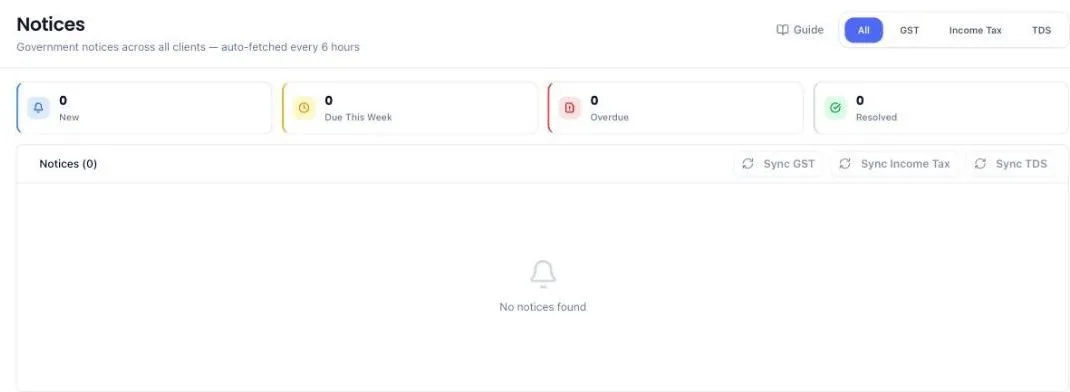
Four counters sit at the top: New, Due This Week, Overdue and Solved.
Below them the list is in two halves, Active and Solved, with the number in each on the tab itself. Active is what opens, and it holds only notices still to be dealt with — new, acknowledged, in progress and missed. Nothing you have already marked resolved appears in it, however recent it is. Solved holds those, and tapping the Solved counter takes you to the same place.
The Active list is in date order, newest notice first, so what arrived this week is at the top and a notice from four years ago is at the bottom. Urgency is not carried by the order: a notice past its due date has a red edge down the left of its row, and the Overdue counter gathers all of them in one tap. Any column header re-sorts the list if you want a different order — click Due Date to work through the oldest deadlines.
Filter by portal and by client with the two dropdowns beside the search box. Each row shows the client, the notice type, its reference and when it was issued.
The portal dropdown lists every portal, not only the ones that can be synced — GST Portal, Income Tax, TRACES, TDS (e-Filing), Maharashtra PT, EPFO, ESIC, MLWF, DGFT, ICEGATE and MCA / ROC — with the number of notices beside each. A portal you hold no notices for reads 0 and shows an empty list when you pick it, so you can tell “nothing has come in from there” apart from “that portal is not covered”. A portal added to Portal Credentials later appears in this dropdown on its own.
Source Portal names the portal the notice came from — GST Portal, Income Tax, TRACES, MCA / ROC and the rest — so you can tell at a glance which login it arrived through without opening it. A small refresh mark beside the name means we fetched it from that portal ourselves; a name with no mark was added by hand or came in by email.
The column next to it, Portal Status, is a different thing: it is the government portal's own word for the matter, such as Open or Completed, and it is empty for the portals that do not report one. Your firm's own progress is the Status column further along.
The whole page scrolls as one, the way Invoices does. The list is not a box with its own scroll bar inside the page — you scroll down and the notices keep coming until the list ends, with nothing pinned across the bottom of the screen in your way.
Click a notice and it opens in a panel over the list, with everything on it — the source portal spelled out in full, dates, both statuses, how the notice reached us, the draft response — and the button that moves it to its next state. Two lines near the bottom answer "how current is this?": First seen is when the notice turned up here, and Portal last synced is when we last reached that portal for this client. If there is no saved login for that portal it says so, rather than leaving you with a dash to puzzle over. Close the panel and you are back on the list, in the same place, ready for the next one.
The foot of the list stays quiet while you are looking at everything. Narrow the list with the search box or a filter and it tells you how many of the notices in that half you are looking at, so a filtered list never reads as the whole firm. Clear drops your filters but leaves you on the half you were reading — clearing a search does not tip years of solved notices back on top of this week's work.
Work several notices at once
Every row has a tick box, and the tick box in the header row, above the first notice, ticks everything currently on screen — if a filter is on, that is what you get, not the whole firm. It works the same way as on Businesses: tap it once to tick every notice, tap it again to untick them all. If you have ticked only some, one tap ticks the rest. Tick anything and a bar appears across the bottom of the screen saying how many are selected, with three actions beside the count. It follows you as you scroll, so you can tick a notice near the top of a long list and still act on it from wherever you have got to:
- Set status — move all of them to New, Acknowledged, In progress, Resolved or Missed in one go. Ten or fewer applies straight away; more than ten asks you to confirm first. Anything you set to Resolved leaves the Active list at once and is waiting on the Solved tab.
- Assign — put every selected notice on one person, or take the assignee off. This always asks you to confirm, because it moves work onto somebody else.
- Create tasks — raise one task per selected notice for the person you pick. Each task is named after the notice type and its reference, is filed against that client, and is due on the notice's own due date; a notice with no due date gets a week. A notice that already has a task is skipped, and the message afterwards says how many were skipped, so running the same selection twice does not double up.
Assign and Create tasks are for firm owners, administrators, partners and managers. An associate sees the count and can set status.
Clear, on that bar, drops the selection and the bar goes with it. Changing a filter, the search or the half you are reading clears it too, so an action never lands on rows you can no longer see.
See one client's notices on the client
You do not have to come to this screen to find one client's notices. Open the client from Businesses and there is a Notices tab, sitting just after Invoices, with the number of notices beside it. It lists only that client's notices, with the portal each came from, the type, the issue and due dates, and what state each one is in. One client rarely has years of them, so that tab is a single list — solved notices sit in it alongside the rest.
The reference number is not printed under every notice. A client's screen gets read over a shoulder and shared on calls, so each row carries a small Show ref link instead — click it and that row's reference appears. Searching for a reference number shows it too, on the rows that matched, so you can see what your search found. The full reference is always on the notice itself when you open it.
Click a notice's row there and the same panel opens over the client's page. You stay on the client — acknowledge it, move it on, close the panel, and the client is still in front of you. Your browser's Back button closes the panel too, so nothing takes you away from the client you are working on.
The notice's own file
Most notices come with a document attached on the portal. When you open a client's portal from the Credentials tab, those documents are downloaded in the same visit and saved against the client, so nobody has to log in to the portal a second time to read them. The File column on the client's Notices tab says where each one has got to:
- Downloaded — the document is saved here. View opens it, Save puts a copy on your computer. No portal login needed.
- Queued — the portal has a document for this notice and it will be collected the next time that client's portal is opened.
- Download failed — hover the label to read why. Retry puts it back in the queue; it is collected on the next portal visit, not the moment you click.
- No file — the portal offers no document for this notice. There is nothing to download.
These buttons act on the file only. Clicking one does not open the notice panel.
A document already saved is never fetched twice, however many times the portal is opened. A failed one is not tried again on its own either — a link the portal will not hand over does not fix itself, and retrying it on every visit would slow every visit down for nothing. Read the reason, fix what it points at if you can, then press Retry.
Fetch now
The buttons Sync GST, Sync Income Tax, Sync TRACES and Sync TDS e-Filing run a check there and then. Only GST is checked without being asked, so for the other three these buttons are the way a notice arrives — use them when a client says one has come. Sync TRACES is the TRACES portal, where Form 16 and 26AS live; Sync TDS e-Filing is the Income Tax e-filing portal signed into with the client's TAN — a different login, and a different set of notices.
A button is greyed out when no client has a saved login for that portal, and when the PracticeStacks browser extension is not installed. Hover it and it says which. There is no sync button for Professional Tax, EPFO, ESIC, MLWF, DGFT or ICEGATE: those portals will not let a check run without a person typing a code from an image, or a one-time password sent to the client, so a notice from one of them is added by hand or arrives by email. It still shows its portal on the row and can be filtered to like any other.
When a check finishes it tells you how many new notices it saved. The portal shows its whole list every time, so most checks find nothing new — that is the sync confirming the client is up to date, not a check that failed.
Work a notice to closure
- Open the notice to see what was issued and by when it must be answered. It opens wherever you clicked it — the Notices list or the client's own Notices tab — so you never have to go and find it somewhere else first.
- Acknowledge it, so the firm can see somebody has picked it up.
- Move it to in progress while the response is prepared. Raise a task if the work needs assigning.
- Mark it resolved once the response has gone. It leaves the Active list there and then, and is on the Solved tab whenever you need it again.
A notice whose deadline passed without a response is marked as missed. That state exists to be visible, not hidden, so a missed notice stays in the Active list until somebody closes it.
What the system does on its own
- Checks GST once a working day, unprompted, for the clients that have something due — no one has to open anything. The other portals are checked when somebody presses their Sync button.
- Files each notice against its client, so it is visible from the client record too.
- Records which portal each notice came from, and marks the ones it fetched itself so you can tell them from the ones somebody entered.
- Downloads the attached documents while a portal visit is signed in, and saves them under that client's Notices tab.
- Skips everything it already has. A notice seen before is refreshed, not added again, and its document is not fetched a second time.
- Keeps finished work out of the way. A notice you mark resolved moves to the Solved half by itself; nothing has to be archived or deleted by hand.
- Counts what is due and what is late, and surfaces the urgent ones on your dashboard.
- Spends a sync credit per check. The remaining balance is on Billing & Subscription.
What you cannot do (and what to do instead)
- You cannot see notices without the add-on. The module stays hidden until it is added.
- You cannot fetch for a client with no stored credentials. Add them, or record the notice by hand.
- You cannot delete a solved notice. It moves to the Solved tab and stays there as the record of what was dealt with.
- You cannot download a notice's document on demand. The portal hands the file only to a signed-in visit, so a queued or failed download waits for the next time that client's portal is opened. Open it from the client's Credentials tab and the queue clears in the same visit.
- You cannot change which portal a notice came from. It is recorded when the notice is saved and is part of the record.
- You cannot reply to the government from here. This tracks notices; the response is filed on the portal itself.
- You cannot un-miss a deadline. A missed notice stays marked missed once resolved — the record is what it is.
Common questions
A notice we solved years ago was sitting at the top of the list. Where is it now?
On the Solved tab, with everything else you have marked resolved. The main list is the work still waiting on you, newest first — an old notice that is already closed has no claim on the top of it. Nothing was deleted: tap Solved, or the Solved counter, and it is there.
I marked a notice resolved and it vanished off the screen.
That is the Active list dropping it the moment it stopped being work. It is on the Solved tab.
I want the oldest deadlines first, not the newest notices.
Click the Due Date column header and the list re-sorts by deadline. The Overdue counter is the faster route to the same thing — it gathers every notice past its date in one tap.
Which portal did this notice come from?
The Source Portal column says so on every row, and the notice panel spells the portal out in full. A refresh mark beside the name means it was fetched from that portal automatically; no mark means somebody put it here. Open the notice and Portal last synced tells you when that portal was last checked for this client.
What is the difference between Portal Status and Status?
Portal Status is the government portal's own word for the matter — Open, Completed and so on — and it is blank for the portals that do not report one. Status is your firm's progress on it: new, acknowledged, in progress, resolved, missed. The two move independently, and only the second one is yours to change.
A client received a notice that is not in the list.
Run the sync for that portal. If it still does not appear, the credentials for that client are likely stale — check them on the Automation screen. If the notice is one your firm has already closed, look on the Solved tab. If it came from Professional Tax, EPFO, ESIC, MLWF, DGFT or ICEGATE there is no sync to run — those portals cannot be checked without a person at the keyboard, so add the notice by hand.
The notice is listed but its document says Queued.
Open that client's portal from their Credentials tab. The document is collected during that visit and the row changes to Downloaded.
I ticked notices and then changed a filter. Where did my selection go?
It was dropped on purpose. A selection made under one filter would otherwise still be sitting there when the rows changed, and the next action would land on notices you can no longer see. Tick again once the list shows what you want.
I raised tasks for the same notices twice. Are there two tasks each?
No. A notice that already has a task is skipped, and the message tells you how many were skipped for that reason.
Where has the reference number on the client's Notices tab gone?
It is behind the Show ref link on each row. Click it to read that notice's reference, or open the notice and the reference is on the panel. Nothing has been removed — it is only folded away so a client's identifiers are not sitting open on a screen anyone can glance at.
I opened the portal twice. Did it collect everything twice?
No. Every notice is matched on its reference number, so a second visit updates what is already here rather than adding it again, and a document already saved is left alone. The only things collected on a second visit are notices you had not seen and documents still marked Queued.
Does opening a notice from a client take me away from that client?
No. A notice opened from a client's Notices tab opens over the client's own page, and closing the panel leaves you on the client, on the same tab.
What is a sync credit?
One portal check. The add-on includes a yearly bundle and anything unused carries forward.
Can I get an alert when a notice arrives?
New notices appear in Needs attention on your dashboard as soon as they are fetched.
More guides
Every other part of the product, the same way.