
Proposals
Build a proposal from your service list, send it for the client to approve online, and price extra work afterwards without reopening the signed document.
A proposal is the formal offer you put to a client: the services, the prices, the terms and the scope. The client opens it on a link, reads it, and approves or declines online. Once approved it becomes the signed record everything else works from — onboarding, invoicing and compliance all start here.
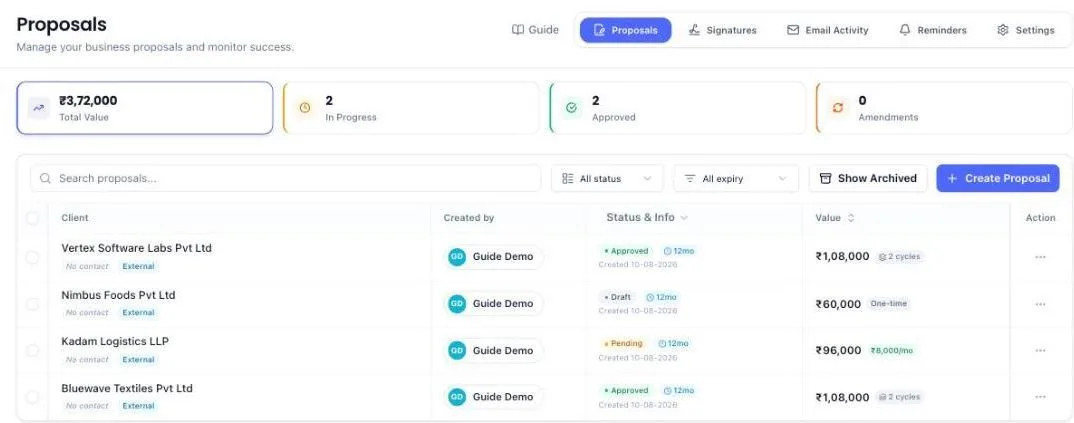
The app walks you through both the list and the creation screen the first time you open them.
Before you start
- Your firm profile must be complete. Open a new proposal without one and the screen says Setup Required. The profile supplies your name, logo and signature on the document.
- The client must exist as a business. A contact person is optional, and so is an email address — a client you only reach on WhatsApp can still be sent a proposal.
- At least one service or package must be priced. No services yet? The builder shows Import standard services where the list would be — tick the common CA and CS services you offer, type a fee beside each, and import them. You stay on the same proposal and the services appear in the list straight away.
- Give the client a relationship manager. When the proposal is accepted the work is created and handed to that person. A client with nobody assigned gets no work until you set one.
Create a proposal
The builder runs in three steps, shown across the top: Client & services, Scope & terms, then Review & send. A step you have finished turns green and you can click it to go back. Steps you have not reached yet stay greyed out until the one before them is done.
Step 1 — Client & services
- Open Proposals from the left menu and click Create Proposal, top right.
- Along the top is a Start from row. Leave it on Blank to build from scratch, or use one of the shortcuts described below.
- Pick the client business, then the contact it is addressed to. Under each you will see who you have actually picked — the client's GSTIN and address, and the contact's email and phone — so two clients with similar names cannot be confused.
- Set the engagement term, how long the quote stays valid, and the currency. Currency locks itself to whatever your chosen services are priced in.
- Tick the services and packages you are offering. The list on the left holds every category with a count beside it, so you can narrow a long catalogue by clicking a category, or type in the search box above it.
- Star the ones you quote every week. Hover a line and click the star on the right. Starred lines are gathered into a Favourites group at the top of the list, and a Favourites row appears in the category list so you can see only those. Stars belong to the firm, so what you star your colleagues see too. Click the star again to remove it.
- Prices come from your catalogue. Change any of them in the Order Summary on the right if this client is agreed at a different figure, or click the ✕ beside a line to take it off the proposal.
- The summary keeps recurring fees and one-time fees apart, and shows the full contract value underneath.
Step 2 — Scope & terms
- Give the proposal a title the client will recognise.
- Check the scope of work. It is written for you from the services you picked; edit it freely, or use Generate with AI for another version.
- Decide whether the client must sign. Turn this on and the client confirms with a four-digit code sent to them, and the signature is recorded against the proposal.
- Decide whether your firm profile travels with the email.
Step 3 — Review & send
The last step lays the whole proposal out on one screen before anything is created: who it is for, what the client will read, what work it will start, and what it is worth. Each block has an Edit link that takes you straight back to the step that owns it.
When it is right, click Create draft. The draft is saved and the preview opens — nothing reaches the client until you press Send there. An internal proposal is recorded straight away instead.
Which firm the proposal is from
The first field in Client & Proposal Details is Proposal from — the firm the client signs with. It starts on the firm you are working in, then the client's own firm, then your default firm, and keeps following the client until you pick one yourself. Choose + Add a firm in the list to add another office or company without leaving the proposal.
- A title the system writes for you, and the scope written with AI, use the chosen firm's name. A title you typed yourself is never changed.
- A firm without a GSTIN quotes the fee without GST.
- Every invoice the accepted proposal schedules is billed from the same firm.
- When the client signs, a client with no firm yet is put on this one, so later invoices and proposals start from it too.
A proposal from a separate company prints that company's own logo, colours and signatures, starts with its own cover letter and terms if you set them, and never attaches your firm's brochure. A proposal from an office of your firm prints your firm's letterhead.
Start from something you already have
Most firms sell the same few bundles over and over. The Start from row at the top of step 1 saves you rebuilding them.
- Save a bundle you use often. Tick the services you want, then click Save these … as a preset and give it a name. It becomes a button in the Start from row — for everyone in your firm, not just you. One click puts the whole bundle, its prices and the contract term back. Hover a preset and a bin icon appears to remove it.
- Copy a past proposal. Click it, search by client or title, and pick one. The services, prices, term, scope and terms come across; the client, the contact and the expiry date are deliberately left blank, because you are quoting somebody new. The proposal you copied from is not touched in any way.
If a service in a preset has since been removed from your catalogue, it is left out and you are told how many were dropped, rather than the proposal quietly going out a line short.
What this creates — checking before you send
The Review & send step shows what the work will look like once the client says yes. It is worth ten seconds, because it is the only point where a mistake is still cheap to fix. It gives three answers:
- Tasks as soon as it is accepted. One-off work — a GST registration, a PAN application, a Shop Act certificate. These happen once, so a task is created for each the moment the proposal is accepted.
- Recurring, with a task before every due date. Monthly and quarterly work — GST returns, TDS returns, professional tax. These are not created up front. Each period's task appears about a week before that period's due date, and keeps doing so for as long as the client is with you.
- Will never raise a task. A recurring service with no compliance behind it. There is no filing calendar to work from, so nothing can schedule it. Map it to a compliance under Services, or plan to raise that work by hand.
Packages are opened up here. A package is a price, not a job — the services inside it are what your team actually does, so that is what the summary counts.
Send it to the client
- Open the proposal and choose to send it.
- Confirm the recipient. It is emailed to the client's email address, and messaged on WhatsApp to the contact's and the business's phone numbers. A client with no email on their profile gets it on WhatsApp alone.
- The status changes to show it is with the client.
The client does not need an account. The link opens the proposal directly.
Would rather send it yourself? Tap PDF on the preview to download it and share it however you like.
See what the client did
The list shows whether a proposal has been opened and when it was last viewed. The Email Activity tab shows what was sent and delivered; Signatures holds the signed copies.
Find the proposals about to run out
Two different clocks run on a proposal, and the Expiry filter above the list covers both.
- A proposal nobody has signed yet — a draft, or one sitting with the client — is measured against the Valid Until date you set when you built it. That is the last day the client can accept. Its row shows Offer Expiring Soon, or Offer Expired once the day has gone.
- A proposal the client has approved is measured against the end of the engagement — the signing date plus the term you agreed, or the end date you typed in yourself. Its row shows Expiring Soon or Expired.
Set the filter to Expiring in 30 days to see everything running out within the month, Expired for what has already lapsed, or Not expiring soon for the rest. Every row carries its own date after the created or signed date, so you can read the deadline without opening anything.
Once the Valid Until day has passed, the client can no longer accept or sign. Their link still opens the proposal, but the Agree & Accept Proposal button is replaced by a note saying the proposal has expired and asking them to contact you. They can still request changes or decline. You cannot send or remind them about it either until you give it a new date.
A lapsed offer is not lost. Click ⋯ on its row and choose Extend by 15 days. The client's existing link works again straight away, so nothing has to be re-sent — use Notify Client if you want to remind them. For a different date, open Edit Proposal and change Valid Until.
When the client responds
- Approved — it becomes the signed agreement. The work starts straight away, the first invoice is created, ready to send, and onboarding can begin.
- Declined — the reason they gave is recorded on the proposal.
- Changes requested — they want something different before they will sign.
The work an accepted proposal starts
Nothing is created while the proposal is a draft or still sitting with the client. Acceptance is the trigger, and it starts three things: one-off tasks, recurring filings, and the first invoice. Open the accepted proposal and the After acceptance card near the top has one row for each, with a count of how many need your attention.
One-off work becomes a task now
Registrations and other once-only jobs get a task each, given to the client's relationship manager and dated a week ahead. The Tasks row reads, for example, 3 tasks generated, listing each one with who has it and when it is due. Click any of them to open it, or View in Tasks to see all of this client's proposal work together. They are ordinary tasks from that point — move the dates, reassign, add notes.
Recurring work goes on the compliance calendar
Monthly and quarterly services are not turned into a task at acceptance. Instead the client is put on the calendar for each compliance behind them, and the task for each period appears about a week before that period's due date, assigned automatically. The Recurring row lists these, with the next date for each.
This is deliberate: a single "GST Filing" task at signing would sit on the board with no real deadline while twelve monthly filings came and went beside it.
If something is missing
The Tasks row says so, in place of the count — 0 of 3 tasks generated, with the reason. Nearly always the client has no relationship manager, so there is nobody to give the work to. Set one on the client's page, come back and click Generate tasks.
Pressing Generate tasks is safe at any time. It only fills in what is missing, so a task you already have is never created twice.
The Recurring row also repeats the warning from the builder: any recurring service with no compliance mapped is named there, with a Map in Services button, because nothing will ever raise that work on its own.
The invoice an accepted proposal starts
Acceptance also raises the first bill. The moment the client approves, the first invoice is created for that client, holding every one-time fee on the proposal and the first month or quarter of each recurring fee. You do not have to complete the onboarding for this to happen.
The Invoice row of the After acceptance card reads First invoice ready to send with the amount. The client already agreed the price by signing, so it skips the approval steps and waits in the Billing queue under Ready to invoice. Click Review invoice to open it, check the lines, and choose Send — nothing reaches the client until you do. The later months or quarters are scheduled when you complete the onboarding.
If the invoice is missing
The Invoice row reads Invoice not created and says nothing will bill this client yet. Click Create invoice. Pressing it twice is safe: a proposal only ever has one first invoice. Proposals accepted before this existed show the same message, so you can raise their draft the same way.
Several at once
When any accepted proposal has no invoice, a line above the Proposals list says how many, for example 3 accepted proposals are not invoiced yet, and each of those rows carries a Not invoiced tag. Click Create 3 invoices to raise all of them in one go. A row whose first invoice is still waiting for you reads Ready to invoice (or Invoice draft for an internal proposal).
When you complete the onboarding afterwards
Onboarding sets the billing dates and builds the full invoice schedule. A first invoice you have not sent is replaced by that schedule, so the client is not billed for the first period twice. One you already sent stays as it is, and the schedule leaves out what it billed. The onboarding's Invoicing step tells you which of the two will happen. The Invoice row then reads Billing schedule set with the number of invoices.
Add work to a proposal the client already signed
A signed proposal is not edited. Extra work is priced as an amendment, which the client approves separately.
- Open the approved proposal and go to its amendments.
- Add the services or packages being added. Prices default from your catalogue; override where agreed.
- Save it as a draft. Nothing has reached the client yet — stage everything in one amendment so the client gets one message rather than three.
- Send it. The client sees only the change and what it adds to the total.
- On approval the services join the proposal, the value updates, and the amounts are added to invoicing.
What the system does on its own
- Reminders while a proposal sits unanswered. A daily reminder goes to the client, so nobody has to remember to chase.
- Your brochure travels with it. Proposal emails and their reminders carry your firm brochure.
- Acceptance creates the one-off work. A task per one-off service, given to the client's relationship manager, due a week out, and they are told about it.
- Acceptance starts the recurring work. The client is put on the calendar for each compliance behind the recurring services, and each period's task arrives about a week before its due date from then on.
- Acceptance raises the first invoice. One-time fees plus the first period of each recurring fee, ready for you to check and send. If it could not be created, the firm owner and the client's relationship manager are told, and the proposal shows Invoice not created with a button to create it.
- Signed work is not billed twice. Work created this way for a client who has been onboarded is marked as already covered by that client's invoice schedule.
- Signing is recorded. Where a signature was required, the confirmation is stored with the time it happened as evidence of consent.
- An approved amendment updates the invoices that have not gone out. Invoices already sent to the client are never touched.
- A foreign-currency proposal keeps the rate it was quoted at. The exchange rate to rupees is saved on the proposal the day it is created, and never changed afterwards, so your pipeline figure does not move because a currency market did.
What you cannot do (and what to do instead)
- You cannot edit an approved proposal. It is what the client signed. Raise an amendment for the change.
- You cannot delete a proposal once it has been sent. The client holds the link. Have them decline it, or let it expire, then archive it.
- A client cannot accept a proposal after its Valid Until date. The old price is no longer on offer. Click ⋯ → Extend by 15 days on its row, or change Valid Until on the proposal, and the same link works again.
- You cannot edit an amendment after sending it. The client is looking at that figure. Cancel it and raise a new one — both stay on the record, which is the point.
- You cannot send a cancelled amendment. Raise a fresh one.
- You cannot empty an amendment. Keep at least one item, or cancel it.
- You cannot send a proposal to a client with no email and no phone number. There is nowhere to send it, so it stays a draft and the screen tells you so. Add either one to the client's profile, or tap PDF on the preview and share the file yourself.
- You cannot skip ahead in the builder. A step you have not reached yet is greyed out, because it reads values the step before it has not written. Finish the step you are on, or click a finished one to go back.
- You cannot give two presets the same name. Names are how you tell them apart in the Start from row, so pick another one.
- You cannot generate work for a proposal the client has not accepted. Acceptance is the trigger, so a draft or a proposal still with the client puts nothing on anyone's board.
- You cannot raise the first invoice for a proposal the client has not accepted. Acceptance is the trigger. A proposal with no priced services raises none either — there is nothing to bill.
- You cannot get a task out of a recurring service with no compliance mapped. There is no filing calendar to build one from. Map it under Services, or raise that work by hand.
- You cannot price one proposal in two currencies. Every line on a proposal is in the same currency, taken from the services you put on it.
- An internal proposal has no client to approve it. Proposals kept for your own records carry no approval, no signing code and no amendment flow — edit them directly. Their work starts as soon as the proposal is saved, and their first invoice starts as a draft, since no client agreed the price.
Common questions
I have no services yet. Do I have to leave the proposal to add them?
No. When the service list is empty, click Import standard services in the middle of it. Tick the services you offer from the standard CA and CS list, type a fee beside each, and click Import. The panel closes, the services are in the list, and everything you had filled in on the proposal is still there. The button is shown only to people allowed to add services.
My client has no email. Can I still make a proposal?
Yes. The draft saves without one. When you press Send it goes out on WhatsApp to the client's phone number instead, or you can download the PDF from the preview and share it yourself.
Why does Total Value read ₹77.87L instead of the full amount?
The cards at the top of the Proposals list shorten large figures so they fit — thousands as k, lakh as L, crore as cr. Nothing is rounded away: hover the figure and the exact amount, ₹77,87,000, appears above it. The Value column in the list underneath always shows amounts in full.
My proposals are in more than one currency. What does Total Value show?
One rupee figure covering all of them. Each proposal is converted at the exchange rate saved on it the day it was created, so the total is a number you can actually use — and one that does not move under you when rates change.
Hover it to see the working: each currency on its own line, the rate it was converted at, and the total underneath. Nothing is converted out of your sight.
A proposal with no saved rate is left out of the total rather than guessed at, and the card names its currency next to the words Total Value so you know the figure is short. That only happens on proposals created before rates were recorded — ask your administrator to fill them in.
Does sorting by Value understand different currencies?
Yes. Click the Value column heading and proposals are ordered by what they are worth in rupees, so a $2,000 proposal ranks above a ₹1,00,000 one instead of below it. Any proposal with no saved exchange rate collects at the end.
Can I get my proposals into a spreadsheet?
Yes. Export, at the top of the list, downloads the proposals as a CSV file you can open in Excel. Currency is kept in full: the amount, the currency code, the exchange rate saved against that proposal and the rupee value it produces each get their own column, so you can total the file yourself and reach the same figure the card shows. If you bill under more than one firm, two more columns say which firm each proposal is from and the GSTIN it quotes under, so you can split your pipeline by firm. You get whichever list you are looking at — turn on Show Archived first and the file holds the archived ones instead.
Which of my quotes are about to lapse?
Set the Expiry filter above the list to Expiring in 30 days. It shows unsigned quotes coming up to their Valid Until date alongside signed engagements coming up to their end date, and each row says which of the two it is.
How do I delete a proposal?
Only a draft can be deleted. Once it has been sent, the client has it — reject it and archive it instead.
The client says the link does not work.
If the link opens but there is no Accept button, the proposal has expired. Click ⋯ → Extend by 15 days on its row and the same link works again.
The client wants a lower price after signing.
Raise an amendment with the service at the new price. The change is priced as the difference, and the client approves it.
The client approved. Where is the invoice?
Open the proposal. The Invoice row of the After acceptance card shows First invoice ready to send with a Review invoice button, or Invoice not created with a button to create it. It is also in the Billing queue under Ready to invoice.
Why does the first invoice only show one month of a monthly service?
It is the first bill, not the whole contract. The later months are scheduled when you complete the onboarding and choose the billing dates.
The client approved but I only see a few tasks.
That is expected. Only one-off work becomes a task at acceptance. Recurring work is on the compliance calendar and arrives a week before each due date — the Recurring row on the proposal lists it, with the next date for each.
The client approved but nothing appeared at all.
Open the proposal. The After acceptance card near the top tells you how many tasks were created and, if none were, why. Nearly always the client has no relationship manager — set one, then click Generate tasks.
Will clicking Generate tasks give me duplicates?
No. It only creates what is missing, so you can press it as often as you like.
A service of mine says it will never raise a task. Why?
It is marked as recurring but has no compliance mapped to it, so there is no due date anywhere to work from. Open it under Services and map it to the compliance it delivers. Until then, that work has to be raised by hand.
Can I still add tasks myself?
Yes. Automatic work does not replace your own — create tasks for anything outside the proposal exactly as before.
Can I mark the services I quote most often?
Yes. Hover a service or package in the builder and click the star beside its price. It moves to a Favourites group at the top of the list and adds a Favourites row to the categories on the left, so your usual four are the first thing on screen instead of something to hunt for. Favourites are shared across your firm — one list, not one per person — and clicking the star again removes it.
Can I reuse a proposal?
Three ways, and they solve different halves of the problem. Proposal templates keep your standard cover letter, scope and terms, so the wording is never written twice. A preset keeps a set of services and their prices, so the pricing is never rebuilt. Copy a past proposal brings both across from one you have already sent.
Someone else in my firm saved a preset. Can I use it?
Yes. Presets belong to the firm, not to the person who saved one, so anyone raising a proposal sees the same list.
Does copying a proposal change the original?
No. The proposal you copy from is untouched — it keeps its status, its client and its link. Copying is not the same as renewing.
I clicked a preset and got fewer services than I saved.
One of the services in it has been removed from your catalogue since, so it cannot be priced. The screen tells you how many were left out; add a replacement service by hand, then save the preset again under a new name.
A price on my proposal looks wrong — ₹4,94,000 tagged as monthly.
That figure comes from your own service catalogue, not from the proposal. Click the pencil beside the line in the builder to open that service and correct its rate or its billing cycle. The correction applies to every proposal you raise from then on.
More guides
Every other part of the product, the same way.